
A reliable Valorant high ping fix starts with turning on Network RTT, Network RTT Jitter, and Network RTT + Processing Delays under Settings > Video > Stats. Check Riot service status and your selected Play-screen server pod first, then compare one match on a direct Ethernet cable, pause household downloads and uploads to rule out router bufferbloat, and keep Network Buffering at Minimum unless your line has unstable arrival timing. Test a gaming route tool only when local hops stay clean and only your ISP path to Riot is delayed.
Instability indicator settings, Settings > Video > Stats telemetry graphs, Network Buffering behavior, and the 20 to 30 ms Network RTT + Processing Delays baseline were checked against official Valorant Gameplay Consistency and Instability Basics documentation. Riot service status and connection troubleshooting steps were checked against Riot Games Support, and Windows pathping usage was checked against Microsoft Learn.
IN THIS GUIDE
A real Valorant high ping fix starts by reading what the client measures, not pasting console tweaks or editing Windows registry keys. Valorant runs on 128-tick servers where delayed packets, arrival jitter, and server move buffering all feel like late hit registration or heavy peeker’s advantage.
Your internet plan can advertise 500 Mbps download speed while Valorant still spikes from 22 ms to 140 ms every third round. Bandwidth measures how much data fits through the pipe at once, while round-trip time measures how many milliseconds each UDP packet takes to reach Riot’s server and return. Use the test order below to isolate the exact layer adding delay.
Read Valorant Network RTT, Jitter, and Processing Delays first
Before touching router menus or Windows adapters, enable Valorant’s built-in telemetry so you can see whether the delay is travel time, unstable arrival timing, or move buffering:
- Open Settings > General > Other and set Instability Indicators to On so top-right icons appear when High Average Ping, Network Problem, Low Client FPS, or Low Server FPS cross Riot’s warning or critical thresholds.
- Open Settings > Video > Stats and enable Network Round Trip Time, Network RTT Jitter, Network RTT + Processing Delays, and Packet Loss as Both (text and graph).
- Load into the Practice Range or Swiftplay and watch how the three latency numbers behave together during a spike.
Riot’s Gameplay Technology notes explain why these three graphs point to different causes:
- Steady high Network RTT with low jitter: Your baseline sits at 85 ms to 130 ms and barely moves. That points to a distant Riot server pod on the Play screen or a detoured ISP route.
- Spiking Network RTT Jitter: Average ping looks normal, but Network RTT Jitter jumps from 1 ms to 35 ms+ between packets. That points first to Wi-Fi contention or a download saturating your router queue.
- High Network RTT + Processing Delays: Riot notes that when networking and frame rate are healthy, Network RTT + Processing Delays sits roughly 20 to 30 ms higher than raw Network RTT. If that gap balloons after alt-tabbing, frame drops, or a burst of jitter, the server is buffering moves to avoid movement corrections, making the match feel much higher ping than the scoreboard shows.
If the Packet Loss graph climbs above 0% while your agent rubberbands, use our Valorant packet loss fix guide first so you do not chase latency settings for dropped packets.
Check Riot service status and your selected server pod
Before blaming your PC, check Riot Games Service Status for your region. When Riot Direct or a datacenter has an active incident, local changes will not help.
Next, open the Play screen in Valorant and click the Server icon above the queue card. Check the live millisecond readout next to each regional pod:
- Uncheck distant pods: Leaving four or five servers checked lets matchmaking place you on a farther pod to shorten queue time, raising match ping by 30 ms to 60 ms.
- Check party leader region: Valorant queues inside the party leader’s region and pod list. Queuing across coasts or countries forces someone onto a long physical path.
- Compare lobby ping vs match ping: If the Play screen shows 24 ms to your closest pod but matches on that pod land at 95 ms, your ISP may route certain server IP blocks over an indirect path. Compare our high ping in one game only diagnostic to verify whether the detour is specific to Riot.
Plug into Ethernet and set Network Buffering to Minimum
Riot’s connection troubleshooting guide puts switching from wireless to a wired Ethernet connection first because Wi-Fi shares radio airtime with nearby phones, TVs, and apartment routers. Even a strong 5 GHz signal can pause packets for 20 ms to 100 ms when another radio transmits on the same channel.
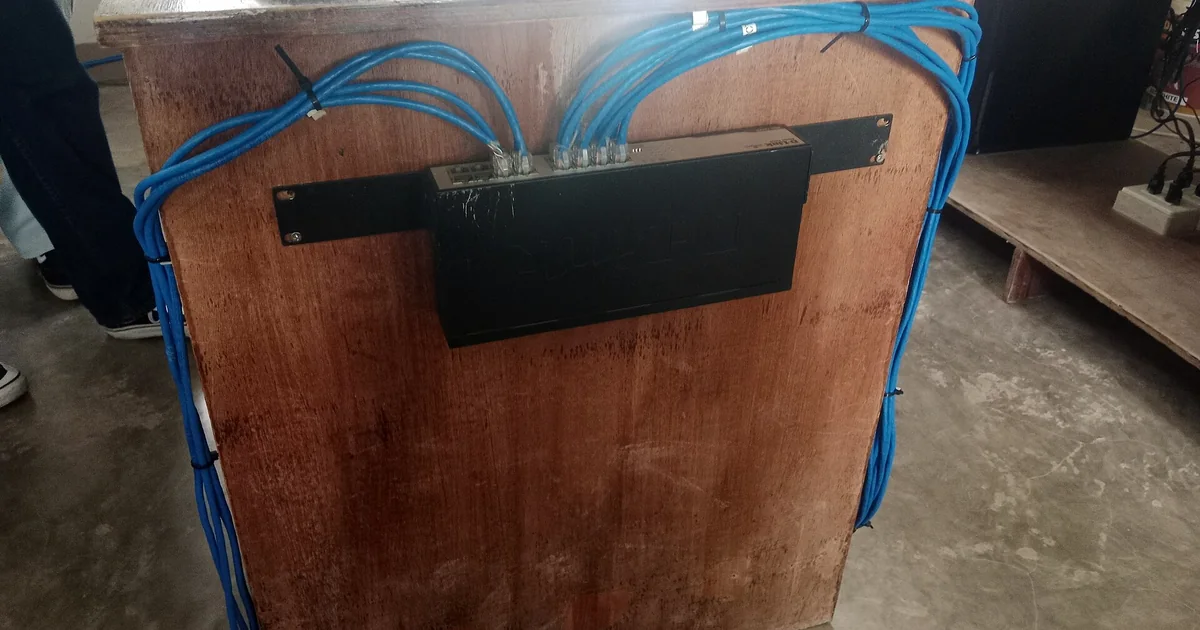
Play one match with an Ethernet cable plugged directly from your PC or console into your main router, bypassing mesh satellites and powerline adapters. If Network RTT Jitter drops to near 1 ms on the cable, the wireless hop was the problem. For a full comparison, see our high ping on Wi-Fi but not Ethernet guide.
While testing on a wired link, check Settings > General > Other > Network Buffering:
- Minimum (default): Keeps input and move buffering as low as possible for responsive gunfights.
- Moderate or Maximum: Riot designed these settings to smooth choppy connections by holding packets in a buffer slightly longer. Leaving Network Buffering above Minimum on a clean connection adds delay to every peek.
Stop household bufferbloat and background transfers
When Valorant ping stays low in the afternoon and spikes every evening, or jumps whenever someone streams 4K video, backs up photos, or downloads a game update, your router queue is saturating. Small Valorant UDP packets wait behind bulk TCP streams in the router buffer.
Test for loaded latency in two minutes:
- Watch your Network RTT and Network RTT Jitter graphs in the Practice Range with all household devices idle.
- Start a large download or 4K stream on a second device, then test a cloud upload or video call.
- Pause Riot Client patching, Steam downloads, cloud sync, and Discord screen sharing on your PC.
If ping climbs by 25 ms or more under load, enable Smart Queue Management (SQM) or bandwidth limits on your router and cap download and upload rates slightly below your line speed. See our ping spikes when downloading guide for the full queue-control test.
Compare Hop 1 and upstream ISP hops before testing a route tool
Forum guides often claim that changing DNS to 1.1.1.1 or 8.8.8.8 or forwarding ports will lower Valorant ping. Riot Support documents public DNS and port rules for launcher login errors, voice chat issues, or firewall blocks, not for shortening live match routes. Once a match starts, Valorant sends UDP packets directly to the game server IP without querying DNS.
To check whether delay starts inside your home or on your ISP’s network, open Windows Command Prompt and run pathping:
pathping /n 1.1.1.1Microsoft Learn notes that pathping traces each hop and sends 100 timed queries per router. Check Hop 1 (your home router): on Ethernet it should sit near 0 ms to 1 ms with 0% loss. If Hop 1 stays clean while latency jumps on Hop 2 or a later exchange, your local setup is fine and the delay is upstream.
Riot Support advises turning off VPNs and proxies during baseline troubleshooting because tunneling through a distant server can add latency or connection errors. A gaming route tool only makes sense after Ethernet, Minimum buffering, and quiet household traffic are verified, and only when your ISP’s direct route to a nearby Riot server is detoured. Read our does a VPN lower ping guide for how to run a fair direct-versus-tunnel test. LagZero is pre-launch, so if your local network is clean and you want updates when route testing opens, join the LagZero waitlist.
FAQ
Why is my Valorant ping so high when my internet speed is fast?
Speed tests measure bulk capacity to a nearby test server, while Valorant ping measures round-trip travel and queuing time in milliseconds to a Riot server. A fast plan can still have high ping if you queue on a distant pod, play over busy Wi-Fi, leave Network Buffering above Minimum, or hit router bufferbloat during downloads.
How do I show ping and network jitter graphs in Valorant?
Open Settings > Video > Stats and set Network Round Trip Time, Network RTT Jitter, Network RTT + Processing Delays, and Packet Loss to Both. Also open Settings > General > Other and enable Instability Indicators so warning icons appear when ping or jitter crosses Riot’s thresholds.
What should Network RTT + Processing Delays look like in Valorant?
Riot’s Gameplay Consistency documentation states that a healthy Network RTT + Processing Delays readout sits roughly 20 to 30 ms above raw Network RTT. If the gap grows much larger, frame drops or bursts of jitter are forcing the server to buffer moves, making inputs feel delayed.
Does changing DNS to 1.1.1.1 or 8.8.8.8 lower ping in Valorant?
Usually no. Riot Support recommends public DNS when your ISP’s resolver fails to reach the launcher, patch servers, or voice chat. Once a match starts, your client talks directly to the game server IP, so DNS does not shorten the packet path.
Can a VPN fix high ping on my closest Valorant server?
Only when your ISP routes traffic to that Riot datacenter through an indirect or congested peering path and a nearby tunnel endpoint uses a shorter route. A VPN cannot fix Wi-Fi interference, router bufferbloat, high Network Buffering settings, or physical distance.
Sources
- VALORANT: Game and Network Instability Basics
- VALORANT: Gameplay Consistency Update
- VALORANT: Gameplay Consistency Update 2
- Riot Games Support: VALORANT Connection Troubleshooting Guide
- Microsoft Learn: pathping command reference
IMAGE CREDITS Dual monitor setup in a gaming room with keyboard and mouse in focus.jpg by Shixart1985 (CC BY 2.0); cropped and color-graded by LagZero. · Network Device (Switch).jpg by JBequio (CC BY 4.0); cropped and color-graded by LagZero.