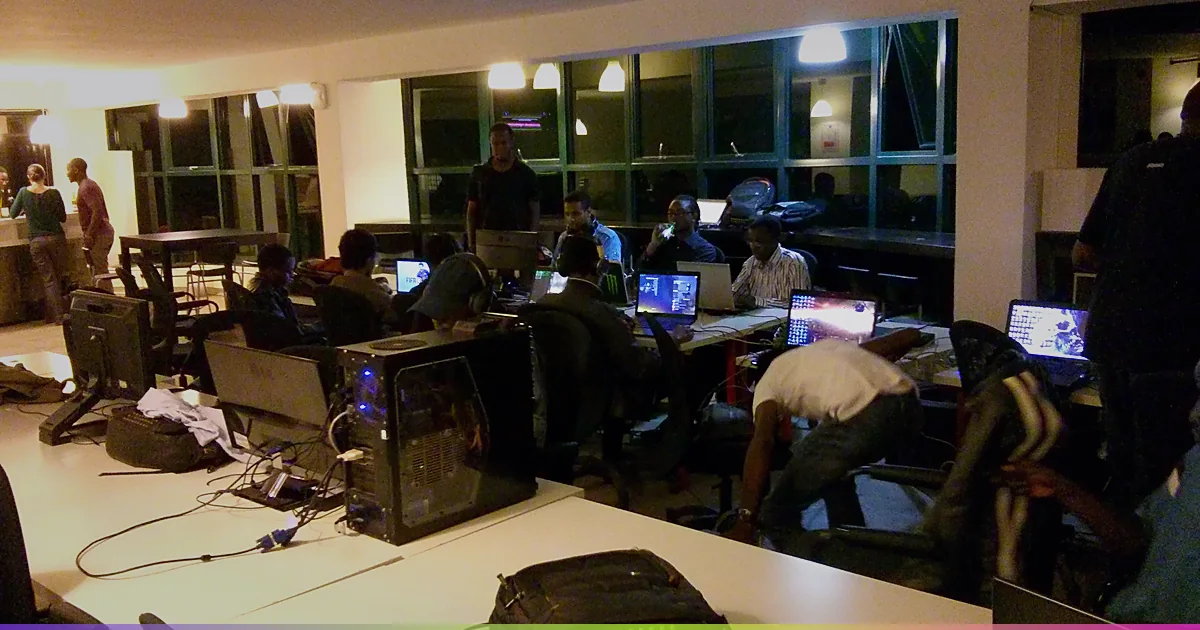
An effective Apex Legends high ping fix starts with turning on the in-game Performance Display and checking whether your ping is steady from the dropship or spiking mid-fight. Verify your splash-screen Data Center before queueing, compare one match on a direct Ethernet cable against Wi-Fi, pause background uploads and game updates that trigger router bufferbloat, and run a hop-by-hop route test before changing DNS settings or testing a gaming VPN.
Apex Legends Performance Display metrics, splash-screen Data Center selection, and connection warning icons were checked against current EA Help documentation. Idle versus loaded latency behavior was checked against Cloudflare Speed documentation, and Windows ping and pathping usage were checked against Microsoft Learn.
IN THIS GUIDE
- Turn on Performance Display and read Ping, Loss, and Choke
- Check your splash-screen Data Center and party region
- Compare a direct Ethernet cable against Wi-Fi
- Stop background uploads, patches, and router bufferbloat
- Test your router hop vs your ISP route on PC
- When a gaming VPN can help (and when it cannot)
- FAQ
- Sources
Finding a real Apex Legends high ping fix means checking what your packets are doing before you paste random launch commands or type a new DNS address into Windows. Browser speed tests only measure how fast bulk data downloads from a nearby test server. Apex Legends cares about how quickly small UDP packets make the round trip between your PC or console and the match server every fraction of a second.
When those packets wait for wireless airtime, sit behind a cloud backup in your router queue, or land on a distant regional server instance, your millisecond counter climbs and doors open late. Work through the checks below in order so you isolate one layer at a time.
Turn on Performance Display and read Ping, Loss, and Choke
Before changing any network setting, enable the built-in telemetry so you can separate pure latency from packet drops or server stalls. Open Settings > Gameplay > Performance Display and toggle it On.
Watch four numbers in the Firing Range or a live match:
- Ping: Round-trip delivery time in milliseconds between your device and the current match server.
- Loss (In/Out): The percentage of packets that never arrived from the server or never reached the server from your client.
- Choke: Packets held back because the connection or server could not send them on schedule.
- FPS: Local frame rate, which separates rendering hitches from network delay.
| What the Performance Display shows | What it usually means | First check to run |
|---|---|---|
Steady high ping (90 ms to 160 ms) with 0% Loss and 0% Choke |
Distant match server, wrong Data Center, party leader region, or an indirect ISP route | Verify your splash-screen Data Center and party host region |
| Sudden ping spikes (30 ms jumping to 180 ms) every few seconds | Wi-Fi contention, background uploads or downloads, or router bufferbloat | Test on a direct Ethernet cable with household transfers paused |
| Normal ping with non-zero Loss or Choke and rubberbanding | Dropped or delayed packets rather than travel distance | Follow our packet-loss isolation workflow |
| High ping in one lobby, normal ping in the next | Matchmaking placed that game on a different regional server instance | Compare three solo-queue matches before changing settings |
EA Help also documents four red connection icons in the upper-right corner: Latency (speedometer icon), Packet Loss (staggered squares), Congestion (dotted lines), and Prediction Error (broken line). If ping stays low while Loss or Choke climbs, use our Apex Legends packet loss fix guide.
Check your splash-screen Data Center and party region
A common cause of Apex Legends high ping all of a sudden is landing on a distant server pool. Choose your Data Center on the startup splash screen before entering the lobby:
- Stay on the title screen before clicking into the lobby.
- Open the Data Center menu at the bottom prompt (
Tabon PC or left stick on controller). - Compare ping and packet loss, then pick the closest region with the lowest ping and
0%loss.
Keep two matchmaking rules in mind. First, squad matches use the party leader’s regional server pool, so grouping with a friend in another region raises your ping whenever they host. Second, even when solo-queueing on your nearest Data Center, Apex can place individual matches onto nearby overflow instances when playlists consolidate. Compare three solo matches in the same mode before blaming your router.
Compare a direct Ethernet cable against Wi-Fi
Wi-Fi is a shared radio channel where only one device transmits at a time. When walls, neighboring routers, Bluetooth gear, or smart TVs compete for airtime, game packets wait in radio queues that show up as 40 ms to 200 ms spikes.
Run a direct A/B test:
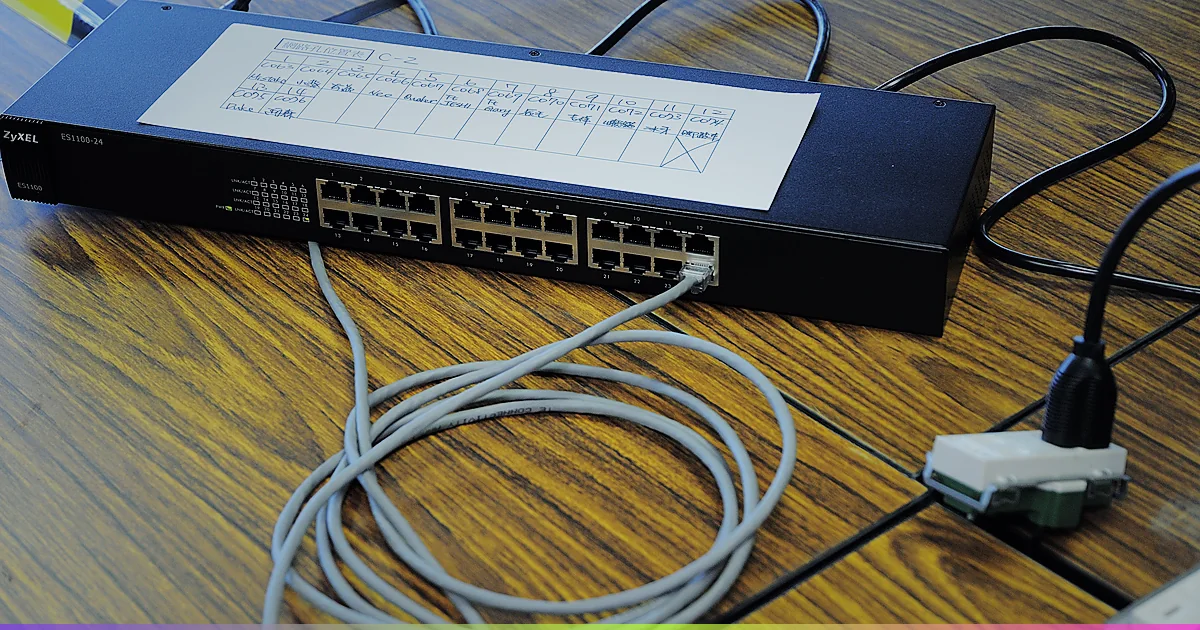
- Plug your PC, PlayStation, or Xbox directly into your main router with an RJ45 Ethernet cable.
- Turn off Wi-Fi on the device so it uses the wired interface.
- Bypass Wi-Fi extenders, mesh nodes, and powerline adapters during the test.
- Play two matches in the same playlist and watch the ping counter.
If spikes vanish on Ethernet, the wireless hop caused the delay. Keep the cable attached, or move onto a clean 5 GHz or 6 GHz Wi-Fi channel with clearer line of sight. Console players who need wireless band steps can follow our high ping on PS5 guide.
Stop background uploads, patches, and router bufferbloat
If ping still spikes on Ethernet, check what else is using your line. Cloudflare’s network quality documentation distinguishes idle latency from loaded latency: a line can sit at 22 ms when quiet, then jump past 150 ms the moment a device saturates the upload or download queue.
Clear out hidden queue builders before testing:
- Pause Steam, EA app, PlayStation, or Xbox game updates on every device in the home.
- Pause OneDrive, iCloud, Google Drive, Dropbox, and phone photo backups.
- Check whether Discord screen sharing, Twitch streams, or security cameras are saturating upstream bandwidth.
- Watch your Firing Range ping while starting a phone upload or 4K stream to see if loaded latency jumps.
If ping climbs by 30 ms to 100 ms whenever another transfer runs, your router is suffering from bufferbloat. Enable Smart Queue Management (SQM) or bandwidth-limiting QoS in your router and cap download and upload speeds slightly below your real line rate. See our ping spikes when downloading guide for the full setup.
Test your router hop vs your ISP route on PC
When your Data Center is local, your device is wired, and your home network is idle, steady high ping points outside your house. If browser speed tests still look normal while matches lag, compare the checks in our high ping in games with good internet guide.
On a Windows PC wired to the router, open Command Prompt, run ipconfig to find your Default Gateway, and test your local hop alongside a public IP:
ping -n 50 YOUR_GATEWAY_IPpathping /n 1.1.1.1Read the results by layer:
- Hop 1 (your router) spikes above 3 ms to 5 ms on Ethernet: The delay is still inside your local cable, switch, or router.
- Hop 1 stays near 1 ms while Hop 2 or later ISP hops jump: Your home network is clean, and latency starts on your ISP’s access network or an upstream peering link.
Microsoft notes that some intermediate routers deprioritize ICMP replies, so ignore a single middle hop timing out unless higher latency continues to the final hops. Skip placebo tweaks too: public DNS (1.1.1.1 or 8.8.8.8) only resolves domain names before a connection opens, and port forwarding only helps if a firewall blocks sign-in or matchmaking rather than shortening a live match route.
When a gaming VPN can help (and when it cannot)
A gaming VPN cannot fix Wi-Fi interference, a busy home upload queue, a cross-region party host, or an overloaded EA match server. Routing traffic through a distant tunnel node will add distance and raise your ping.
A route tool can only help when your wired Hop 1 is clean (1 ms), your chosen Data Center is nearby, and your ISP takes a detoured or congested backbone path to that region. Verify it with a fair A/B test: play three solo matches on your direct ISP line, then three matches through a single nearby VPN node in the same region, and keep whichever path holds a lower, steadier millisecond reading on the Performance Display.
LagZero is currently pre-launch and built for honest route testing without fake “zero ping” claims. For early access when testing opens, join the LagZero waitlist.
FAQ
Why is my ping so high on Apex Legends when my internet speed is fast?
Speed tests measure download and upload bandwidth in megabits per second, while Apex ping measures round-trip travel and queuing time in milliseconds. A 500 Mbps line will still show 130 ms if you land on a distant Data Center, hit Wi-Fi contention, or trigger router bufferbloat during a background upload.
How do I change my server or Data Center in Apex Legends?
Stay on the startup splash screen before entering the main lobby, press the bottom prompt for Data Center, compare the ping and packet loss columns, and choose the closest regional server with the lowest millisecond reading.
Why does my Apex Legends ping change from match to match on the same server?
Your selected Data Center is a regional preference rather than one physical machine. Depending on queue population, playlist, and party host location, matchmaking places individual games across different server instances in that region.
Does changing DNS to 1.1.1.1 or 8.8.8.8 lower ping in Apex Legends?
No. DNS only translates domain names into IP addresses when services first connect. Live match traffic uses direct UDP packets to the game server IP, so changing DNS resolvers does not shorten the route.
Can a gaming VPN lower high ping in Apex Legends?
Only when your ISP uses a congested or indirect route to a nearby Apex server region and the VPN provides a cleaner backbone handoff. It cannot fix Wi-Fi lag, local downloads, or a distant server region.
Sources
- EA Help: Troubleshoot your ping, packet loss, and lag in Apex Legends
- EA Help: How to fix Apex Legends error codes and connection symbols
- Cloudflare Speed: Aggregated Internet Measurement
- Microsoft Learn: pathping command reference
IMAGE CREDITS Nexgen LAN Party at 88MPH Space in Nairobi.jpg by Hilary Murugu (CC BY-SA 4.0); cropped and color-graded by LagZero. · ZyXEL ES1100-24 and RJ45 cable (15055950576).jpg by Sinchen.Lin (CC BY 2.0); cropped and color-graded by LagZero.