
A reliable Battlefield 6 high ping fix starts with turning on Scoreboard Ping and the Network Performance Bar or Graph under Options > System > Network so you can separate High Latency (LAT) and Latency Variation (LAT VAR) from Time Nudge (TN), Server Tick Rate (SFT), or packet loss. Check EA server status, compare a nearby Portal Server Browser region against standard matchmaking, plug your PC, PS5, or Xbox directly into the main router with a network cable, pause household uploads and downloads, and run router ping beside pathping before testing a gaming VPN.
Checked against current EA Help documentation for troubleshooting high ping, lag, and connection error codes in Battlefield 6, official Battlefield 6 Game Update 1.2.3.0 network warning readout notes, and Microsoft Learn pathping command documentation on October 31, 2026.
IN THIS GUIDE
- Turn on Scoreboard Ping and the Battlefield 6 Network Performance Graph
- Check server distance and compare Portal Server Browser regions
- Plug directly into the router and clear household upload queues
- Compare router latency against your ISP path with ping and pathping
- When a gaming VPN can help Battlefield 6 high ping (and when it cannot)
- FAQ
- Sources
A dependable Battlefield 6 high ping fix starts with reading the telemetry built into the game before you touch Windows registry keys, router port rules, or DNS settings. In 64-player Conquest, Breakthrough, and REDSEC matches, a jump from 30 ms to 150 ms makes hit registration feel late, vehicles rubberband, and firefights end behind cover.
Standard Battlefield 6 playlists matchmake automatically and show separate readouts for latency, jitter, packet loss, client simulation delay, and server tick health. Use the steps below on PC, PS5, and Xbox to isolate the bottleneck.
Turn on Scoreboard Ping and the Battlefield 6 Network Performance Graph
Enable EA’s built-in telemetry first so you can see what the client measures during a live round rather than relying on a browser speed test:
- Pause Battlefield 6 and open Options > System > Network.
- Toggle Scoreboard Ping to On so each player’s ping appears on the scoreboard.
- Select Network Graph > Modify, and set Show Network Performance Bar or Show Network Performance Graph to Always or On Problems.
- Toggle Show Damage Log and Show Event Graph to On to compare hit registration against server confirmation.
Since Battlefield 6 Game Update 1.2.3.0, network warning indicators display numerical values alongside each icon:
| Telemetry readout | What it measures | First diagnostic check |
|---|---|---|
| High Latency (LAT) elevated (120 ms to 180 ms) with 0% loss | Round-trip time to the server | Compare ping in a nearby Portal region |
| Latency Variation (LAT VAR) swings wildly | Unstable packet arrival timing (jitter) | Plug directly into the router and pause uploads |
| Packet Loss In / Out (PL IN / PL OUT) above 0% | Packets dropping to or from the server | Follow our Battlefield 6 packet loss fix |
| Bad Time Nudge (TN) warning with normal LAT | Client simulation buffer falling behind | Cap frame rate steady, lower CPU settings, and test wired |
| Server Tick Rate (SFT) warning across the lobby | Overloaded EA match server | Check EA server status and queue into a fresh server |
If LAT stays low while Time Nudge (TN) spikes during heavy destruction, your CPU is falling behind the server simulation. When LAT or LAT VAR climbs, check server region and local connection next.
Check server distance and compare Portal Server Browser regions
A common reason players see 140 ms to 160 ms ping in Battlefield 6 despite fast fiber internet is server geography. Standard matchmaking does not lock you to one city, and EA Help notes three behaviors:
- Some geographic regions lack local Battlefield 6 servers, so players connect to the next closest hub.
- If matchmaking takes too long in your local playlist, the matchmaker can widen its search and place you on a server farther away.
- Squad matchmaking follows the party, so joining friends across coasts or continents puts part of the squad on a distant data center.
To check whether matchmaking placed you on a faraway server or whether your path to EA’s nearest hub is slow:
- Check the EA Server Status page to rule out maintenance or regional incidents, especially alongside error codes 84008S and 1:86001S.
- Open Battlefield Portal > Server Browser from the main menu.
- Check the Region column on the right side of the list and join a populated server in your closest region.
- Compare your Scoreboard Ping and LAT readout in that local Portal server against standard matchmaking.
If a nearby Portal server holds 25 ms to 45 ms while standard matchmaking sits at 150 ms with 0% loss, your home network is healthy and matchmaking placed you in a distant region. Requeue during peak local hours or queue solo. If the closest Portal region also shows high ping, test your local link and ISP route.
Plug directly into the router and clear household upload queues
Wireless interference and background transfers are the top causes of sudden ping spikes and high Latency Variation (LAT VAR).
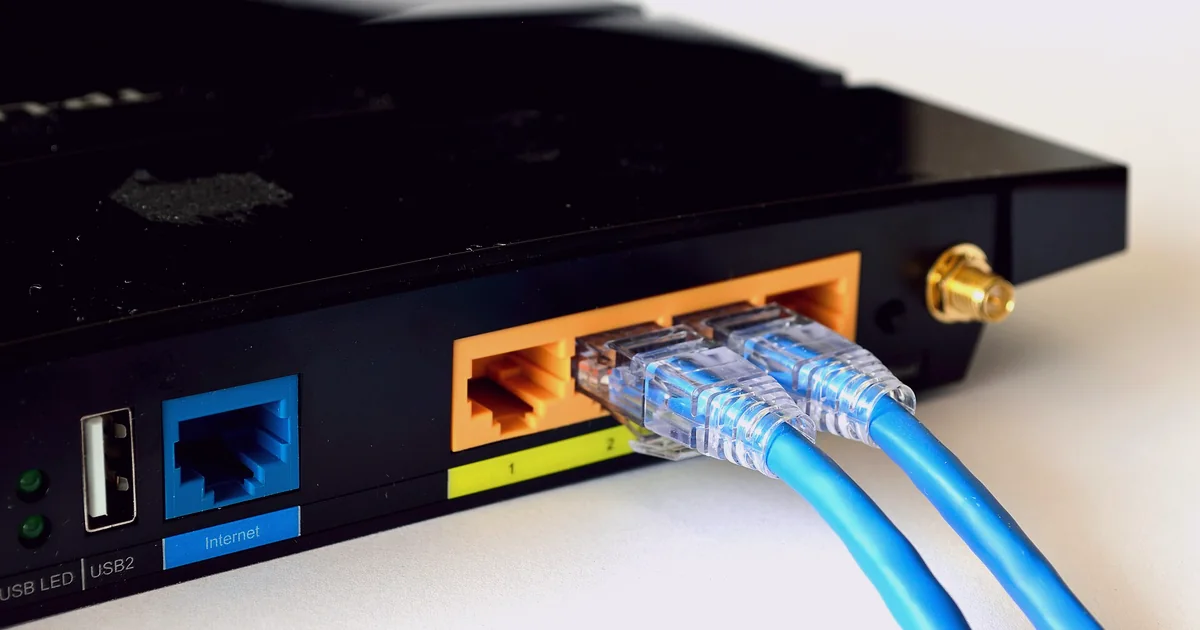
- Plug your PC, PS5, or Xbox directly into the main router with an RJ45 network cable. Wi-Fi is a shared radio medium where phones, TVs, and neighboring routers compete for airtime, adding 20 ms to 100 ms jitter spikes. Turn off Wi-Fi in your device network settings so traffic uses the wired port, and see our high ping on PS5 or high ping on Xbox guides on console.
- Pause background uploads, cloud backups, streams, and downloads. Home plans have smaller upload than download bandwidth. When a backup, sync, stream, or patch saturates your upload queue, Battlefield 6 UDP packets wait behind bulk traffic.
- Check device date and time and close heavy background apps on PC. EA Help notes that wrong date and time settings or heavy background apps can interfere with EA online services.
- Skip DNS myths for in-match ping. Public DNS (
1.1.1.1or8.8.8.8) only translates domain names before a connection opens and never lowers live match ping.
Compare router latency against your ISP path with ping and pathping
When your PC or console is wired directly to the router, household traffic is idle, and nearby Battlefield 6 servers still show elevated LAT or evening spikes, run a two-layer test from a Windows PC on the same router:
- Open Command Prompt, run
ipconfig, and note your Default Gateway IP (usually192.168.1.1or192.168.0.1). - Test your local router hop with 50 packets:
ping -n 50 192.168.1.1 - Test an external reference host and trace hop-by-hop latency and loss:
ping -n 50 1.1.1.1
pathping /n 1.1.1.1
Microsoft Learn notes that pathping sends pings over a period of time to compute per-hop latency and loss:
- Default Gateway (Hop 1) spikes above 3 ms to 5 ms or drops packets on a cable: Swap the RJ45 cable, test another router LAN port, bypass powerline adapters, and reboot the router.
- Hop 1 stays flat at 1 ms, but Hop 2 or Hop 3 spikes every evening: Your modem uplink or local ISP node is congested during peak hours.
- Early hops stay clean, but latency jumps at a middle transit hop: Your ISP is routing traffic through a crowded peering exchange or an indirect detour. Ignore a single middle hop showing
100%ICMP loss if later hops stay low-latency and0%loss.
When a gaming VPN can help Battlefield 6 high ping (and when it cannot)
A gaming VPN changes the transit route between your ISP and the regional game server hub. Because physical distance sets minimum round-trip time, a tunnel only helps when your ISP’s path is the faulty layer:
- When a gaming VPN may help: Your wired router ping is 1 ms, household traffic is quiet, nearby Portal servers sit at low ping during the day, and latency to that region climbs by 40 ms to 90 ms during peak evening hours due to a congested ISP peering handoff. Testing a nearby WireGuard endpoint can sometimes bypass the crowded exchange using the A/B/A comparison method in our guide on whether a VPN lowers ping.
- When a gaming VPN cannot help: It cannot make a cross-continent server low-ping, fix Wi-Fi interference, clear a saturated upload queue, lower Time Nudge (TN) from a maxed-out CPU, or resolve an EA server outage. Never use a VPN to raise ping or manipulate matchmaking.
LagZero is currently pre-launch and built for casual gamers who want straightforward route testing without fake zero-ping promises. If your local setup is wired and clean but evening ISP routing keeps spiking your matches, join the LagZero waitlist for early access and founding-member pricing.
FAQ
How do I show my ping and network graph in Battlefield 6?
Open Options > System > Network, toggle Scoreboard Ping to On, and set Network Graph > Modify to Always or On Problems to display LAT, LAT VAR, TN, SFT, and packet loss.
Why is my ping 150 ms in Battlefield 6 when my internet speed test is fast?
Speed tests measure download bandwidth to a local server, whereas Battlefield 6 ping measures round-trip time to the EA match server. Distant matchmaking placement or indirect ISP peering keeps LAT high even on fiber.
What is Time Nudge (TN) in Battlefield 6 and is it the same as high ping?
No. High Latency (LAT) is network round-trip time, while Time Nudge (TN) is the interpolation buffer offset between your client and the server simulation. High TN with low LAT points to CPU overload.
How can I check if Battlefield 6 put me on the wrong server region?
Open Battlefield Portal > Server Browser, check the Region column on the right, and join a server in your closest region to compare scoreboard ping against standard matchmaking.
Can a gaming VPN lower my ping in Battlefield 6 on PC, PS5, or Xbox?
Only when high ping or evening spikes come from inefficient ISP routing or peering congestion to a nearby EA hub. A VPN cannot fix distant server placement, Wi-Fi interference, or CPU stalls, and never guarantees lower ping.
Sources
- EA Help: How to troubleshoot high ping and lag in Battlefield 6
- EA Help: Troubleshoot your connection to EA games
- EA Help: Troubleshoot error messages in Battlefield 6
- EA Battlefield 6 Game Update 1.2.3.0 Notes
- Microsoft Learn: pathping command reference
IMAGE CREDITS DreamHack Winter 2014 - 2.jpg by Richard Stanway from Utrecht, Netherlands (CC BY-SA 2.0); cropped and color-graded by LagZero. · Residential Gateway Closeup.jpg by Raysonho @ Open Grid Scheduler / Grid Engine (CC0); cropped and color-graded by LagZero.