
For an Apex Legends packet loss fix, turn on Performance Display, record the affected data center and match time, then check EA server status. Compare one match over direct Ethernet, pause household downloads and uploads, and test another game. If the local link is stable, compare nearby Apex data centers and collect route evidence before contacting your ISP or EA.
Apex Legends Performance Display and data center steps were checked against current EA Help. Server-status guidance was checked against EA server status, and Windows route and Wi-Fi diagnostics were checked against current Microsoft documentation.
IN THIS GUIDE
- Confirm that Apex is reporting packet loss
- Check the selected data center and EA status
- Compare Wi-Fi with direct Ethernet
- Remove downloads, uploads, and background traffic
- Test the local hop and public path on Windows
- Skip the fake fixes that erase evidence
- Test another route only after the local link is clean
- FAQ
- Sources
A red packet-loss icon appears, your slide turns into a teleport, and the squad blames the servers. Random settings changes will not reveal the cause.
This Apex Legends packet loss fix uses the game’s own telemetry first, then separates the data center, home network, household traffic, and ISP route. Change one variable per test. The goal is not to make a graph look pretty for ten seconds. It is to find the first comparison that reliably changes the loss.
Confirm that Apex is reporting packet loss
In Apex Legends, open Settings, choose the Gameplay tab, and turn on Performance Display. EA says this display shows frames per second, latency, and packet loss.
Play until the normal problem appears and record:
- platform and connection type, such as PC on Wi-Fi or PS5 on Ethernet
- selected data center
- local time and time zone
- packet-loss percentage and whether it is constant or arrives in bursts
- latency and frames per second at the same moment
- whether squadmates in the same match report the same problem
These details separate similar symptoms. Rising loss points toward packet delivery. Large latency swings without loss suggest delay variation or queueing. Stable network numbers with falling frame rate suggest frame-time trouble.
If Performance Display remains clean while the picture hitches, start with the low ping but still lagging checklist instead of changing router settings. If your loss stays at zero while your millisecond counter stays high or spikes, use our Apex Legends high ping fix guide.
Check the selected data center and EA status
Before entering the lobby, use Data Center in the bottom-left of the Apex launch screen. EA recommends a nearby center because distance can add latency and loss. Record the current center, ping, and loss.
Check the official EA server-status page. If Apex or your platform has an incident, stop changing local settings and retest after recovery. If several nearby data centers suddenly show unusual loss, or everyone in your squad breaks at the same time, a service or regional path problem becomes more plausible.
When status looks normal, compare the automatic choice with one nearby center. Keep your platform, connection, household traffic, and test period stable. A faraway center is not a useful control.
| What changes | First place to investigate |
|---|---|
| One nearby data center loses packets | Regional service or route to that center |
| Every center shows loss | Home link, ISP access, broader service issue, or shared upstream path |
| Only your squadmate has loss | Their local connection or route |
| FPS drops but loss stays at zero | Device performance or frame-time issue |
Compare Wi-Fi with direct Ethernet
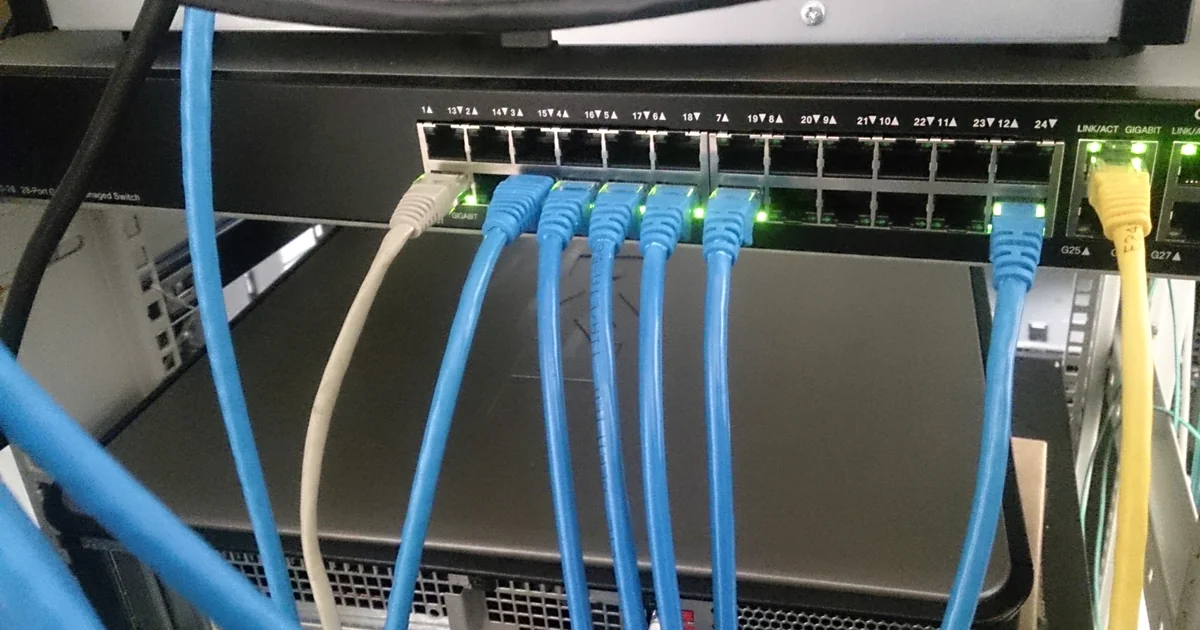
Plug the PC or console directly into the main router with a known-good Ethernet cable. Bypass mesh nodes, extenders, powerline adapters, and switches for one match if possible.
Use the same Apex data center and mode. Test long enough to reach the usual failure window.
- Loss disappears on Ethernet: focus on Wi-Fi signal, interference, roaming, channel load, or wireless mesh backhaul.
- Loss remains on Ethernet: try another cable and router port, then continue upstream.
- Only Apex fails on both: keep the game service and its route high on the list.
- Several games fail on both: investigate the router, modem, ISP access link, or household load.
If Ethernet wins, do not copy twelve advanced wireless settings. Move closer to the router, place it in the open, test another supported Wi-Fi band, and change one item at a time. Use the Wi-Fi packet-loss comparison guide for a more detailed local test.
Remove downloads, uploads, and background traffic
Pause game updates, cloud backup, livestreams, large downloads, file sharing, and security-camera uploads for one match. Include other devices in the home, not just the machine running Apex.
A full upstream queue can delay or discard real-time packets even when a download test looks fast. Test once while idle and once under the usual household load.
If loss appears only under load, inspect the router maker’s documented smart queue management or QoS option. Save the old configuration, enable one feature, and rerun the same comparison. A preset called “gaming” is not proof that the queues are configured well.
Our packet loss while uploading guide explains how to isolate an overloaded upstream link without assuming that Apex is the cause.
Test the local hop and public path on Windows
A Windows computer on the same network can provide supporting evidence for console play. It cannot reproduce game traffic, but it can reveal an interruption aligned with the match.
Run ipconfig in Command Prompt and find Default Gateway. Open two Command Prompt windows and run:
ping -t YOUR_GATEWAY_IPping -t 1.1.1.1Play until Apex shows loss, note the time, then press Ctrl+C in both windows.
- Gateway and public ping fail together: inspect the device link, Wi-Fi, cable, router, and local traffic.
- Gateway stays stable while public ping fails: inspect the modem, ISP access, congestion, and upstream route.
- Both stay stable while Apex alone reports loss: keep the Apex data center and game-specific route in scope.
Routers and intermediate hops may limit ping replies, so one missed reply is not proof. Look for a repeatable pattern that lines up with the in-game symptom.
For a longer Windows sample, pathping measures latency and loss across intermediate hops. Microsoft warns through its example that a router may drop replies addressed to itself while still forwarding later traffic. Treat loss at a middle hop as meaningful only when it continues to later hops or aligns with end-to-end trouble.
PC players on Wi-Fi can also run netsh wlan show wlanreport as administrator. Microsoft says the report covers recent Wi-Fi sessions, failures, warnings, adapter details, and disconnect reasons. That is useful when the wireless link itself reconnects during matches.
Skip the fake fixes that erase evidence
Several popular changes are poor first tests:
- Changing DNS: DNS helps locate services before a connection. It does not normally carry live match traffic.
- Opening random ports: port rules can affect reachability or NAT behavior, but they do not repair Wi-Fi interference, a damaged cable, or a congested route.
- Copying an MTU value: an unsupported value can create a new problem. Keep automatic settings unless a measured packet-size issue points elsewhere.
- Reinstalling Apex immediately: reinstalling game files does not fix an overloaded upload queue or ISP route.
- Factory-resetting the router: this removes evidence and working settings before simpler comparisons are complete.
Restart the game, device, modem, and router after recording a failing session. Update the game, system software, network driver, and router firmware from official sources, then retest before moving to riskier changes.
Test another route only after the local link is clean
A VPN route may help when the direct ISP path to an Apex data center is the problem. It cannot repair weak Wi-Fi, a bad cable, full household queues, device stutter, or an overloaded game service. It may also add delay or loss.
Keep the Apex data center fixed, choose a nearby VPN endpoint, and compare repeated direct and tunneled sessions in both orders. Do not use a VPN to evade a restriction, suspension, regional rule, or platform control. Keep it only when the same measured symptom improves repeatedly.
If the result stays Apex-specific, send EA or your ISP the platform, data center, local time and time zone, wired comparison, Performance Display readings, status check, and supporting ping or pathping summary. “Apex ate my packets” is emotionally accurate but operationally thin.
FAQ
Why do I get packet loss only in Apex Legends?
Apex may use a different data center and route from your other games. Check Performance Display, compare one nearby data center, and record whether another game fails during the same period. Apex-only loss keeps the game service or game-specific route in scope, but it does not prove the server is at fault.
How do I see packet loss in Apex Legends?
Open Settings, choose Gameplay, and enable Performance Display. EA says it shows frames per second, latency, and packet loss. Record the data center and match time with the reading so the number has useful context.
Does changing the Apex data center fix packet loss?
It can help when one nearby center or the route to it is having trouble. Choose another nearby center, keep the rest of the test stable, and compare more than one match. Selecting a distant center can add latency and make the comparison worse.
Does changing DNS fix Apex Legends packet loss?
Usually not. DNS resolves service names before connection, while live match traffic follows an established route. A DNS change may help a lookup or login issue, but it is not a general repair for packet loss during a match.
Can a gaming VPN fix Apex Legends packet loss?
Sometimes, when the direct ISP route is the cause and the VPN supplies a cleaner route. It will not fix Wi-Fi interference, cable errors, saturated queues, or server trouble. Compare repeated sessions and expect the tunnel to add some overhead.
If the local link is clean and the direct route still chooses chaos, join the LagZero waitlist. LagZero is pre-launch, and route testing is the point. Guaranteed zero loss is not.
Sources
- EA Help: Troubleshoot high ping, packet loss, and lag in Apex Legends
- EA Help: Official server status
- Microsoft Learn: pathping command reference
- Microsoft Support: Analyze the wireless network report
- Microsoft Learn: ping command reference
IMAGE CREDITS A gamer at Gamescom 2015 (19809068173).jpg by Sergey Galyonkin (CC BY-SA 2.0); cropped and color-graded by LagZero. · Network cables and switch.jpg by ProjectManhattan (CC BY-SA 3.0); cropped and color-graded by LagZero.