For a Marvel Rivals packet loss fix, record the affected match and selected server node, then use the official CapturePro Network Delay Test on PC while the problem happens. Compare one quiet-network match over a network cable, test the lowest-latency nearby node, and repeat your normal setup. If only Marvel Rivals fails, save the CapturePro results, time, region, and match details for support.
The CapturePro Network Delay Test, server-node selection, diagnostic ZIP workflow, and proxy-setting warning were checked against current official Marvel Rivals guides. Loaded latency, jitter, packet-loss, and wired-test guidance were checked against current Cloudflare documentation.
IN THIS GUIDE
A useful Marvel Rivals packet loss fix starts with the bad match itself. Rubberbanding, delayed abilities, frozen players, and warning icons can fit packet loss, but they can also appear during server trouble, high latency, Wi-Fi interference, or a frame-time stall. Random registry edits cannot tell those apart.
Keep the selected server node, game mode, party, and test window as steady as possible. Record what changed, compare one variable, and keep the result that repeats.
Capture the Marvel Rivals problem while it happens
Write down the match time, your time zone, platform, selected node, and whether the game showed a network warning. If an in-game network display is available, record latency and packet-loss values before, during, and after the symptom. Also watch frame rate. A falling FPS counter with steady network numbers points toward rendering or system load, not automatically toward lost packets.
On PC, Marvel Rivals provides its own network analysis utility. Open the game installation directory, launch CapturePro.exe, and choose Network Delay Test for severe in-match delay. The official guide says you can select nodes you commonly use or regions near you, run the test while playing, and click Stop when the noticeable delay occurs.
CapturePro creates a tr_results ZIP file for support. Keep that file with the matching timestamp instead of running the test later during a clean session. Review diagnostic files before sharing them publicly because they may contain network or device details. Send them only through the official support path.
Console players do not have the same PC executable. Record the in-game evidence, platform network-test result, node, time, and match details instead. If ping climbs while packet loss stays at 0%, use our Marvel Rivals high ping fix. If every other game remains stable, use the packet loss in one game diagnostic to preserve that clue without treating it as proof that Marvel Rivals caused the loss.
Compare server nodes without chasing one lucky number
Marvel Rivals lets players choose one or more server nodes. Its server-selection guide lists regional nodes and says the choice affects ping and matchmaking speed. Start with the lowest-latency nearby node shown by the game. Do not select a distant region merely because one match elsewhere happened to feel smooth.
Run two or three short comparisons on the same nearby node. Then, if another sensible node is available, compare it under similar conditions. Record:
- the node and displayed estimate before queueing;
- the in-match latency and loss warning;
- whether party members on the same node saw trouble;
- the exact local time;
- whether the fault affected one match or several.
One bad node with repeatable trouble can indicate a node-specific path or service issue. Several nodes failing at the same time keeps the local connection, ISP link, wider service, and device in scope. Check current official announcements before rebuilding the home network.
A lower lobby estimate is not a guarantee for every match. Match traffic, party geography, and conditions can differ. Use the result as a comparison, not a promise.
Remove Wi-Fi and household traffic from the test
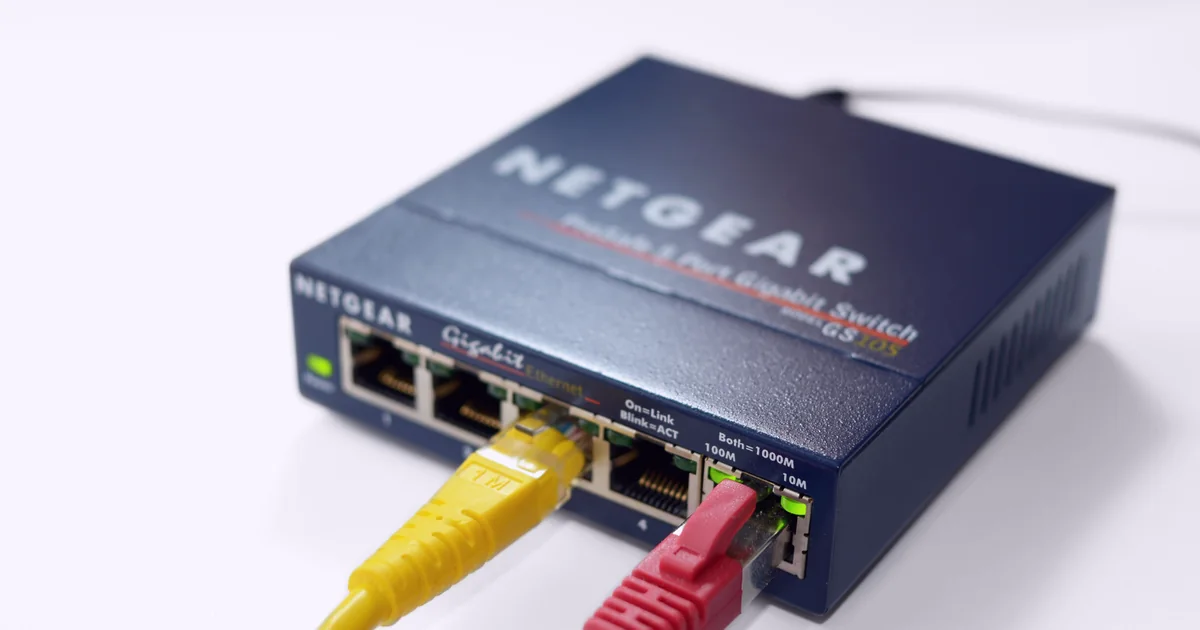
For one PC or console match, plug the device directly into the main router with a known-good network cable. Disable Wi-Fi on the device during the test so it does not silently keep using the wireless connection. Bypass a repeater, dock, powerline adapter, or extra switch when practical.
Cloudflare’s internet-quality documentation treats packet loss, latency, loaded latency, and jitter as separate measurements. It recommends a wired comparison because radio interference and weak signal can hurt connection quality. A speed test that reports high download throughput can still miss a brief burst of loss during the match.
Compare wired, normal setup, then wired again:
| Result | Better first suspect |
|---|---|
| Wired is stable twice, Wi-Fi is not | Signal, interference, wireless band, roaming, or mesh backhaul |
| Both paths fail at the same time | Router, modem, ISP link, upstream route, or game service |
| Only one cable, port, or adapter fails | That cable, port, dock, or adapter |
| Network numbers stay steady while the image hitches | Frame time, driver, heat, storage, or another local process |
If Wi-Fi is the repeatable difference, follow the Wi-Fi versus Ethernet high-ping test before buying a new router.
Next, pause game downloads, cloud backups, livestream uploads, video calls, and large transfers across the household. Run the same node once while the connection is quiet, then again under normal use. If packet loss or loaded latency appears only when uploads are active, the packet loss while uploading checklist gives you a controlled way to test queueing and upload saturation.
Use only router features documented by the manufacturer. Save existing values before changing queue management or QoS, apply one change, and repeat the same test. Do not bundle custom DNS, manual MTU, port forwarding, and a factory reset into one untraceable experiment.
Check the PC path before adding another route
If Marvel Rivals has login trouble as well as packet loss, check for a leftover Windows proxy. The official proxy guide says previous proxies, VPNs, or game accelerators can leave settings that interfere with login. Windows Proxy settings should show whether a manual proxy is active. Do not run administrator commands copied from a random guide unless you understand what they change.
For a clean baseline, disconnect any existing VPN or accelerator and retest the same nearby node. If direct Ethernet is stable, leave the extra route out. If direct Ethernet shows repeatable loss while the local gateway stays clean, an alternate route can be a later comparison, not the opening move.
Test direct, one nearby tunnel endpoint, then direct again. Keep only a repeatable improvement in the relevant in-game or CapturePro evidence. A VPN can also add delay, create login problems, or make the route less stable. It cannot repair weak Wi-Fi, a bad cable, a saturated upload, or a Marvel Rivals service incident. Read the honest VPN ping test method before declaring victory from one unusually good lobby.
LagZero is still pre-launch. If you want a simple route comparison when access opens, join the waitlist. No guaranteed fix, just a cleaner test than switching five settings and hoping.
Escalate with evidence support can use
When the problem survives wired and quiet-network tests, keep the evidence compact. Include the platform, region, selected node, match time with time zone, frequency, CapturePro ZIP on PC, and the exact comparisons you ran. Note whether another game failed during the same window and whether party members saw the same event.
Do not publish the ZIP or account details in an open forum. Use the official Marvel Rivals support channel. If several games and devices fail together, give your ISP the same timestamps plus the wired comparison. That is more useful than saying the internet feels bad.
FAQ
How do I fix packet loss in Marvel Rivals on PC?
Run the official CapturePro Network Delay Test while the bad match is happening, compare the lowest-latency nearby node, and repeat over direct Ethernet with household transfers paused. Keep the resulting ZIP, time, node, and match details for official support if the problem repeats.
Where is the Marvel Rivals network test?
On PC, open the Marvel Rivals installation directory and launch CapturePro.exe. Choose Network Delay Test for severe in-game delay. The official guide says to stop the capture when the noticeable latency occurs so the result covers the affected window.
Why does Marvel Rivals have packet loss when other games are fine?
Different games use different servers and routes, so one can fail while another stays clean. That pattern narrows the investigation but does not prove the game server is at fault. Compare nodes, save CapturePro evidence, and repeat at another time before assigning the cause.
Can Wi-Fi cause Marvel Rivals packet loss?
Yes. Interference, weak signal, roaming, and mesh backhaul can create loss or jitter even when download speed looks healthy. Compare one match over a network cable, then return to Wi-Fi and repeat. A stable wired result makes the wireless link the better first suspect.
Can a VPN fix Marvel Rivals packet loss?
Sometimes, when the direct upstream route is the faulty layer and the tunnel takes a cleaner path. It can also add delay or interfere with login. Stabilize the local connection first, then compare direct, one nearby endpoint, and direct again without promising a specific result.
Sources
- Marvel Rivals: Guide to Network Analysis Tool Usage
- Marvel Rivals: Server Selection
- Marvel Rivals: Detecting Login Failures Caused by Proxy Settings
- Cloudflare: Aggregated Internet Measurement
IMAGE CREDITS Coast Guard Gaming Shines in First International Esports Tournament at Ramstein Air Base (8498292).jpg by U.S. Coast Guard photo by Petty Officer 2nd Class Jasmine Mieszala (Public domain); cropped and color-graded by LagZero. · Netgear Gigabit Switch 5-port.jpg by Simon A. Eugster (CC BY-SA 3.0); cropped and color-graded by LagZero.