
A reliable Marvel Rivals high ping fix starts with turning on Network Stats and Show FPS so you can separate real round-trip latency spikes from Unreal Engine 5 frame-time hitches. Before queueing, uncheck distant server nodes and lock the lowest-ping regional node near you, plug your PC, PS5, or Xbox directly into the router with a network cable, pause household uploads and launcher downloads, and run CapturePro.exe Network Delay Test on PC (plus a 50-packet router ping and pathping) before testing a gaming VPN.
Checked against current Marvel Rivals official guides for Server Selection, Network Analysis Tool Usage (CapturePro.exe Network Delay Test and Network Adaptability Test), Detecting Login Failures Caused by Proxy Settings, and Microsoft Learn pathping documentation on October 29, 2026.
IN THIS GUIDE
- Turn on Network Stats and FPS counters to separate ping from frame stutter
- Lock the closest Marvel Rivals server node before queueing
- Plug into the router and stop household upload queues
- Run CapturePro Network Delay Test and check Windows proxy settings on PC
- Compare your router hop against the ISP path with ping and pathping
- When a gaming VPN can help Marvel Rivals high ping (and when it cannot)
- FAQ
- Sources
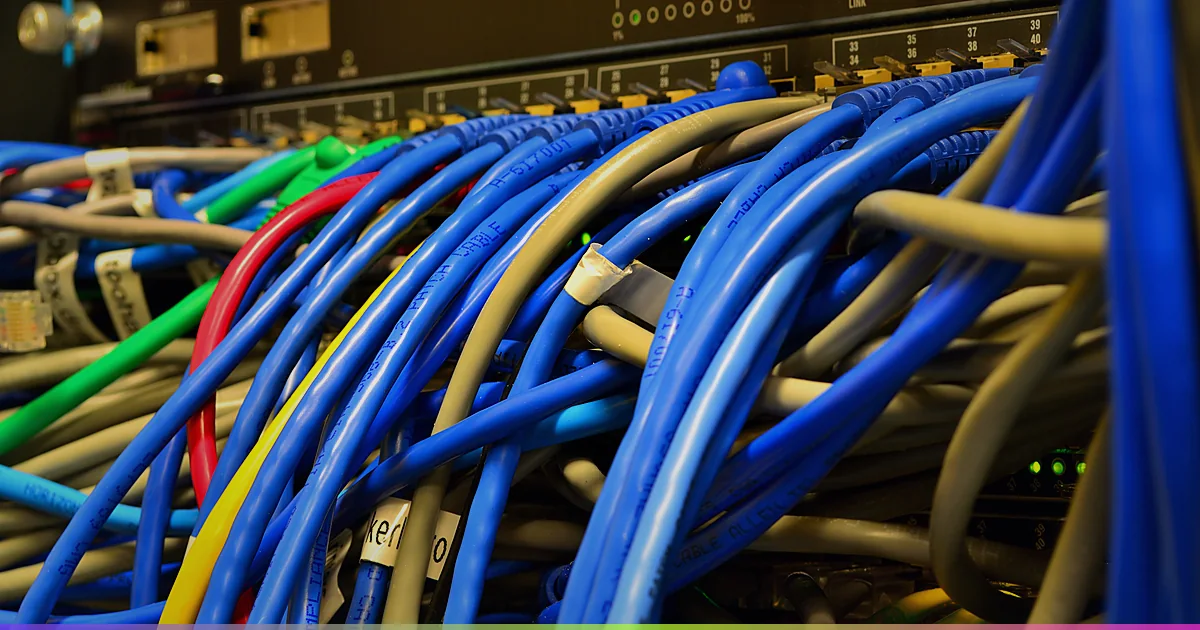
Finding a dependable Marvel Rivals high ping fix means proving which layer adds delay before editing Windows registry keys or router firewall rules. In a fast hero shooter where dashes, portals, and ultimates resolve in milliseconds, a jump from 35 ms to 140 ms makes hits register late and abilities feel delayed.
Because Marvel Rivals lets players queue across multiple regional nodes at once and runs on Unreal Engine 5, high latency, packet loss, and local frame stalls often get blamed on the same cause. Follow the checks below on PC, PS5, and Xbox to isolate the bottleneck.
Turn on Network Stats and FPS counters to separate ping from frame stutter
Enable the in-game telemetry display to watch round-trip latency, packet loss, and frame rate during a live match rather than an empty practice range.
| In-game readout | What is actually happening | First diagnostic step |
|---|---|---|
| Ping stays high all match (110 ms to 180 ms) with 0% loss | Distant server node selected, cross-region party leader, or indirect ISP route | Lock only your closest server node before queueing |
| Ping sits low (25 ms to 50 ms) then spikes every few seconds | Wireless interference, mesh repeater delay, or uploads filling the router queue | Plug your PC or console directly into the router with a network cable and pause uploads |
| Ping stays steady, but packet loss climbs above 0% | UDP packets drop between your device and the server node | Follow our Marvel Rivals packet loss fix to trace the drop |
| Ping and packet loss stay flat while the screen hitches | Local GPU, CPU, or shader-cache stall rather than network latency | Cap frame rate slightly below refresh rate and update GPU drivers |
If your ping counter stays flat during the hitch, network tweaks will not help. When the millisecond counter climbs or swings wildly, work through the checks below.
Lock the closest Marvel Rivals server node before queueing
A frequent reason players see “high ping for no reason” in Marvel Rivals is leaving multiple server nodes checked on the play screen. NetEase’s official Server Selection guide notes that players can choose a single node or a group of nodes across five regions:
- North America: Oregon, Dallas, Northern Virginia
- Europe: Frankfurt, Warsaw
- Middle East: Dammam
- South America: Sao Paulo
- Asia-Pacific: Tokyo, Singapore, Sydney
When multiple nodes stay ticked, matchmaking can place you on a farther node to fill a lobby faster, adding 40 ms to 90 ms for that match. Squad matchmaking does the same thing if your party leader queues into a distant region.
- Open the Server Node selector on the matchmaking screen before joining a queue.
- Uncheck every distant node and keep only the single lowest-ping node closest to you.
- Play two or three matches on that exact node during the same time window and record both the pre-match estimate and the in-match ping range.
- If one nearby node spikes every evening while another nearby node (such as Dallas versus Northern Virginia, or Frankfurt versus Warsaw) stays steady, your ISP route to the first node is likely congested.
Plug into the router and stop household upload queues
Wi-Fi radio airtime is shared. Whenever another phone, tablet, smart TV, or neighbor’s router transmits on the same channel, gaming packets wait in line and arrive tens of milliseconds late.
- Plug your PC, PS5, or Xbox directly into the main router with a network cable. Turn off Wi-Fi in your device settings and bypass wall extenders, mesh satellites, and powerline adapters. Console players can also use our high ping on PS5 guide and high ping on Xbox guide.
- Pause background uploads, cloud backups, and launcher updates. Home internet connections have much smaller upload bandwidth than download bandwidth. When a cloud drive, phone backup, livestream, or game patch saturates upload capacity, small Marvel Rivals packets queue behind bulk traffic. If latency jumps whenever another device is active, run the checks in our ping spikes when downloading guide.
- Retest the same server node for two matches. If plugging directly into the router on a quiet network flattens your ping, the problem was inside your home network.
Run CapturePro Network Delay Test and check Windows proxy settings on PC
Marvel Rivals includes an official network diagnostic utility in the PC game folder, plus guidance for leftover proxy settings.
Capture live latency with CapturePro.exe
According to the official Marvel Rivals Network Analysis Tool guide:
- Open your Marvel Rivals folder (in Steam, right-click Marvel Rivals > Manage > Browse local files).
- Launch
CapturePro.exe. - For login or matchmaking failures, click Network Adaptability Test.
- For high in-game ping, click Network Delay Test and select the server nodes closest to you.
- Run the test during a match and click Stop after about 20 seconds when latency occurs.
The tool saves a tr_results ZIP archive in the game folder for official Marvel Rivals support.
Clear leftover Windows proxy settings
NetEase’s proxy troubleshooting guide warns that previous proxies, VPNs, or accelerators can leave a manual Windows proxy active:
- Open Proxy settings from the Windows Start menu and confirm Use a proxy server is Off.
- Open Command Prompt as administrator and run
netsh winhttp show proxy. - If it does not show Direct access (no proxy server), run
netsh winhttp reset proxyand restart your PC.
Compare your router hop against the ISP path with ping and pathping
When a wired connection on an idle network still shows high ping to your nearest Marvel Rivals node, use Command Prompt on a Windows PC connected to the router:
- Run
ipconfigand note your Default Gateway IP (usually192.168.1.1or192.168.0.1). - Ping your router:
ping -n 50 192.168.1.1. - Ping a reference host:
ping -n 50 1.1.1.1. - Trace hop-by-hop latency and loss with
pathping /n 1.1.1.1and wait 90 to 125 seconds for completion.
- Default Gateway jumps above 5 ms or drops packets: The delay starts inside your home. Swap the cable, test another router LAN port, or reboot the router.
- Default Gateway stays at 1 ms with 0% loss, but hop 2 or hop 3 spikes: Your ISP’s local neighborhood node or modem uplink is congested, especially between 7 PM and 11 PM.
- Early hops stay low, but latency jumps sharply at a middle transit exchange: Your ISP is handing traffic across a crowded peering link or an indirect regional route.
When a gaming VPN can help Marvel Rivals high ping (and when it cannot)
A gaming VPN changes the transit path between your ISP and the game server region. Because physical distance still applies, it only helps under specific routing conditions:
- When a gaming VPN may help: Your wired router ping is flat at 1 ms, household traffic is idle, and your ping to a nearby Marvel Rivals node climbs during peak hours or takes a roundabout ISP route while a neighboring node stays normal. Testing a WireGuard endpoint near the server city can sometimes bypass the congested peering exchange. Use the A/B/A comparison method in our guide on whether a VPN lowers ping.
- When a gaming VPN cannot help: It cannot make a cross-ocean server low-ping, fix weak Wi-Fi, clear a saturated home upload, stop Unreal Engine 5 shader stutter, or repair a server outage. Always compare direct, tunnel, and direct again on the same server node.
LagZero is pre-launch and built for casual gamers who want straightforward route testing without fake zero-ping promises. If your local network is clean but evening ISP routing keeps spiking your matches, join the LagZero waitlist for early access and founding-member pricing.
FAQ
Why is my ping suddenly so high in Marvel Rivals when other games are fine?
Usually either multiple server nodes are checked in the Marvel Rivals region selector (placing you on a farther data center) or your ISP route to that specific node is congested during peak hours. Lock only the single closest node before queueing and compare two nearby nodes on a wired connection.
What are the official Marvel Rivals server locations?
Marvel Rivals lists ten regional server nodes across five regions: Oregon, Dallas, and Northern Virginia in North America; Frankfurt and Warsaw in Europe; Dammam in the Middle East; Sao Paulo in South America; and Tokyo, Singapore, and Sydney in Asia-Pacific.
How do I run the official Marvel Rivals network delay test on PC?
Open the Marvel Rivals folder (Manage > Browse local files in Steam), run CapturePro.exe, click Network Delay Test, select your usual server nodes, and click Stop after about 20 seconds during a match when lag occurs. The tool saves a tr_results ZIP file in the game directory.
Can leftover proxy or accelerator settings cause Marvel Rivals connection issues?
Yes. Previous proxies, VPNs, or accelerators can leave Windows proxy rules active. Turn off Use a proxy server in Windows Proxy settings, or run netsh winhttp show proxy and netsh winhttp reset proxy in an Administrator Command Prompt, then restart your PC.
Will a gaming VPN lower my ping in Marvel Rivals on PC, PS5, or Xbox?
Only when high ping is caused by inefficient ISP routing or peak-hour peering congestion between your provider and the Marvel Rivals data center. A VPN cannot overcome physical distance to a faraway region, fix Wi-Fi interference, or stop PC frame drops, and it never guarantees lower ping.
Sources
- Marvel Rivals Official Guide: Server Selection
- Marvel Rivals Official Guide: Guide to Network Analysis Tool Usage (CapturePro.exe)
- Marvel Rivals Official Guide: Detection and Resolution of Game Login Failures Caused by Proxy Settings
- Marvel Rivals Official Guide: Common Technical Issues FAQ
- Microsoft Learn: pathping command reference
IMAGE CREDITS Polt at DreamHack Winter 2014.jpg by Richard Stanway (CC BY-SA 2.0); cropped and color-graded by LagZero. · EthernetSwitch2.jpg by Raysonho @ Open Grid Scheduler / Grid Engine (CC0); cropped and color-graded by LagZero.