
Fortnite “lag” can mean network delay, packet loss, frame stutter, or an Epic service problem. Treating all four with the same YouTube tweak is how people end up changing DNS to fix a graphics driver. Start by naming the symptom.
Status, telemetry and troubleshooting steps were checked against the game publisher or platform support pages linked in Sources.
IN THIS GUIDE
- Turn on Fortnite network stats
- 1. Select the correct matchmaking region
- 2. Use Ethernet
- 3. Pause downloads and uploads
- 4. Reboot the network in the right order
- 5. Fix PC stutter separately
- 6. Check console basics
- 7. Test packet loss outside Fortnite
- 8. Test a nearby VPN route
- 9. Do not expect DNS to fix live ping
- Symptom checklist
- FAQ
- Sources
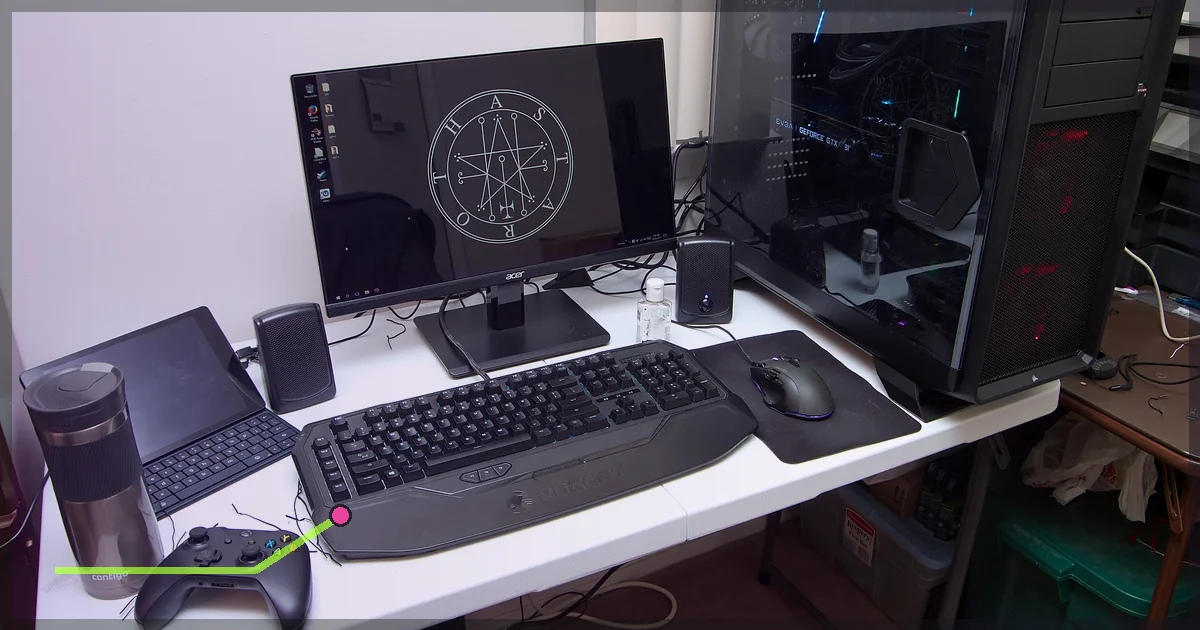
Fortnite “lag” can mean network delay, packet loss, frame stutter, or an Epic service problem. Treating all four with the same YouTube tweak is how people end up changing DNS to fix a graphics driver.
Start by naming the symptom.
Turn on Fortnite network stats
Open Fortnite’s settings and enable the option that displays network or latency statistics. Menu names can move between seasons, so use the settings search or current Epic help if the toggle has changed.
Watch for:
- High stable ping: the server is far away or the route is long.
- Ping spikes: Wi-Fi, household traffic, congestion, or route instability.
- Packet loss: data is being dropped.
- Smooth ping but visual stutter: likely FPS, shader, storage, or driver trouble.
- Everyone freezes: likely a server or match issue.
Check Epic Games Public Status before rebuilding your network around an outage.
1. Select the correct matchmaking region
Use Fortnite’s matchmaking-region setting and start with Auto. Note the estimated latency for nearby regions. If Auto repeatedly selects a surprising location, choose your nearest region manually and test.
Do not use a distant VPN endpoint to chase easier matchmaking. That adds physical distance and may violate fair-play expectations. The goal is a clean route, not lobby tourism.
2. Use Ethernet
Connect PC, PS5, or Xbox directly to the router. If the problem disappears, the internet plan was not the first issue; Wi-Fi was.
If Ethernet is impossible:
- Use 5 GHz or 6 GHz near the router.
- Avoid wireless extenders.
- Move the router into the open.
- Stop Bluetooth and microwave interference jokes from becoming real troubleshooting steps.
Test at the usual time of day. Evening interference and household demand can change the result.
3. Pause downloads and uploads
Check every device for:
- Fortnite or console updates
- Steam/Epic/Xbox/PlayStation downloads
- Cloud photo backup
- Streaming
- Video calls
- Security-camera uploads
Uploads are especially good at creating huge latency under load. Pause them and play for five minutes before changing anything else.
4. Reboot the network in the right order
- Shut down the gaming device.
- Unplug modem and router.
- Wait about a minute.
- Power the modem and wait until it is online.
- Power the router and wait.
- Start the gaming device.
A reboot can clear a stuck state. If the fault returns every night, you have a pattern to diagnose, not a daily reboot ritual.
Read why games lag at night.
5. Fix PC stutter separately
If ping is stable but the picture hitches:
- Update the graphics driver from AMD, Intel, or NVIDIA.
- Let shader compilation finish after a major update.
- Close overlays and recording tools for one test.
- Use an appropriate rendering mode for the hardware.
- Lower heavy settings gradually.
- Check CPU, GPU, memory, and disk use.
- Cap frame rate to a level the PC can hold consistently.
Run an offline or creative test. If it stutters without live network pressure, a VPN cannot help.
6. Check console basics
On PS5 or Xbox:
- Install the latest system and Fortnite updates.
- Fully restart rather than leaving the console in rest mode.
- Keep adequate free storage.
- Test a wired connection.
- Check NAT status.
- Reinstall only after simpler tests fail; downloading 70 GB is not a diagnostic personality.
For VPN setup, use our PS5 guide or Xbox guide.
7. Test packet loss outside Fortnite
On PC, ping your router and a public destination for several minutes. Loss to the router means a local problem. A clean router result with loss farther out points beyond your device.
Do not panic over one intermediate traceroute hop that ignores probes. Look for loss that continues to the final responding destination.
8. Test a nearby VPN route
A VPN is not the first Fortnite fix. It becomes a useful test after Wi-Fi, background traffic, region, and server status are checked.
- Record 10 minutes without the VPN.
- Connect a reputable VPN through WireGuard to the nearest endpoint.
- Keep the same Fortnite matchmaking region.
- Record another 10 minutes.
- Compare median ping, spikes, packet loss, and disconnects.
If the VPN consistently improves stability, your ISP’s normal route may be the problem. If ping rises, disconnect. That result is normal too.
Follow does a VPN lower ping? for a proper A/B table.
9. Do not expect DNS to fix live ping
DNS helps a device find service addresses. It rarely changes the data path after a Fortnite match is connected. A different resolver can fix lookup failures, but it is not a universal latency button.
Leave DNS automatic while diagnosing unless you have a specific resolution problem.
Symptom checklist
| Symptom | Most likely first check |
|---|---|
| High ping all match | Matchmaking region and physical distance |
| Spikes when family streams | Router queueing and household traffic |
| Loss over Wi-Fi only | Ethernet, channel, signal strength |
| Smooth ping, visible hitching | FPS, shaders, drivers, storage |
| All players freeze | Epic status and game server |
| One ISP route is bad | Time-matched VPN A/B test |
FAQ
Why is Fortnite lagging when my internet is fast?
A speed-test bandwidth figure does not measure Wi-Fi stability, latency under load, packet loss, route quality, or Fortnite server health.
Can a VPN fix Fortnite lag?
It can help when your ISP’s route to Fortnite is poor. It normally adds delay to a healthy route and cannot fix low FPS or local Wi-Fi.
Why does Fortnite lag after an update?
The update may trigger shader compilation, new graphics load, downloads, or a temporary server surge. Check both performance and network statistics.
Does changing DNS reduce Fortnite ping?
Usually not once the match is connected. It may help name-resolution or login issues.
If the direct route still acts possessed after every local check, try LagZero against one nearby endpoint. Test, keep the winner, go back to blaming the shotgun.
Sources
IMAGE CREDITS Newegg-gamer-zone-1.jpg by Masterandbeef (CC0); cropped and color-graded by LagZero. · Gaming PC-Setup - Astaroth- The Completed System.jpg by Brian Wong (CC BY-SA 2.0); cropped and color-graded by LagZero.