
Start your EA FC 26 packet loss fix by setting Connection Monitoring to Ping and connection indicators under Settings > Game Settings > Visual, and enabling Local Input + Online Response in Input Overlay to confirm whether dropped packets are delaying server acknowledgments on EA SPORTS FC Game Data Centers. Next, check your 7-day match history in the EA Connection Quality Report, plug your PS5, Xbox, or PC directly into your router with an Ethernet cable, stop background uploads and updates that trigger bufferbloat, and compare hop 1 ping against pathping before testing a gaming VPN.
Checked against official EA Help documentation for EA SPORTS FC Connection Monitoring icons, Input Overlay (Local Input + Online Response), What is packet loss in EA SPORTS FC, the EA Connection Quality Report, EA SPORTS FC Game Data Centers, and Microsoft Learn pathping documentation on November 18, 2026.
IN THIS GUIDE
- Turn on Connection Monitoring and Input Overlay to confirm packet loss in-match
- Check your 7-day match history in the EA Connection Quality Report
- Switch from Wi-Fi to a direct Ethernet cable and stop household bufferbloat
- Check EA Game Data Center placement and trace Hop 1 vs your ISP route
- When a gaming VPN can help EA FC 26 packet loss (and when it cannot)
- FAQ
- Sources
When your striker takes an extra touch in the box, player switching ignores L1 or LB, or the match freezes and fast-forwards in a burst of speed-up lag, you need an EA FC 26 packet loss fix that tests where game data is dropping. According to EA Help’s packet loss documentation, every button press, pass, and tackle travels in data packets between your platform and an EA SPORTS FC Game Data Center. When packets fail to complete the round trip, they must be resent, causing stuttering, heavy inputs, or disconnects.
Because EA SPORTS FC Game Data Centers host Ultimate Team, Online Seasons, and Clubs, another player’s weak Wi-Fi does not slow down your server packets. If your screen flashes orange or red warning icons, the loss is on your home network, your ISP path, or the data center route.
Turn on Connection Monitoring and Input Overlay to confirm packet loss in-match
Before changing router settings, verify whether your delay comes from dropped packets, high ping, or jitter spikes. In EA Help’s Connection Monitoring guide, EA explains how to keep live telemetry visible on screen:
- Open Customise > Settings > Game Settings > Visual.
- Scroll to Connection Monitoring and select Ping and connection indicators to display round-trip millisecond ping alongside orange and red warning icons.
- In the Visual tab, set Input Overlay to Local Input + Online Response. As documented in EA Help’s Input Overlay guide, this places two controller graphics in the top-right corner during matches on EA Game Data Centers: the first mirrors your physical button press, and the second lights up after the Game Data Center processes that packet.
Watch how the indicators behave when gameplay feels heavy:
- Packet loss icon turns orange or red: Game packets are failing to make the round trip to the EA Game Data Center, forcing resends and delayed Online Response inputs.
- Jitter icon flashes with speed-up lag: Ping is jumping rapidly within a short window, usually from Wi-Fi contention or upload queues.
- High ping icon with steady gap between Local Input and Online Response,
0%loss: Matchmaking placed you on a distant Game Data Center or across a long ISP route. - Responsive Online Response graphic, but choppy frames on PC: Your network is clean and your GPU or frame cap is stuttering locally. Check our low ping but still lagging guide if frame time is the culprit.
| EA FC 26 telemetry readout | What is happening | First action |
|---|---|---|
| Packet Loss icon + delayed Online Response | Packets dropping in transit | Check the EA Connection Quality Report and wire with Ethernet |
| Jitter icon + freeze then fast-forward | Packets queuing on Wi-Fi or uploads | Wire your console or PC and pause backups |
Steady high ping (80+ ms), no loss icon |
Distant Game Data Center or ISP detour | Check party host region and trace your ISP route |
| Online Response matches Local Input, screen stutters | Local frame hitch, not packet loss | Cap frame rate and close overlays |
Check your 7-day match history in the EA Connection Quality Report
Open EA Help’s Troubleshoot Connection Quality page and launch the EA Connection Quality Report signed in with your EA Account (supported on PlayStation, Xbox, and PC; Nintendo Switch is not supported).
Open your Match History tab, which updates within five minutes after each online match over the past 7 days:
- Inspect per-match packet loss and jitter: EA states that smooth gameplay requires packet loss as close to
0.00%as possible. Even0.5%to2%loss in Division Rivals or Champions can eat skill moves and delay passes. - Verify the reported Network Type: If the report labels your matches as Wi-Fi, your console or PC is still using wireless radio even if you plugged a cable in without switching network settings.
- Compare Your ISP’s Connection Score: Check the 30-day ISP Comparison Leaderboard for your area. If your personal loss is high while your ISP’s local average sits near
0%, the fault is inside your home setup.
Switch from Wi-Fi to a direct Ethernet cable and stop household bufferbloat
The fastest EA FC 26 packet loss fix on PS5, Xbox Series X|S, and PC is removing wireless airtime contention. EA Help notes that Wi-Fi moves game packets through shared airwaves where walls, furniture, and neighboring routers cause packet loss and jitter, especially on 2.4 GHz bands:
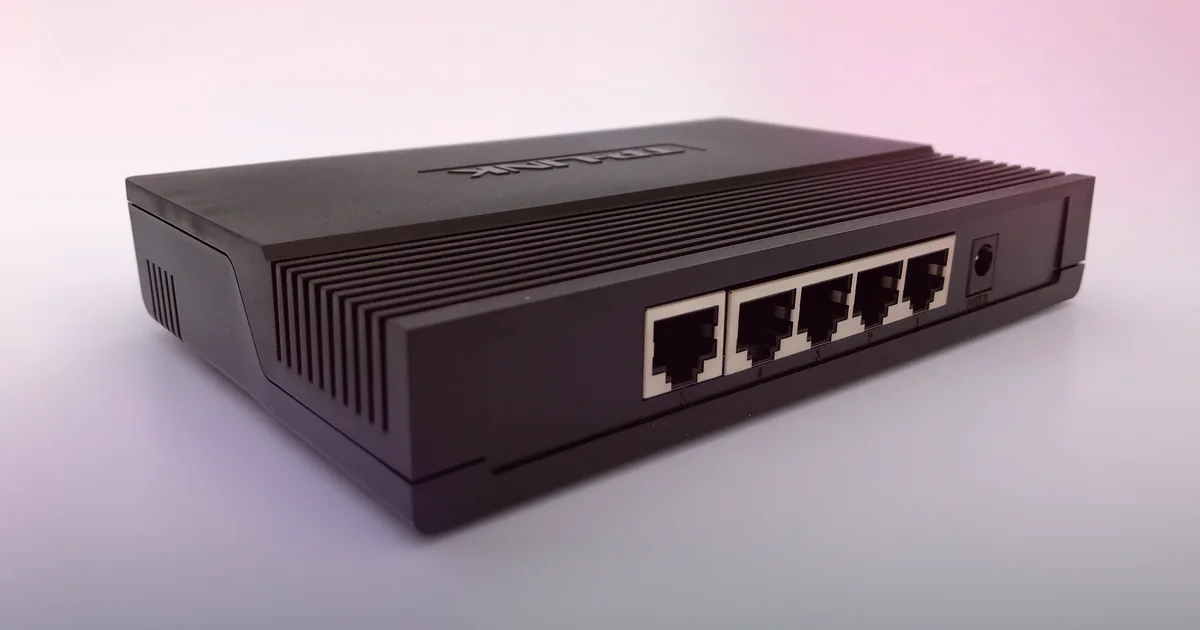
- Plug in an RJ45 Ethernet cable: Connect your console or PC to a LAN port on your main router or a Gigabit switch, then select Wired LAN in your system settings. For console steps, see our how to fix packet loss on PS5 guide and Xbox packet loss fix guide.
- Bypass powerline adapters and mesh nodes: Powerline plugs share electrical wiring with appliances and drop UDP bursts. Test with one Cat6 cable first.
- Stop upload and download queue pileups: Game packets get stuck behind 4K streams, Twitch uploads, cloud syncs, and game updates. Pause transfers and enable Quality of Service (
QoS) on your router. If loss tracks active transfers, follow our packet loss when downloading guide. - Disable PC adapter power-saving modes: On Windows, open Control Panel > Network & Internet > Ethernet Properties and turn off power-saving states.
Check EA Game Data Center placement and trace Hop 1 vs your ISP route
EA operates EA SPORTS FC Game Data Centers across Europe, North America, South America, Asia, Oceania, and Africa. Two factors can shift your route:
- Cross-region Clubs, Co-op, and The Grounds lobbies: You cannot lock a server in modes like The Grounds, and grouping across regions can place your squad on a distant Game Data Center.
- ISP routing detours: ISPs do not always route packets along the shortest path, and traffic can shift to a farther data center if a route has issues.
Because EA does not publish match server IPs, use a Windows PC wired to your router to separate home loss from ISP loss. Open Command Prompt, find your Default Gateway with ipconfig, and run ping beside Microsoft’s pathping command:
ping -n 100 192.168.1.1
pathping -n 1.1.1.1
Read the results by hop:
- Hop 1 (your router) shows loss (
1%+) or spikes above3 mson Ethernet: Replace the cable, try another LAN port, or unplug your router and modem for 30 seconds. - Hop 1 is
0%loss at1 ms, but Hop 2 or Hop 3 drops packets: Your modem signal, fiber ONT, or local ISP node is dropping traffic. - Hops 1 to 3 are clean (
0%loss), but loss icons appear in evening matches: Your ISP is hitting a congested peering link on the route toward EA’s Game Data Center.
When a gaming VPN can help EA FC 26 packet loss (and when it cannot)
EA advises disconnecting standard VPNs first because privacy VPNs often route traffic through distant hubs, adding latency or instability. No VPN can fix weak Wi-Fi, a bad Ethernet cord, household bufferbloat, or an EA server outage.
A gaming VPN only helps when your EA Connection Quality Report confirms Ethernet with 0% local gateway loss, yet your ISP drops packets across a congested peering link to a nearby EA Game Data Center. In that case, a nearby relay can provide a cleaner handoff. Verify by playing two matches direct and two matches through a nearby node, then comparing per-match packet loss in your EA Connection Quality Report.
LagZero is in pre-launch testing and is not live yet. We are building it for casual gamers who want honest A/B route testing without fake “zero lag” promises. For early access when testing opens, join the LagZero waitlist.
FAQ
How do I see packet loss and input delay in EA FC 26?
Go to Customise > Settings > Game Settings > Visual, set Connection Monitoring to Ping and connection indicators, and set Input Overlay to Local Input + Online Response. This shows live packet loss icons alongside a two-controller graphic comparing your local press against the EA Game Data Center response.
What causes speed-up lag in EA SPORTS FC 26?
Speed-up lag happens when a burst of packet loss or jitter blocks incoming updates from the EA Game Data Center. Once delayed packets arrive, your client fast-forwards player and ball positions to catch up to server time. Switching to Ethernet and stopping uploads fixes most speed-up lag.
What packet loss percentage is bad in the EA Connection Quality Report?
According to EA Help, packet loss should be 0% (or as close to 0.00% as possible) for smooth gameplay. Even 1% to 2% packet loss in the EA Connection Quality Report means button presses and player positions are being resent during a match.
Can I manually change my server or Game Data Center in EA FC 26?
No. EA SPORTS FC automatically routes online modes (Ultimate Team, Online Seasons, Clubs, and The Grounds) to the best available Game Data Center based on your network route, and EA does not provide an in-game server selector.
Does port forwarding or changing DNS fix EA FC 26 packet loss?
No. DNS only resolves domain names before a connection opens, and port forwarding does not stop UDP packets from dropping on Wi-Fi or across a congested ISP hop. Focus on wired Ethernet, router QoS, and hop-by-hop route testing.
Sources
- EA Help: What is packet loss in EA SPORTS FC?
- EA Help: Connection monitoring options in EA SPORTS FC
- EA Help: How to use Input Overlay in EA SPORTS FC
- EA Help: Troubleshoot Connection Quality & EA Connection Quality Report
- EA Help: About EA SPORTS FC game data centers
- Microsoft Learn: pathping command reference
IMAGE CREDITS InclusiveGameLab Person-with-PS5-Controller 1 CC-BY-SA.jpg by InclusiveGameLab (CC BY-SA 4.0); cropped and color-graded by LagZero. · 5 Port Gigabit Netzwerk-Switch TL-SG1005D 02.jpg by www.heimnetzwerke.net (CC BY 4.0); cropped and color-graded by LagZero.