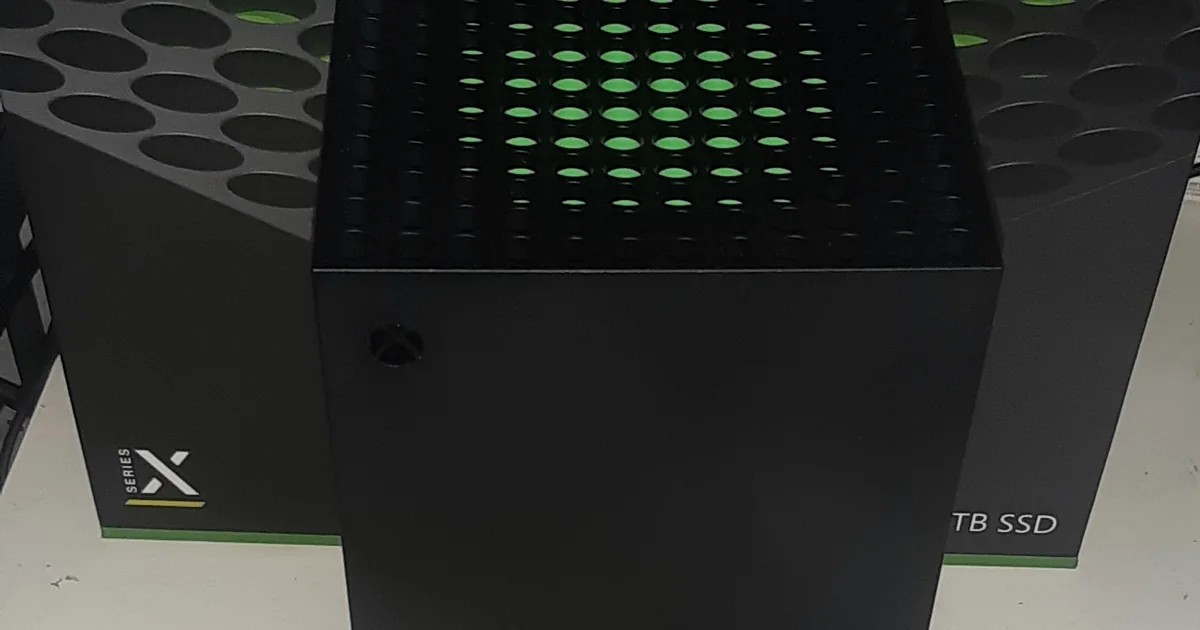
For an Xbox packet loss fix, first check Xbox and game service status, then run Test network speed & statistics and record the result. Compare the same game over Wi-Fi and a direct Ethernet cable, pause household downloads and uploads, and test another game. Change one variable at a time. A VPN route is only worth comparing after the local connection is stable.
Xbox network menu names, connection tests, service-status guidance, wired troubleshooting, and advanced network settings were checked against current Xbox Support. Supporting ping and pathping behavior was checked against Microsoft Learn, and loaded-latency guidance was checked against Cloudflare documentation.
IN THIS GUIDE
Packet loss turns a normal match into accidental teleportation. Your inputs arrive late, party chat breaks up, and your character snaps backward even though the speed test says the internet is fast.
This Xbox packet loss fix starts with evidence, not a random DNS address. The useful order is service status, console test, game scope, local connection, household load, and upstream route. Each comparison should answer one question before you change the next setting.
Confirm what the Xbox is reporting
On Xbox One or Xbox Series X|S, press the Xbox button and open Profile & system > Settings > General > Network settings. Xbox Support currently lists Test network speed & statistics, Test network connection, Test multiplayer connection, and Test NAT Type on this screen.
Run Test network speed & statistics and record the time, latency, packet loss, download speed, upload speed, and whether the console was on Wi-Fi or Ethernet. Run it twice rather than treating one sample as a verdict.
Keep the measurements separate:
- Packet loss means some test packets did not complete the trip.
- Latency is the round-trip delay to the test destination.
- Throughput is how much data the connection moved during the speed test.
- NAT type describes connectivity behavior. It is not a packet-loss meter.
A large download number cannot cancel out loss. Likewise, an Xbox test showing zero loss does not certify every game server. The console test and your match can use different destinations, protocols, and time windows.
Check Xbox and game status first
Open the official Xbox status page before rebooting the whole house. Xbox Support recommends checking for service alerts before troubleshooting a console connection. Also check the publisher’s status page for the affected game.
Then test a second online game. Keep notes:
| Result | Better first suspect |
|---|---|
| One game loses packets | Game service, selected region, or game-specific route |
| Several games and party chat fail | Local network, internet link, or wider Xbox issue |
| Xbox status reports an incident | Wait and retest after the incident clears |
| The issue follows one time of day | Household load or upstream congestion |
For a problem isolated to one title, use the packet loss in one game checklist before changing console-wide settings.
Compare Wi-Fi with direct Ethernet
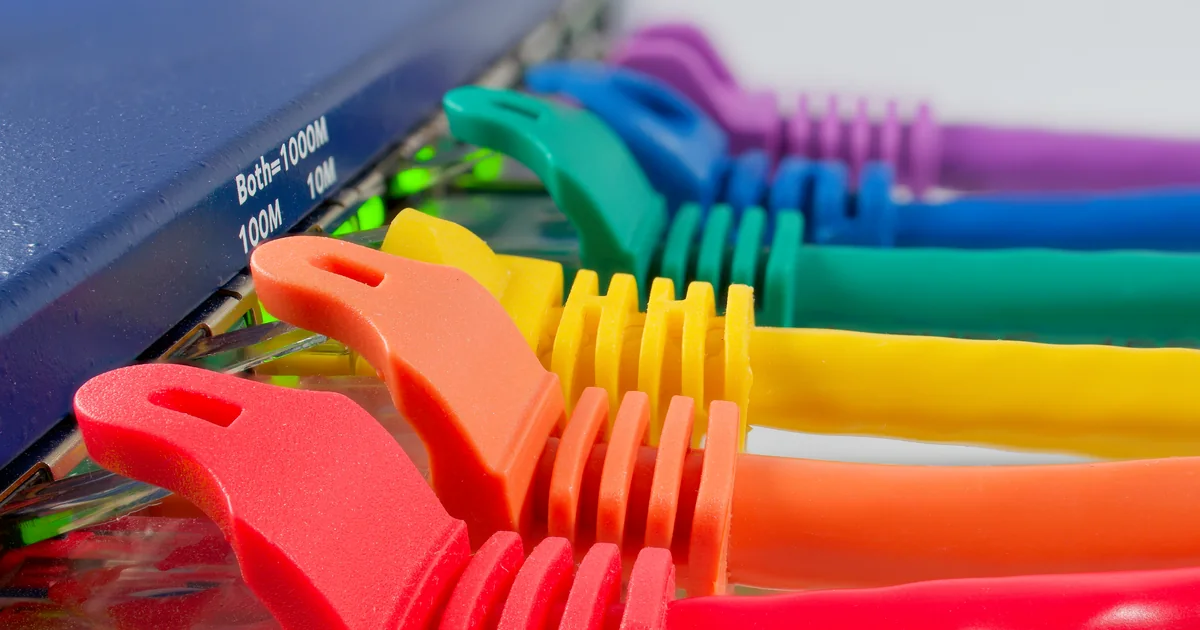
Plug the Xbox directly into the main router with a known-good network cable. Skip powerline adapters, wall extenders, secondary switches, and mesh nodes for this comparison. Xbox Support’s wired troubleshooting guidance includes trying another cable and another router port.
Play the same game, region, and mode long enough for the usual problem to appear. Run the Xbox statistics test before and after the match.
- Ethernet fixes the symptom: focus on Wi-Fi signal, interference, distance, band choice, or mesh backhaul.
- Ethernet still shows loss: try another cable and router port, then investigate traffic load, the modem or internet terminal, ISP access link, and game route.
- Only the Xbox fails: compare another device on the same cable or router port.
- Several wired devices fail together: the console is less likely to be the source.
If Wi-Fi is the difference, move the console or router into a clearer position and compare the router’s other Wi-Fi band if available. Do not change channel, band, security mode, and DNS together. The Wi-Fi packet-loss guide has a one-variable test order.
Remove household traffic from the test
Pause game downloads, console updates, cloud backups, livestreams, photo sync, security-camera uploads, and large transfers on other devices. Test one match while the connection is quiet, then repeat while recreating the normal load.
Cloudflare’s internet-quality documentation measures loaded latency separately from idle latency because busy queues can delay real-time traffic even when the line has plenty of headline speed. If loss or delay appears only under load, inspect the router maker’s supported smart queue management or QoS feature. Enable one feature, follow its documentation, and repeat the same test.
Use a computer to locate the first bad segment
A computer cannot reproduce the exact Xbox route, but a time-aligned test can show whether the local network or wider internet broke at the same moment.
On a Windows computer connected to the same router, run ipconfig and note the Default Gateway. Open two Command Prompt windows:
ping -t YOUR_GATEWAY_IPping -t 1.1.1.1Microsoft documents ping -t as continuing until you stop it with Ctrl+C. Start both tests, play until the Xbox problem appears, note the time, then stop the tests.
- If the gateway and public address fail together, inspect the local link, router, and household traffic.
- If the gateway stays steady but the public address fails, inspect the modem, ISP link, or upstream congestion.
- If both stay steady while one game reports loss, a game-specific route or service remains possible.
Routers may deprioritize ping replies, so an isolated timeout is not proof that game traffic was dropped. Look for a repeatable pattern aligned with the match. The packet loss but internet is fine guide explains the limits of supporting tests.
For a longer Windows sample, pathping /n 1.1.1.1 measures replies across intermediate hops. Microsoft warns that an intermediate router can ignore traffic addressed to itself while still forwarding later traffic. Loss at one hop matters more when it begins there and continues to the destination.
Avoid fixes that destroy the evidence
Skip these common detours:
- Random DNS values: DNS resolves names before connection. It usually does not carry live match traffic.
- Copied MTU numbers: a wrong MTU can break traffic. Leave automatic settings unless a supported test identifies a problem.
- Port forwarding as a loss cure: ports can affect inbound connectivity and multiplayer access, but they do not repair Wi-Fi interference, a damaged cable, or a congested route.
- Factory reset first: it removes settings and evidence before simpler comparisons are finished.
- Judging by one test: packet loss can be intermittent, destination-specific, or time-specific.
Compare another route only after local tests are clean
An Xbox does not install a typical consumer VPN app directly. A route comparison usually requires a compatible router or a shared connection from another device. Our Xbox VPN setup guide explains those patterns and their tradeoffs.
A VPN may help when the direct ISP route is the problem. It can also add delay or create new loss. It cannot repair weak Wi-Fi, a bad Ethernet cable, a full household upload queue, or an overloaded game server.
Keep the game region fixed, choose a nearby VPN endpoint, and compare repeated direct and tunneled sessions in both orders. Keep the route only if the same relevant metric improves more than once.
FAQ
What causes packet loss on Xbox?
Common causes include Wi-Fi interference, a damaged cable or router port, busy household queues, modem or ISP problems, an upstream route issue, and a game-service incident. The Xbox statistics test can confirm a symptom, but comparisons are needed to locate it.
Is 100 percent packet loss on Xbox always real?
Not necessarily. If online services still work, rerun the test and check Xbox status before assuming the connection is completely dead. A temporary test-service problem, blocked test traffic, or a brief outage can produce a result that does not match normal connectivity.
Does changing DNS fix Xbox packet loss?
Usually not. DNS translates a service name into an address before connection. It does not normally control the live route used by match traffic. Change DNS only when evidence points to name-resolution trouble.
Can Ethernet fix packet loss on Xbox?
Ethernet can remove Wi-Fi interference, signal weakness, and roaming from the path. It will not fix upstream congestion, game-server trouble, or a bad internet route. Use a known-good cable directly to the main router as a comparison.
Can a gaming VPN fix Xbox packet loss?
Sometimes, when the direct upstream route is the cause and the VPN takes a cleaner path. It may also make performance worse. Stabilize the local connection first, then compare repeated sessions without promising a specific result.
If the local link is clean and the route is still acting haunted, join the LagZero waitlist. LagZero is pre-launch, and the goal is an honest route comparison, not a zero-loss promise.
Sources
- Xbox Support: Network settings on the Xbox console
- Xbox Support: Troubleshoot your Xbox network connection
- Xbox Support: Troubleshoot a wired network connection
- Xbox Support: About advanced network settings
- Xbox status
- Microsoft Learn: ping command
- Microsoft Learn: pathping command
- Cloudflare: Aggregated Internet Measurement
IMAGE CREDITS Xbox Series X 2.jpg by Der. Bellemer (CC BY-SA 4.0); cropped and color-graded by LagZero. · Ethernet - Flickr - Dave Ruske.jpg by Dave Ruske (CC BY 4.0); cropped and color-graded by LagZero.