
To fix packet loss on PS5, first confirm the game is reporting loss, check PSN and the game status, then compare Wi-Fi with a direct Ethernet connection. Pause downloads and uploads, test another game, restart the console and network equipment, and change only one variable at a time. A VPN route is worth testing only after the local connection is stable.
PS5 connection menus, wired setup, restart guidance, and system update steps were checked against current PlayStation Support. In-game loss display guidance was checked against Epic Games Support, and network measurement limits were checked against Microsoft and Cloudflare documentation.
IN THIS GUIDE
- Confirm the PS5 symptom is actually packet loss
- Check PSN and the game before touching the router
- Compare Wi-Fi with direct Ethernet
- Remove household traffic and queue pressure
- Use another device to locate the first bad segment
- Restart cleanly and preserve useful settings
- Test a different route only after the local link is clean
- FAQ
- Sources
Your match freezes for half a second, your party audio turns robotic, and your character reappears somewhere the server apparently preferred. That can be packet loss, but the fix is not automatically a new DNS address, a magic MTU number, or twelve router settings copied from a video.
If you want to know how to fix packet loss on PS5, start by proving where the problem appears. Test the game, the console connection, the local link, household traffic, and the upstream route in that order. Each step should remove one suspect without erasing the evidence from the previous test.
Confirm the PS5 symptom is actually packet loss
Packet loss means some data sent between your console and a destination does not arrive. In a game, that can look like rubberbanding, delayed actions, missing updates, voice breakup, or a disconnect. Those symptoms can also come from high jitter, a server problem, or frame-time stutter.
Use the game’s network display if available. Epic documents Fortnite’s Net Debug Stats option, which shows ping and packet loss during a match. Other games may call it a network graph or connection meter.
Compare the network display with what you see:
- Loss rises when the game breaks: keep testing the connection.
- Ping and loss stay steady while the picture freezes: investigate frame rate, heat, storage, or the game itself.
- Only one game reports loss: check that game’s status, region, and route first.
- Several games and party chat fail together: the local network or internet path becomes more likely.
If the issue stays inside one title, use the packet loss in one game guide before changing console-wide settings.
Check PSN and the game before touching the router
Open the official PlayStation Network status page and the publisher’s status page. An outage, maintenance window, or overloaded game service cannot be fixed from your living room.
Then restart the affected game and the PS5. Install the latest game update and check Settings > System > System Software > System Software Update and Settings for a console update. PlayStation Support recommends current system software when troubleshooting online features.
Run Settings > Network > Connection Status > Test Internet Connection. Record the result rather than treating it as a repair button. A successful test shows that the console can connect, but an estimated download speed does not certify a loss-free match. The test and your game may use different destinations, protocols, and time windows.
Record the game, region, time, connection type, and what the graph showed before restarting anything.
Compare Wi-Fi with direct Ethernet
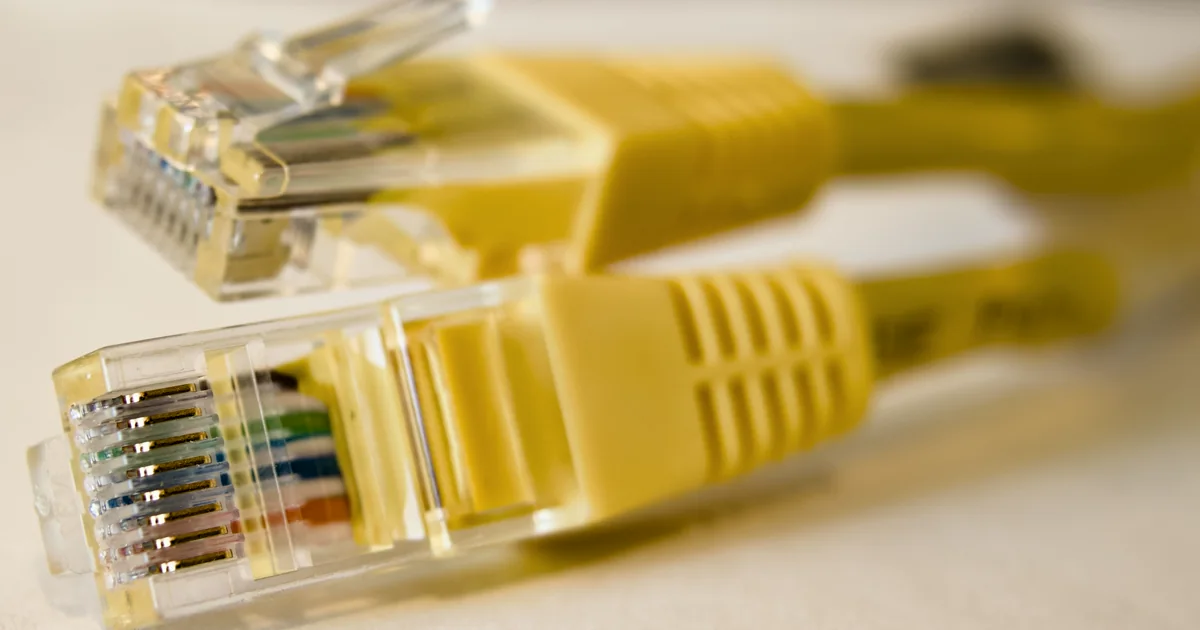
Plug the PS5 directly into the main router with a known-good Ethernet cable. On PS5, go to Settings > Network > Settings > Set Up Internet Connection, then choose the wired LAN connection. PlayStation’s current setup guide documents this path.
Keep the game mode, server region, and test time as similar as possible. Play at least long enough for the usual problem to appear.
| Result | Best first suspect |
|---|---|
| Ethernet removes the loss | Wi-Fi signal, interference, channel load, mesh backhaul, or roaming |
| Ethernet still loses packets | Cable, router port, traffic queue, modem, ISP path, or game route |
| One game fails on both | Game service, selected region, or game-specific route |
| Every game fails on both | Home network, internet access link, or wider outage |
If Ethernet helps, move the router into the open, shorten the distance, remove dense obstacles, and test the router’s other Wi-Fi band if available. Change one setting at a time. Our Wi-Fi versus Ethernet packet-loss checklist explains the isolation process.
If you were already wired, reseat both ends, try another router LAN port, and test another cable. Bypass powerline adapters, wall extenders, secondary switches, and mesh nodes for one direct comparison. A link can stay connected while a damaged cable or intermediate device creates intermittent errors.
Remove household traffic and queue pressure
Pause PS5 downloads and uploads. Also pause cloud backup, photo sync, livestreaming, large file transfers, security-camera uploads, and updates on other devices for one controlled match.
A fast speed test does not rule out a busy queue. Cloudflare distinguishes idle from loaded latency because full queues can delay real-time traffic.
Test once while the connection is idle and once while reproducing the normal household load. If the problem appears only under load, look for your router’s smart queue management or QoS feature. Enable one feature, follow the manufacturer’s guidance, and compare the same scenario again. Do not assume the most aggressive preset is best.
Use another device to locate the first bad segment
Use a computer on the same router as a supporting test. It cannot reproduce the exact console path, but it can reveal a simultaneous local or upstream break.
On Windows, run ipconfig and find the Default Gateway. Open two Command Prompt windows:
ping -t YOUR_GATEWAY_IPping -t 1.1.1.1Microsoft documents ping -t as continuing until you stop it. Play until the PS5 loss appears, note the time, then press Ctrl+C in both windows.
- If gateway and public ping both time out at the same moment, inspect Wi-Fi, Ethernet, local traffic, and the router.
- If the gateway stays stable but public ping breaks, inspect the modem, ISP access link, congestion, and upstream route.
- If both stay stable while only the game reports loss, the game route or server remains possible.
Routers can deprioritize ping replies, so one miss is not proof of dropped game traffic. Look for a repeatable pattern aligned with the PS5 symptom. The packet loss but internet is fine guide explains these limits.
Restart cleanly and preserve useful settings
After recording a bad session, restart the PS5. Power off the modem and router normally, wait at least five minutes as PlayStation Support recommends, then power them back on.
Update router firmware through the router maker or ISP. Reconfigure the PS5 network only if the saved connection appears wrong or corrupted.
Avoid these popular distractions:
- Changing DNS: DNS helps locate a service before connection. It usually does not carry live match traffic.
- Copying a random MTU value: a wrong value can create failed traffic. Leave automatic settings unless a supported diagnostic identifies an MTU problem.
- Opening ports as a packet-loss cure: port rules may affect inbound connectivity or NAT behavior, but they do not repair interference, congestion, or a bad route.
- Using the PS5 speed estimate as final proof: throughput and packet delivery are different measurements.
- Factory-resetting immediately: preserve your evidence and try reversible tests first.
Test a different route only after the local link is clean
A PS5 VPN test requires a compatible router or shared connection. It cannot repair Wi-Fi interference, a bad cable, a full upload queue, or an overloaded server.
It may help when the direct ISP route is the problem, and it may also add delay or new loss. Keep the game region fixed, choose a nearby VPN endpoint, and compare equal direct and tunneled sessions. Repeat in both orders. Keep the route only if the same metric improves more than once.
The PS5 VPN setup guide covers the supported connection patterns and their limits.
For support, include the time zone, game and region, connection type, telemetry, ping summaries, and whether another game failed. Evidence beats “PS5 lag pls fix.”
FAQ
Why does my PS5 have packet loss but other devices seem fine?
The PS5 may be using a different Wi-Fi band, location, cable, router port, game route, or traffic pattern. Compare the console over direct Ethernet, test another game, and check whether a computer on the same network shows gateway or public loss at the same time.
Does changing DNS fix packet loss on PS5?
Usually not. DNS translates names before a service connection is established. It does not normally control the live packet path during a match. A DNS change can help a name-resolution problem, but it is not a general packet-loss repair.
Can a bad Ethernet cable cause PS5 packet loss?
Yes. A damaged cable, loose connector, failing router port, powerline adapter, or intermediate switch can create errors or short disconnects. Test a known-good cable directly between the PS5 and main router, then try another LAN port.
Is the PS5 internet connection test a packet-loss test?
Do not treat it as one. It confirms basic connection details and estimates speed, but it does not prove that the exact game route stayed loss-free during a match. Use in-game network telemetry and time-aligned comparison tests.
Can a gaming VPN fix packet loss on PS5?
Sometimes, when the loss is specific to the direct upstream route and the VPN provides a cleaner path. It cannot fix a weak local link, household queue, damaged cable, or game-server issue. Compare repeated sessions before keeping it.
If your wired local tests stay clean and the upstream route still drops the plot, join the LagZero waitlist. LagZero is pre-launch, and the honest goal is a route you can compare, not a zero-loss guarantee.
Sources
- PlayStation Support: Set up an internet connection on PlayStation consoles
- PlayStation Support: How to fix PS5 error NW-102379-2
- PlayStation Support: Update PS5 system software
- PlayStation Network status
- Epic Games Support: Check packet loss while playing Fortnite
- Microsoft Learn: ping command reference
- Cloudflare: Aggregated Internet Measurement
IMAGE CREDITS Ugang playing KOFXV on PS5 at PChome eBay booth 20260208.jpg by Solomon203 (CC BY-SA 4.0); cropped and color-graded by LagZero. · Ethernet connector.webp by Wikideas1 (CC0); cropped and color-graded by LagZero.