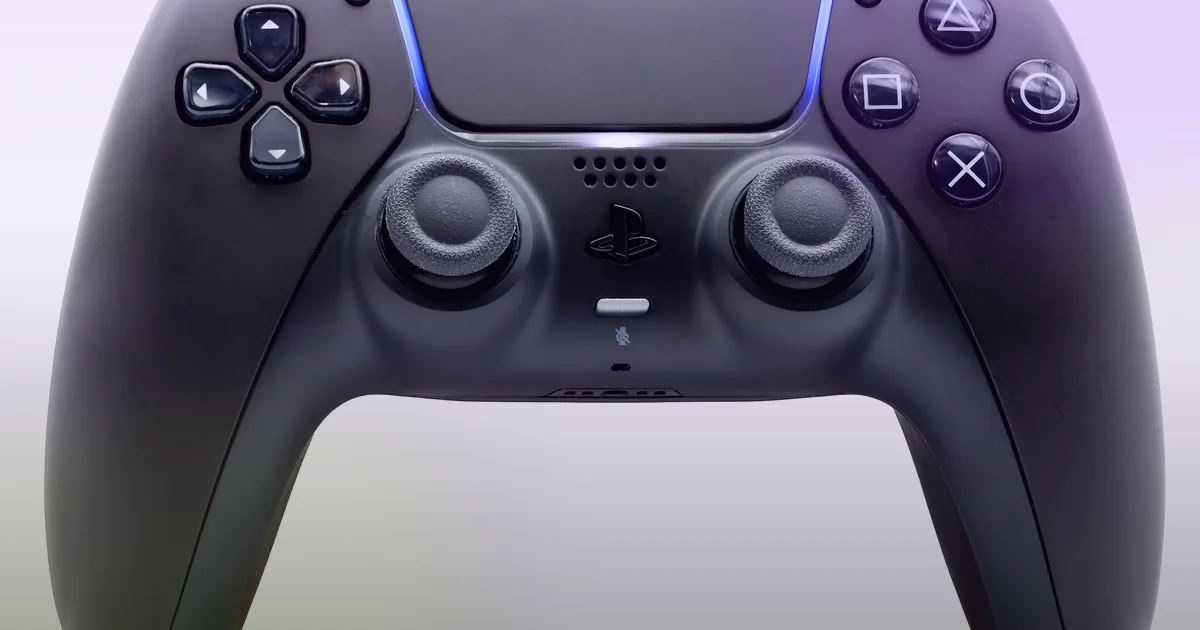
Start your EA FC 26 high ping fix by turning on Ping and connection indicators under Customise > Settings > Game Settings > Visual > Connection Monitoring and setting Input Overlay to Local Input + Online Response so you can see round-trip millisecond ping beside the gap between your controller press and the EA SPORTS FC Game Data Center response. Next, inspect your 7-day Match History in the EA Connection Quality Report, test solo matches if a cross-region party in Clubs or The Grounds raised your latency, plug your PS5, Xbox, or PC directly into your router with an Ethernet cable, enable TV Game Mode, and compare Hop 1 ping against pathping before testing a gaming VPN.
Reviewed against official EA Help documentation for How ping works in EA SPORTS FC, Connection monitoring options in EA SPORTS FC, How Input Overlay works in EA SPORTS FC, About EA SPORTS FC game data centers, Troubleshoot Connection Quality and the EA Connection Quality Report, EA SPORTS FC 26 Gameplay Responsiveness Pitch Notes, and Microsoft Learn pathping documentation on November 19, 2026.
IN THIS GUIDE
- Turn on Connection Monitoring and Input Overlay to measure real millisecond delay
- Check your 7-day ping and ISP score in the EA Connection Quality Report
- Check party region rules and EA SPORTS FC Game Data Center routing
- Switch from Wi-Fi to Ethernet, enable TV Game Mode, and clear bufferbloat
- Trace Hop 1 vs your ISP route before testing a gaming VPN
- FAQ
- Sources
When first-time passes register late, defenders turn heavily in Division Rivals, or your lobby bar jumps into 90+ ms orange, you need an EA FC 26 high ping fix that separates server distance and ISP routing from home Wi-Fi delay and TV input lag. According to EA Help’s guide to how ping works in EA SPORTS FC, ping measures the round-trip time it takes for game data packets to travel from your console or PC to an EA SPORTS FC Game Data Center and back.
In the EA SPORTS FC 26 Gameplay Responsiveness Pitch Notes, EA notes that more than half of FC players connect over Wi-Fi, that a TV outside Game Mode can add 20 ms to over 100 ms of display delay, and that physical closeness to a Game Data Center cannot guarantee low ping if your ISP routes traffic along an indirect path.
Turn on Connection Monitoring and Input Overlay to measure real millisecond delay
Before changing router settings, enable EA FC 26’s telemetry to see whether delay comes from steady high ping, jitter spikes, or display lag. In EA Help’s Connection Monitoring guide and Input Overlay documentation, EA outlines two visual tools:
- Open Customise > Settings > Game Settings > Visual.
- Scroll to Connection Monitoring and select Ping and connection indicators to display round-trip millisecond ping (updated every second) alongside orange and red warning icons.
- In the Visual tab, set Input Overlay to Local Input + Online Response. During matches on EA SPORTS FC Game Data Centers, two controllers appear in the top-right corner: the first mirrors your physical button press, and the second lights up after the Game Data Center processes that packet.
Compare the live readout during an online match:
- Steady high ping (
80 msto150 ms) with a consistent gap between Local Input and Online Response, no jitter or loss icon: Your connection is stable, but packets travel a long path to a distant Game Data Center or across an indirect ISP route. - Ping jumping (
24 msto115 ms) with the orange or red Jitter icon: Wireless interference or household transfers are queuing packets in bursts. - Packet Loss icon flashing with missed inputs: Packets are failing the round trip. Pair this guide with our EA FC 26 packet loss fix.
- Low ping (
15 msto35 ms) and fast Online Response, but players feel sluggish: Your network path is clean. Check TV Game Mode or PC frame pacing.
| EA FC 26 visual readout | What is causing the delay | First fix to run |
|---|---|---|
Steady high ping (80+ ms), no jitter/loss icon |
Distant Game Data Center, cross-region party, or ISP detour | Test solo queueing and trace your ISP route |
| Ping jumping + orange/red Jitter icon | Wi-Fi airtime contention or router bufferbloat | Wire your console or PC with Ethernet and pause transfers |
| Packet Loss icon + missed button presses | Packets dropping between your device and the data center | Follow our EA FC 26 packet loss fix |
Low ping (<35 ms), fast Online Response, heavy feel |
TV post-processing lag (20-100+ ms) or PC frame stutter |
Enable TV Game Mode and check our low ping but still lagging guide |
Check your 7-day ping and ISP score in the EA Connection Quality Report
Open EA Help’s Troubleshoot Connection Quality page and launch the EA Connection Quality Report with your EA Account (supported on PlayStation, Xbox, and PC; Nintendo Switch is not supported).
Review three details from your past 7 days of online matches:
- Baseline ping vs evening peak ping: In Match History, if afternoon matches sit at
22 mswhile evening matches jump to85 mswith jitter, congestion is building on your home network or your ISP’s evening peering links. - Reported Connection Type: Confirm every match shows Ethernet (wired) rather than Wi-Fi (wireless). Plugging in a cable without switching your PS5 or Xbox network profile leaves the console on Wi-Fi.
- ISP Comparison Leaderboard: Compare your Connection Score with the 30-day average for local EA SPORTS FC players on your ISP. If your ping is much higher than neighbors on the same provider, the bottleneck is inside your home or party lobby.
Check party region rules and EA SPORTS FC Game Data Center routing
According to EA Help’s Game Data Center location guide, dedicated Game Data Centers host Online Seasons, Clubs, Co-op Seasons, Online Friendlies, and Ultimate Team modes across Europe, North America, South America, Asia, Oceania, and Africa.
Keep three matchmaking rules in mind:
- Cross-region parties in Clubs, Co-op, and The Grounds: As noted in EA Help’s ping guide, joining friends in another region can place your group into a Grounds world or match data center far from you. High ping is less noticeable while walking around The Grounds, but it directly delays actions once a match starts. Queue solo for two matches to verify your local baseline.
- No manual server lock: You cannot manually select a Game Data Center, lock your region in The Grounds, or set a maximum ping cap in-game.
- ISP routing overrides physical distance: Even near an EA Game Data Center, your ISP may route packets through a distant regional exchange before handing traffic to EA.
Switch from Wi-Fi to Ethernet, enable TV Game Mode, and clear bufferbloat
Fix the local bottlenecks EA highlighted in its FC 26 responsiveness testing:
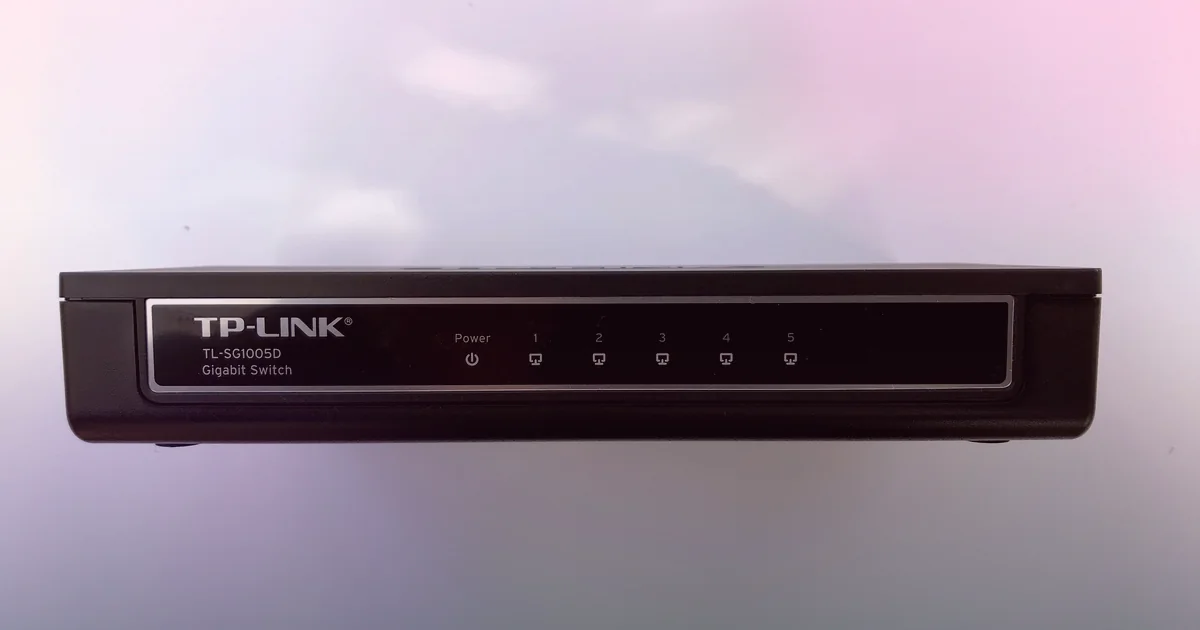
- Plug in an RJ45 Ethernet cable: Connect a Cat6 cable from your PS5, Xbox Series X|S, or PC to a router LAN port or Gigabit switch, then select Wired LAN in system settings. See our high ping on PS5 guide and high ping on Xbox guide.
- Turn on TV Game Mode: EA warns that a TV outside Game Mode adds
20 msto over100 msof display delay. Enable Game Mode on your TV input and bypass slow HDMI capture cards. - Stop background uploads and downloads: Console clip uploads, game updates, cloud syncs, and 4K streams fill your router buffer (bufferbloat). Pause transfers during matches and enable router Quality of Service (
QoS).
Trace Hop 1 vs your ISP route before testing a gaming VPN
When your device is wired on Ethernet, transfers are paused, and solo matches still show 85+ ms, test where latency starts. On a Windows PC wired to the same router, find your Default Gateway with ipconfig and run ping beside Microsoft’s pathping command:
ping -n 100 192.168.1.1
pathping -n 1.1.1.1
Read the hop numbers in order:
- Hop 1 (your router) spikes above
3 msto5 mson Ethernet: Your patch cord, powerline adapter, switch port, or router queue is adding local delay. Bypass powerline plugs and reboot your router. - Hop 1 stays at
1 ms, but Hop 2 or Hop 3 jumps to40+ ms: Delay starts on your modem line, fiber ONT, or local ISP node. - Hops 1 to 3 stay low (
1 msto12 ms), but a middle-mile hop jumps by50 msto90 ms: Your ISP is taking a congested peering link or geographic detour toward EA’s Game Data Center.
EA recommends disconnecting standard VPNs first because general VPNs add extra distance to Game Data Centers. A gaming VPN cannot fix Wi-Fi interference, TV display lag, local downloads, or distance to a far continent. It only helps when your wired home network is clean (1 ms to Hop 1) and your ISP takes a provably indirect route to a nearby EA Game Data Center. Never use a VPN to spoof store regions or bypass platform rules.
LagZero is in pre-launch testing and is not live yet. We are building it for casual gamers who want honest A/B route testing without fake “zero ping” promises. For early access when testing opens, join the LagZero waitlist.
FAQ
How do I show my live ping in EA FC 26?
Open Customise > Settings > Game Settings > Visual, scroll to Connection Monitoring, and choose Ping only or Ping and connection indicators to display round-trip millisecond ping during matches.
Why is my ping high in EA FC 26 when my internet speed is fast?
Download speed measures bandwidth capacity, while ping measures round-trip travel time to an EA SPORTS FC Game Data Center. Fast internet still gets high ping on Wi-Fi, in cross-region parties, during upload saturation, or across indirect ISP routes.
Can I manually change or lock my Game Data Center in EA FC 26?
No. EA SPORTS FC automatically assigns online matches and The Grounds worlds to the Game Data Center that best fits your network route and party region.
Why does EA FC 26 feel delayed even when my ping is under 30 ms?
Set Input Overlay to Local Input + Online Response. If Online Response lights up right after Local Input yet gameplay feels sluggish, enable Game Mode on your TV, which removes 20 ms to 100+ ms of display lag. Offline modes also use Authentic pacing while online modes use Competitive tuning.
Does a VPN lower ping in EA SPORTS FC 26?
Usually no, because extra tunnel distance raises latency. A gaming VPN only helps when your wired home connection is clean (1 ms to your router) and your ISP routes traffic through a congested or out-of-region exchange before reaching a nearby EA Game Data Center.
Sources
- EA Help: How ping works in EA SPORTS FC
- EA Help: Connection monitoring options in EA SPORTS FC
- EA Help: How Input Overlay works in EA SPORTS FC
- EA Help: About EA SPORTS FC game data centers
- EA Help: Troubleshoot Connection Quality & EA Connection Quality Report
- EA SPORTS FC 26: The Pitch Notes - Gameplay Responsiveness Update
- Microsoft Learn: pathping command reference
IMAGE CREDITS Playstation 5 DualSense controller in Midnight Black, 2026-02-07 (front).jpg by Chris Woodrich (CC BY-SA 4.0); cropped and color-graded by LagZero. · 5 Port Gigabit Netzwerk-Switch TL-SG1005D 06.jpg by www.heimnetzwerke.net (CC BY 4.0); cropped and color-graded by LagZero.