
The best gaming VPN setup is boring: a lightweight protocol, a nearby server, and as few unnecessary detours as possible. You do not need to rotate your IP every seven seconds or connect through three continents. That setup is excellent if your goal is to make every packet complete a side quest.
Device capabilities and setup constraints were checked against the official platform or operating-system documentation linked in Sources.
IN THIS GUIDE
- The quick setup
- Choose WireGuard first
- Pick the right VPN server
- Disable multi-hop
- Use split tunneling when it helps
- Set the kill switch for your priority
- Leave DNS alone unless it is broken
- Adjust MTU only when symptoms point there
- Keep obfuscation off by default
- Ethernet beats every app toggle
- Run a proper comparison
- Settings to avoid
- FAQ
- Sources
The best gaming VPN setup is boring: a lightweight protocol, a nearby server, and as few unnecessary detours as possible.
You do not need to rotate your IP every seven seconds or connect through three continents. That setup is excellent if your goal is to make every packet complete a side quest.
The quick setup
Start here:
- Select WireGuard.
- Connect to a nearby server.
- Match the VPN location to the game region you already use.
- Use Ethernet.
- Turn off multi-hop or double VPN.
- Keep obfuscation off unless the network blocks VPN traffic.
- Test with and without split tunneling.
- Compare ping, jitter, and packet loss for 10 minutes each.
Keep the settings that win on your connection, not the ones a blog labels “ultra.”
Choose WireGuard first
WireGuard is usually the best starting protocol for games. Its official project describes a lean design that encapsulates IP packets over UDP. UDP avoids the extra retransmission behavior of running a tunnel over TCP, which can be painful when real-time game traffic already handles its own loss.
Use this order:
- WireGuard: first choice for speed and low overhead.
- IKEv2: useful on mobile devices and connections that change networks.
- OpenVPN UDP: a compatible fallback.
- OpenVPN TCP: use on restrictive networks when UDP options fail.
“Usually” matters. A network can block or mishandle one protocol, so test another if you see disconnects or loss.
Pick the right VPN server
The nearest endpoint often gives the lowest tunnel latency, but geography is not the whole route.
If you play on a Frankfurt game server from Amsterdam, test VPN endpoints near Amsterdam and Frankfurt. If you play in your home region, begin in your own city or the closest available city.
Avoid:
- Automatically choosing a distant “gaming” server without testing
- Connecting to a country because its flag looks exciting
- Selecting an endpoint far beyond the game’s region
- Using an overloaded location when a nearby alternative exists
Test two or three sensible endpoints. Keep the one with the best stable result, not one lucky minimum ping.
Disable multi-hop
Multi-hop sends traffic through more than one VPN server. It has privacy uses, but extra distance and processing are poor ingredients for a latency-sensitive game.
Use a single-hop connection while playing. Save the grand tour of Europe for browsing that does not punish a 50 ms detour.
Use split tunneling when it helps
Split tunneling sends selected apps through the VPN while the rest use the normal connection.
Two useful configurations are:
- Route only the game and launcher through the VPN when testing a game route.
- Route everything except the game through the VPN when you want browser privacy but the direct game route is faster.
Be careful with games that use anti-cheat, launchers, voice services, or separate helper processes. Routing only one executable can break sign-in or voice chat. Add the complete game and launcher family, then test.
If split tunneling is unavailable or confusing, use the full tunnel. Simple and working beats clever and disconnected.
Set the kill switch for your priority
A kill switch blocks internet traffic if the VPN disconnects. It protects against accidental exposure of the normal IP address, but a tunnel failure can remove you from a match.
Use it when privacy or location consistency matters more than staying connected. For ordinary home gaming, choose based on your risk tolerance. On hostile public Wi-Fi, leaving it enabled makes more sense.
Never disable a safety feature because somebody promised it lowers ping by 40 ms. It does not.
Leave DNS alone unless it is broken
DNS translates names into addresses. It can affect sign-in or the first connection, but it usually does not control live game latency after the session is established.
Use the VPN provider’s DNS by default to avoid leaks and mismatched routing. Change DNS only if names fail to resolve, the launcher loads slowly, or support recommends a tested option.
A public DNS service may feel faster in a benchmark and still do nothing for your match. The bullets did not ask a resolver for directions.
Adjust MTU only when symptoms point there
Maximum transmission unit (MTU) controls packet size. A tunnel adds headers, which reduces the space available for the original packet. Incorrect path handling can cause fragmentation or dropped packets.
Suspect an MTU issue when:
- The VPN connects but some services hang.
- Small packets work while downloads or logins stall.
- One network works and another does not.
- You get unexplained loss despite a stable local link.
Do not copy a random MTU value as a universal speed hack. Ask support for the correct setting or lower it gradually while testing. Record the original value first.
Keep obfuscation off by default
Obfuscation disguises VPN traffic so restrictive networks have a harder time identifying it. The feature can add overhead.
Enable it at school, work, a hotel, or another network only when normal protocols are blocked and use is permitted. At home, leave it off unless you need it.
Ethernet beats every app toggle
A VPN cannot stabilize a weak wireless signal. Connect your PC or console by Ethernet where possible. If you must use Wi-Fi:
- Prefer 5 GHz or 6 GHz near the access point.
- Avoid repeaters for competitive or fast real-time games.
- Keep the router away from enclosed cabinets.
- Pause large household uploads.
Read why games lag at night if performance collapses during busy hours.
Run a proper comparison
For each protocol and server:
- Play the same mode and region.
- Record 10 minutes of data.
- Note median ping, range or jitter, loss, and disconnects.
- Repeat during the hour you normally play.
- Choose stability over a single low number.
Use our honest ping guide for the full table.
Settings to avoid
- Double VPN or multi-hop for normal gaming
- Distant endpoints with no reason
- OpenVPN TCP when UDP works
- Obfuscation when the network is not restrictive
- Random MTU tweaks
- Constant server switching during a test
- Claims that any setting guarantees lower ping
FAQ
Which protocol is fastest for gaming?
WireGuard is the best first test for most players. IKEv2 and OpenVPN UDP are useful fallbacks when network compatibility differs.
Should the VPN server be near me or the game?
Test both sensible options. A nearby endpoint minimizes the first leg; one near the game can improve the upstream route. Avoid endpoints far away from both.
Should I enable a kill switch while gaming?
Enable it when preventing fallback to the normal connection matters more than staying in the match. Public networks and location-sensitive sessions favor the kill switch.
Does changing DNS lower ping?
Usually not during an active match. DNS mainly affects name lookup and initial connection.
Start with WireGuard and the nearest endpoint in LagZero. If another setting measures better, use it. The app’s feelings will be fine.
Sources
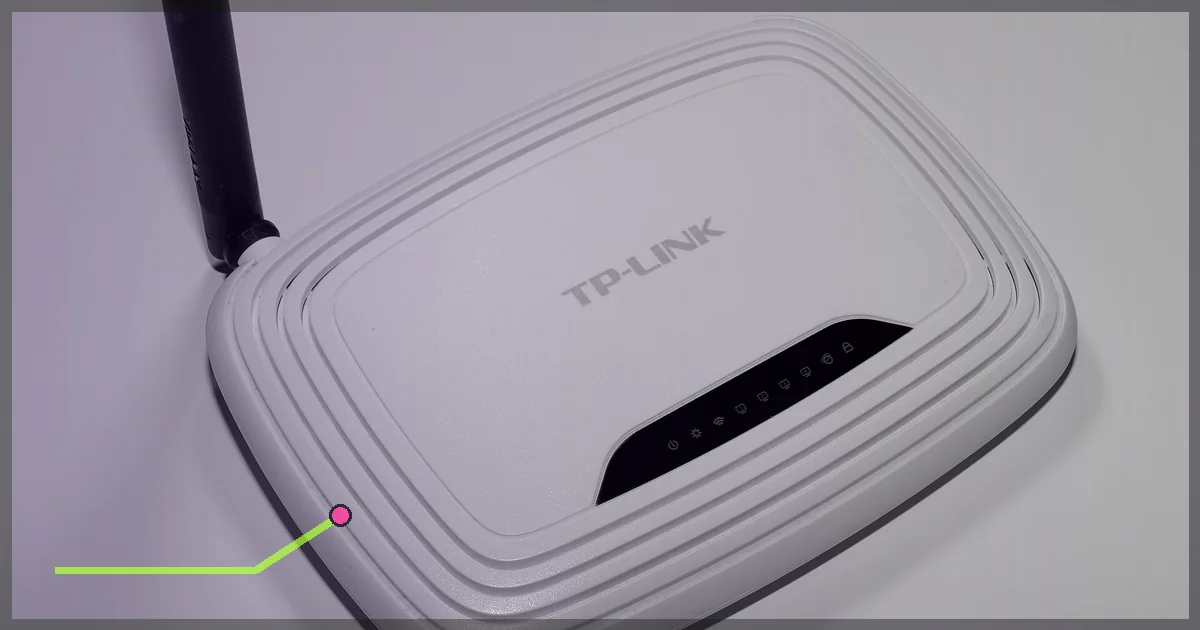
IMAGE CREDITS Gaming-PC 20240426 HOF2493-HDR RAW-Export.png by PantheraLeo1359531 (CC BY 4.0); cropped and color-graded by LagZero. · TP-Link TL-WR740N router HS1.jpg by Hayden Schiff (CC BY 4.0); cropped and color-graded by LagZero.