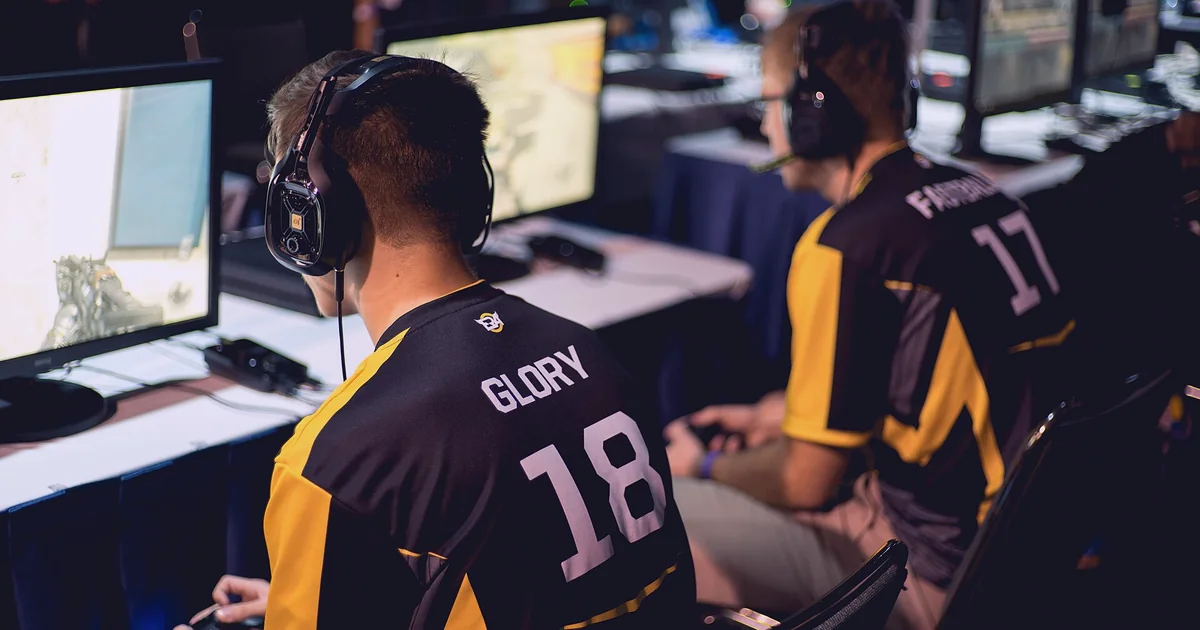
A reliable Warzone packet loss fix starts with turning on Server Latency and Packet Loss telemetry in Interface settings so you can separate real network packet loss (above 0%) from three-square Packet Burst icons caused by PC CPU or VRAM bottlenecks. Plug your PC, PlayStation, or Xbox directly into the router with an Ethernet cable, pause background uploads, set On-Demand High-Quality Streaming to Minimal with a daily download cap, verify UPnP or Call of Duty UDP port 3074 for NAT stability, and compare a 50-packet router gateway ping against a public pathping before testing a gaming VPN.
Checked against Activision Support documentation for Call of Duty: Warzone lag and in-game performance troubleshooting, connecting to a Warzone game, Managing Content and On-Demand High-Quality Streaming, Port Forward and NAT FAQ, and Ports Used for Call of Duty Games on October 28, 2026.
IN THIS GUIDE
- Separate Packet Loss from Packet Burst in Warzone telemetry
- Check Activision server status and lobby consistency
- Set On-Demand High-Quality Streaming to Minimal
- Fix Wi-Fi drops, upload congestion, and NAT on PC, PS5, and Xbox
- Run a router ping and pathping to find where packets drop
- When a gaming VPN helps Warzone packet loss (and what to avoid)
- FAQ
- Sources
Finding a real Warzone packet loss fix starts with proving whether packets are disappearing in transit or whether Call of Duty is stalling on texture downloads, local upload queues, or a degraded server. In Warzone, lost UDP packets show up as delayed hit markers, doors that ignore the first press, parachutes that snap backward, or gunfights that resolve after you duck behind cover.
Because ping can sit at 30 ms while 2% to 5% of match updates vanish, random registry edits rarely help. Work through the checks below in order across PC, PS5, and Xbox.
Separate Packet Loss from Packet Burst in Warzone telemetry
Players often call every orange or red HUD warning “packet loss,” but Call of Duty uses distinct telemetry readouts for different failure modes. Turn on the numeric counters first:
- Open Warzone Settings and select Interface.
- Scroll to Telemetry and expand Show More.
- Set Server Latency and Packet Loss to On (plus GPU Time and CPU Time on PC).
- Test inside a live Battle Royale, Resurgence, or Plunder match rather than the firing range.
Compare what the telemetry bar and warning icons report:
| Warzone telemetry symptom | What it actually means | First diagnostic step |
|---|---|---|
| Packet Loss above 0% | UDP packets drop between your device and the server | Switch to wired Ethernet and test your router hop |
| Packet Burst icon with 0% Packet Loss | Packets process in clumps from CPU spikes, shaders, or texture streaming | Cap FPS, finish shaders, and set texture streaming to Minimal |
| Latency Variation icon | Jitter from shared Wi-Fi airtime, upload queueing, or an ISP hop | Pause household uploads and run a loaded latency check |
| Extrapolation or cable icon | The Warzone match instance or data center is stalling | Check Activision status and test a fresh lobby |
If Packet Loss stays at 0% while the screen hitches during close-range fights, you have frame-time or asset stutter rather than missing packets. Use our Warzone lag fix guide for PC shader and VRAM checks.
Check Activision server status and lobby consistency
Before changing home network settings, verify whether Activision’s online infrastructure or a single match server is having trouble:
- Check the Activision Online Services status page for Warzone alerts on PlayStation, Xbox, Battle.net, or Steam.
- Play at least two matches across playlists (such as Resurgence and Battle Royale) and note whether packet loss follows you into every lobby.
- If you queue with distant friends, party matchmaking can place your squad on a farther data center with extra transit hops.
When packet loss appears in one lobby and drops back to 0% in the next match, that server instance was at fault.
Set On-Demand High-Quality Streaming to Minimal
Activision expanded texture streaming to reduce install sizes and renamed the setting On-Demand High-Quality Streaming. While the game streams operator and weapon textures into a local cache, busy home networks can experience bandwidth spikes when new squads enter your area.
Restrict background downloads in the settings menu:
- Open the Call of Duty Menu and select Manage Files (or Settings > Graphics > Quality inside Warzone).
- Select Graphics and scroll to On-Demand High-Quality Streaming.
- Change the mode from Optimized to Minimal to lower bandwidth usage during matches.
- Expand Show More, turn Download Limits to On, set Daily Download Limit (GB) to 1.0 GB, and keep Allocated Texture Cache Size on Small (or 16 on PC).
Setting streaming to Minimal prevents Warzone from competing with its own UDP match traffic.
Fix Wi-Fi drops, upload congestion, and NAT on PC, PS5, and Xbox
Activision Support recommends playing Warzone on a wired Ethernet connection because Wi-Fi reliability and airtime vary from second to second. Even a strong 5 GHz or 6 GHz wireless signal is half-duplex and waits whenever another device transmits on the same channel.
Work through the local connection layer in order:
- Plug your PC, PS5, or Xbox directly into the router with an Ethernet cable. Bypass mesh satellites and wall extenders. See our high ping on PS5 guide and high ping on Xbox guide.
- Stop background uploads and updates. Most providers allocate far less bandwidth to uploads than downloads. Cloud backups, streams, and game updates saturate upload queues and drop packets. Use our ping spikes when downloading guide to test bufferbloat.
- Run your console’s connection diagnostic. On PlayStation, open Settings > Network > Test Internet Connection. On Xbox, open Settings > General > Network settings and run Test network connection and Test multiplayer connection.
- Verify UPnP or Call of Duty UDP ports. Test UPnP enabled with manual port forwarding turned off first. If you use manual port forwarding instead, turn UPnP off, set a static local IP, and forward Call of Duty’s primary port UDP 3074 (plus Activision Support platform ports: TCP 3074, 27014-27050 and UDP 3074, 3478, 4379-4380, 27000-27031, 27036 on PC; TCP 3478-3480 and UDP 3074, 3478-3479 on PlayStation; TCP 3074 and UDP 88, 500, 3074, 3544, 4500 on Xbox).
Port forwarding and Open NAT help lobby connectivity and voice chat, but do not shorten server distance or repair congested ISP peering.
Run a router ping and pathping to find where packets drop
When wired Ethernet on an idle home network still reports 1% to 5% packet loss, use a Windows PC on the same router to prove where packets drop:
- Open Command Prompt and run
ipconfigto find your Default Gateway IP (such as192.168.1.1). - Test 50 packets to your router:
ping -n 50 192.168.1.1. - Test 50 packets to a public host:
ping -n 50 1.1.1.1. - Trace hop-by-hop loss with
pathping /n 1.1.1.1and wait for the 100-query phase to finish.
How to read the numbers:
- 1% or higher loss to your Default Gateway: The fault is inside your home. Swap the Ethernet cable, try another LAN port, or reboot the router.
- 0% loss to the Default Gateway, but loss on hop 2 or hop 3 that continues to the destination: Your ISP’s local node or access link is dropping traffic.
- 0% loss to the Default Gateway, but loss starting at a middle peering exchange during peak hours: Your ISP’s transit path is congested. Ignore a single middle hop showing 100% ICMP loss if the final hop reports 0% loss.
When a gaming VPN helps Warzone packet loss (and what to avoid)
Activision’s documentation notes that fewer points of exchange and cleaner direct routes help minimize latency and packet loss during peak ISP congestion.
- When a gaming VPN can help: Your wired Default Gateway test shows 0% loss, household uploads are idle, and packet loss appears only on specific regional Warzone servers or during busy evening hours when your ISP’s peering route is congested. Testing a nearby WireGuard endpoint can move traffic onto a cleaner transit path. See our honest guide on whether a VPN lowers ping for a repeatable comparison method.
- When a gaming VPN cannot help: It cannot fix weak Wi-Fi, bad Ethernet cables, overloaded home uploads, PC shader stutter, or an Activision server outage, and it cannot guarantee lower ping, zero lag, or an Open NAT type.
- Fair-play boundary: Never use a VPN, geo-fence, or lobby tool to chase “bot lobbies,” manipulate skill-based matchmaking (SBMM), spoof store pricing, or evade bans.
LagZero is pre-launch and built for straightforward route testing without fake zero-ping promises. If your tests show clean local hardware but stubborn evening route loss, join the LagZero waitlist for early beta access.
FAQ
What is the difference between Packet Loss and Packet Burst in Warzone?
In Warzone telemetry, Packet Loss (four squares and a percentage counter) means UDP data packets drop in transit between your device and the server. Packet Burst (three squares) means packets arrive or process in clumps, often from PC CPU or VRAM bottlenecks, shader compilation, or background texture streaming even at 0% packet loss.
Can you turn off On-Demand Texture Streaming completely in Warzone?
In current Call of Duty builds, Activision replaced the old off toggle with On-Demand High-Quality Streaming, which offers Optimized and Minimal modes. Set it to Minimal, enable Download Limits, set the Daily Download Limit to 1.0 GB, and set Allocated Texture Cache Size to Small.
Why do I get packet loss in Warzone with low ping and fast internet?
Speed tests measure bulk download capacity to a nearby test server, while Warzone relies on a steady stream of small UDP packets. You can have 900 Mbps download speed and 25 ms ping while still losing 2% to 4% of packets to Wi-Fi interference, upload bufferbloat, or a congested ISP peering hop.
Does port forwarding UDP 3074 fix Warzone packet loss?
Forwarding Call of Duty’s primary port (UDP 3074 and platform ports) or enabling UPnP helps your console or PC achieve an Open or Type 1/2 NAT for lobby connections and voice chat, but it does not fix packet loss from Wi-Fi interference, bandwidth saturation, or ISP routing issues.
Can a gaming VPN fix Warzone packet loss on PC, PS5, or Xbox?
A gaming VPN may help only when your home network is wired and idle and packet loss comes from a congested ISP transit route to Activision’s servers. It cannot fix Wi-Fi drops, PC frame-time stutter, or server outages, and it will not remove skill-based matchmaking.
Sources
- Activision Support: Improving Lag and In-game Performance in Call of Duty: Warzone
- Activision Support: Connecting to a Call of Duty: Warzone Game
- Activision Support: Managing Content in Call of Duty Games (On-Demand High-Quality Streaming)
- Activision Support: Port Forward and NAT FAQ
- Activision Support: Ports Used for Call of Duty Games
- Activision Online Services Status
- Microsoft Learn: pathping command reference
IMAGE CREDITS ERa Day 1 - 13.jpg by Willhire (CC BY-SA 4.0); cropped and color-graded by LagZero. · RJ45 Switch Ports.jpg by Ben Franske (CC BY-SA 4.0); cropped and color-graded by LagZero.