
Start your War Thunder packet loss fix by watching the bottom-left FPS, Ping, and PL% readout during a match. If PL climbs above 0% while aircraft pitch toward the ground, tanks rubberband, or shells vanish, open the game mode selector under To Battle! in the hangar and lock your closest Server Cluster (such as NA, EU, or CIS) instead of queuing on distant clusters. Next, plug your PC, PS5, or Xbox directly into your router with an Ethernet cable, close peer-to-peer updaters and background uploads, verify Gaijin UDP ports 20000 to 30000, and compare Hop 1 ping against tracert and pathping before testing a gaming VPN.
Reviewed against official Gaijin Support documentation for Network Connection Troubleshooting, How to troubleshoot your connection, ping -t command diagnostics, War Thunder game ports, How to flush DNS cache, and Clean Boot on November 21, 2026.
IN THIS GUIDE
When your fighter suddenly noses toward the trees in Air Realistic Battles, your tank snaps backward after peeking a corner, or a direct APFSDS hit vanishes without a damage camera, you need a War Thunder packet loss fix that separates local Wi-Fi drops from server cluster routing. Because War Thunder calculates vehicle movement, flight instructors, shell ballistics, and armor penetration on Gaijin’s dedicated servers rather than trusting your client, lost UDP packets force the server to override your controls.
Before reinstalling graphics drivers or editing Windows registry values, read the live telemetry on your screen and test your connection in the order recommended by Gaijin Support’s Network Connection Troubleshooting guide. Isolating one link at a time shows whether packets are dropping inside your room, in your router queue, or across an upstream ISP exchange.
Read the bottom-left PL%, Ping, and FPS readout in battle
During every air, ground, and naval battle, War Thunder displays three live numbers in the bottom-left corner of the HUD: FPS (frames per second), Ping (round-trip latency in milliseconds), and PL (packet loss percentage). When connection quality degrades, the numbers shift from normal to yellow, orange, or red, and prolonged drops trigger a flashing BAD NETWORK CONNECTION banner in the center of the screen.
Watch which number moves when a match starts rubberbanding:
PLjumps above1%to15%+whilePingstays normal or spikes: Packets traveling between your platform and the match server are dropping before they arrive. In aircraft, the server flight model keeps extrapolating your last control input, which can pull your plane into the ground. In ground battles, turrets desynchronize and fired rounds fail to register (“ghost shells”).PLstays at0%, butPingsits at140+ ms: Packets arrive intact, but matchmaking placed you on a distant server cluster or across a long ISP route.FPSdrops or stutters whilePingstays low andPLreads0%: Smoke, destruction, or background apps are stalling your GPU or CPU locally. Check our low ping but still lagging checklist if frame time is the bottleneck.- Every player in battle chat reports
PLspikes at once: The match instance is overloaded. Waiting for the next battle beats changing router settings.
| Bottom-left HUD readout | What happens in battle | First diagnostic step |
|---|---|---|
PL 2% to 40%+ with red warning |
Aircraft dive into terrain, tanks snap back, ghost shells | Switch from Wi-Fi to Ethernet and pause background uploads |
PL 0%, steady 150+ ms Ping |
Delayed gun lead and slow hit confirmation | Uncheck distant regions in the To Battle! server cluster menu |
PL spikes only between 7 PM and 11 PM |
Evening rubberbanding on a wired connection | Trace Hop 1 vs your ISP route with tracert and pathping |
Choppy camera at PL 0% and 35 ms Ping |
Client frame-time hitch during explosions | Close overlays and verify game files in the launcher |
Lock your closest Server Cluster under To Battle! in the hangar
If packet loss or high latency appears in one match and disappears in the next, check which regional server clusters are enabled in your hangar. Under the To Battle! button at the top of the screen, open the battle mode selector and click Select servers (Server Clusters) at the bottom of the panel.
War Thunder lets you toggle regional clusters such as NA (North America), EU (Europe), CIS, and SA (Asia). Leaving Auto or multiple distant regions checked allows the matchmaker to pull you onto an overseas data center when queue times lengthen, adding international hops where packets can drop:
- Select only your closest server cluster: Check the single region with the lowest hangar ping so solo battles route to the nearest hub.
- Check your squad leader’s region: In a squad, the squad leader’s selected server clusters set the region for the group.
- Test a secondary nearby cluster if one hub is degraded: If your home cluster shows lobby-wide
PLafter a major update, test the next closest cluster to see if one regional hub is overloaded.
Wire with Ethernet, stop background P2P traffic, and check Gaijin ports
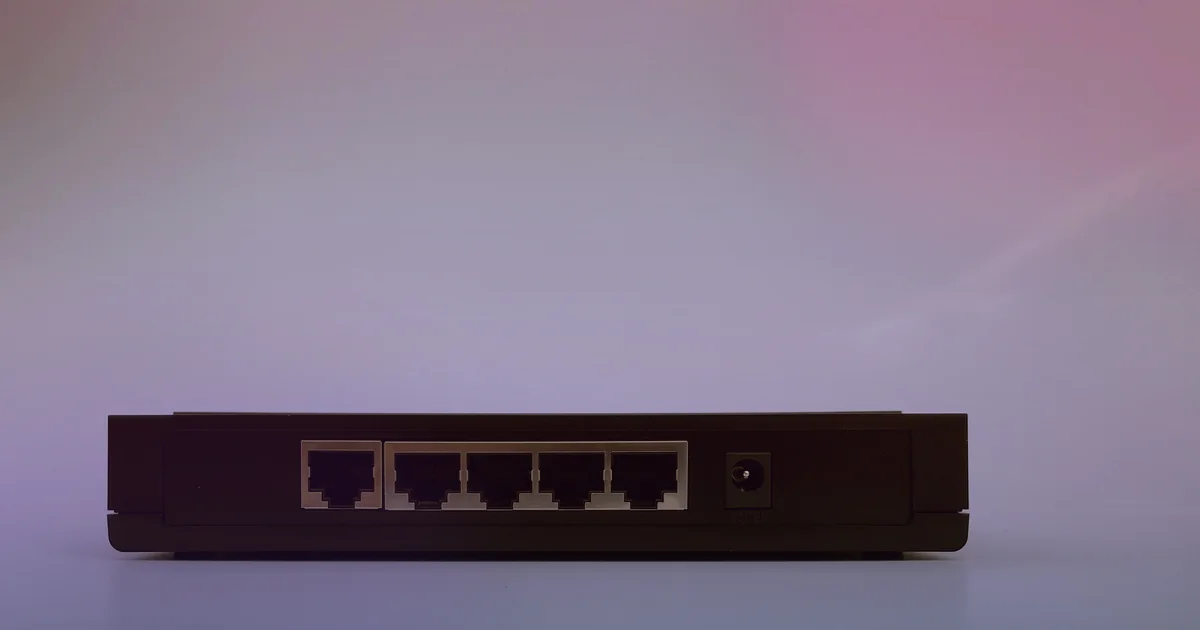
Most intermittent PL% spikes start between your PC or console and your home router. Wi-Fi shares radio airtime with phones, smart TVs, and neighboring apartments, so brief wireless interference or channel contention drops outbound UDP bursts. If your losses disappear the moment you plug in a cable, follow our packet loss on Wi-Fi but not Ethernet guide.
Work through the official Gaijin Support PC and console connection checklist in order:
- Connect an RJ45 Ethernet cable directly to your router: Plug your PC, PS5, or Xbox Series X|S into a router LAN port or Gigabit switch, and disable Wi-Fi so War Thunder uses the wire. On Xbox, Gaijin also recommends clearing the alternate MAC address and restarting.
- Close bandwidth-heavy apps and launcher peer-to-peer uploads: In Gaijin’s troubleshooting guide, support advises closing torrent clients, cloud sync tools, and streams before launching. In the standalone launcher, click the wrench icon and uncheck Seed after download so P2P seeding does not saturate your upload queue. If household downloads trigger spikes, see our packet loss when downloading guide.
- Reset Winsock, renew your IP, and flush DNS on Windows: Following Gaijin Support’s DNS and Winsock reset steps, open Command Prompt as Administrator, run
netsh winsock reset, restart, and runipconfig /release,ipconfig /renew, andipconfig /flushdns. - Verify required War Thunder UDP and TCP ports: According to Gaijin’s War Thunder game ports article, battles use UDP
20000-30000, UDP3478-3480, and UDP16172, plus TCP80,443,5222,8443,7800-7802, and7850-7854(and launcher TCP27022-27042,6881,8090). Enable UPnP on your router and allow UDP20000-30000in Windows Firewall. To rule out PC software conflicts, test a Windows Clean Boot.
Trace Hop 1 vs your ISP route before testing a gaming VPN
When your PC or console is wired with Ethernet, your server cluster is locked to your home region, background uploads are off, and PL% still climbs during matches, test where packets are dropping along the path.
In Gaijin Support’s connection diagnostic guide and ping -t logging instructions, Gaijin recommends running continuous ping and traceroute tests while you play. During an active battle, open Windows Resource Monitor (Win + R > resmon > Network tab), check aces.exe under Network Activity to see the active match server IP, and run a local gateway ping beside tracert:
ping 192.168.1.1 -n 50
ping warthunder.com -t > ping.txt
tracert warthunder.com
Compare the hops from your home router outward:
- Hop 1 (your router gateway) shows packet loss or
5+ msspikes on Ethernet: Your patch cable, USB Ethernet adapter, powerline plug, or router buffer is dropping packets locally. Replace the cord or test plugged straight into the modem. - Hop 1 stays at
0%loss (1 ms), but Hop 2 or Hop 3 drops packets: Signal noise on your coax line, fiber ONT, or local neighborhood ISP node is dropping traffic. Save yourping.txtandtracertoutput for your ISP. - Hops 1 to 3 stay at
0%loss, but a middle-mile transit hop drops packets on the way to the War Thunder cluster: Your ISP is routing game UDP traffic through a congested peering exchange. Compare similar symptoms in our packet loss in one game only guide.
Turn off standard privacy VPNs first, because distant commercial VPN hubs add round-trip latency and mask where packet loss starts. A gaming VPN cannot repair weak Wi-Fi, an overloaded War Thunder server, or a failing modem line. It only helps when your wired Hop 1 test is clean (0% loss) and hop traces prove your ISP is dropping packets across a bad middle-mile peering handoff to your regional server cluster.
LagZero is in pre-launch testing and is not live yet. We are building it for casual gamers who want straightforward A/B route diagnostics without fake “zero ping” guarantees. For early access when testing opens, join the LagZero waitlist.
FAQ
What does PL mean in War Thunder?
PL stands for Packet Loss in the bottom-left HUD counter. It shows the percentage of data packets that failed to travel between your client and the War Thunder match server. Even 1% to 3% PL can cause ghost shells, rubberbanding tanks, or sudden aircraft pitch dives.
Why does War Thunder say Bad Network Connection when my ping is low?
The flashing BAD NETWORK CONNECTION banner triggers when outbound or inbound UDP packets drop in a burst (PL% rises) or when jitter stalls server updates, even if your average millisecond ping looks low. Switching from Wi-Fi to wired Ethernet and stopping background uploads fixes the most common local cause.
How do I change or lock my server region in War Thunder?
In the hangar, click the game mode selector directly beneath the To Battle! button, open Select servers (Server Clusters) at the bottom, and check only your nearest region (such as NA, EU, or CIS) instead of leaving distant clusters enabled.
Which ports does War Thunder use for battles?
According to Gaijin Support, War Thunder battles require UDP 20000-30000, UDP 3478-3480, and UDP 16172, plus TCP 80, 443, 5222, 8443, 7800-7802, and 7850-7854. Keeping UPnP enabled on your router and allowing aces.exe through Windows Firewall prevents local port blocks.
Can a gaming VPN fix packet loss in War Thunder?
A gaming VPN cannot fix Wi-Fi interference, background downloads, or a lagging Gaijin server. It only helps when you are already wired on Ethernet in your closest server cluster and traceroute or pathping logs show your ISP dropping packets on a congested middle-mile transit route.
Sources
- Gaijin Support: Network Connection Troubleshooting (PC, PlayStation & Xbox)
- Gaijin Support: How to troubleshoot your connection (
tracert&ping) - Gaijin Support: How to collect additional connection data (
ping -tcommand) - Gaijin Support: “War Thunder” game ports
- Gaijin Support: How to flush DNS cache and reset Winsock
- Gaijin Support: Clean Boot (Windows)
IMAGE CREDITS Air Force Gaming Tournament (7906476).jpg by U.S. Air Force photo by Airman 1st Class Zachary Jakel (Public domain); cropped and color-graded by LagZero. · 5 Port Gigabit Netzwerk-Switch TL-SG1005D 08.jpg by www.heimnetzwerke.net (CC BY 4.0); cropped and color-graded by LagZero.