Start your THE FINALS packet loss fix by watching the red flashing warning icons in the top-right corner during a match. If the Packet Loss icon flashes while your character rubberbands or cashout steals fail to register, plug your PC, PS5, or Xbox directly into the router with an Ethernet cable, pause background uploads and Windows peer-to-peer updates, and confirm Settings > Gameplay > Region is locked to your closest server instead of Automatic. If the Server Performance icon flashes for your whole squad at once, the arena server is struggling and local network tweaks will not fix it. If Packet Loss appears only during prime-time matches on a wired connection, trace your ISP route to see whether packets drop on a congested peering hop.
Reviewed against Embark Studios THE FINALS Help Center documentation on In-Game Warning Icons, High Ping Issues, PC and PlayStation/Xbox Connection Troubleshooting, Ranked Match Disconnections, and Microsoft Learn pathping documentation on November 14, 2026.
IN THIS GUIDE
When you throw a C4 canister onto a cashout station, sprint through a collapsing wall, and suddenly snap backward into enemy gunfire, you need a THE FINALS packet loss fix that separates dropped network data from server-side physics overload or local frame hitches. Because THE FINALS calculates building destruction on the server rather than on your PC or console, missing even a small burst of UDP packets can make ziplines, jump pads, and weapon reloads feel desynchronized.
Before changing Windows registry values or buying a new router, read the diagnostic indicators built into the HUD. Watching the top-right corner of your screen for two minutes shows whether packets are dropping on your home Wi-Fi, across your ISP path, or inside the match server itself.
Decode the top-right warning icons in THE FINALS
Whenever something goes wrong during a match, THE FINALS flashes yellow or red warning icons in the top-right corner of the screen. According to the Embark Studios In-Game Warning Icons guide, six icons separate network loss from server overload and hardware stutter:
- Packet Loss: Data packets traveling between your client and the game server are dropping before they arrive, causing rubberbanding, teleporting enemies, delayed gadget throws, or missed inputs.
- High Jitter: Latency fluctuates rapidly even when average ping looks normal, making movement and hit registration feel wobbly during firefights.
- High Latency (Ping): Round-trip time to the server is high, delaying actions and visual updates.
- Server Performance: The game server itself is struggling to process the match state, often during heavy multi-team destruction. Everyone in the lobby lags together, even on a stable fiber line.
- Client Performance: Your PC or console hardware is dropping frames (yellow below
45 FPS, red below30 FPS). Enable the Detailed In-Game Performance Overlay under Settings > Video > Advanced on PC to check CPU and GPU bottlenecks. - Shader Stutter: The client is compiling shaders or loading visual effects on the fly, causing brief frame hitches.
| Top-right warning icon pattern | What it usually indicates | First check to run |
|---|---|---|
| Packet Loss + High Jitter flashing together | Unstable Wi-Fi, home upload saturation, or a dropping ISP hop | Plug into the router with Ethernet and pause background traffic |
| Server Performance flashing while teammates lag too | The match server is overloaded processing arena destruction | Wait out the round or requeue; do not change router settings |
| High Latency (Ping) without Packet Loss | Wrong matchmaking region, cross-region party host, or ISP detour | Lock your closest server under Settings > Gameplay > Region |
| Client Performance or Shader Stutter flashing | Local FPS drop or shader compilation hitch, not packet loss | Preload shaders in the main menu, run Fullscreen, and lower effects |
Lock your matchmaking region and check party host routing
If Packet Loss or High Latency icons appear in some lobbies but vanish in the next, check how THE FINALS selects your match server. As explained in the THE FINALS High Ping Issues support article, the game defaults to Automatic region selection, which can shift if your connection fluctuates while queuing.
Lock your home region manually before matchmaking:
- Press ESC on PC (or open the System Menu on PlayStation 5 and Xbox Series X|S) and open Settings.
- Select the Gameplay tab and scroll to Region (or Settings > General > Region > Preferred Region).
- Change Matchmaking Region from Automatic to your closest region, such as North America, Europe, or Asia.
Keep two matchmaking rules in mind:
- The party leader sets the server region: Joining a friend in another country places the entire squad on the party leader’s nearest server.
- Ranked reconnect windows are strict: As noted in the Embark Ranked Match Disconnection FAQ, disconnecting from a Ranked Tournament triggers a temporary suspension and Rank Score (RS) deduction if you fail to rejoin before the reconnect window closes. If you crash or drop out, let Preloading Shaders reach
100%on the main menu before clicking Reconnect, and verify stability in Quick Cash before queuing Ranked.
Fix Wi-Fi drops, console NAT, and Windows background uploads
Most packet loss in THE FINALS starts between your gaming setup and your router. Wi-Fi shares radio airtime with phones, TVs, and neighboring routers. When another device bursts data or channel interference spikes, outbound game packets wait in line or drop. See how wireless airtime contention works in our packet loss on Wi-Fi but not Ethernet guide.
Run the official PC Connection Troubleshooting steps and PlayStation/Xbox Connection Troubleshooting checklist in order:
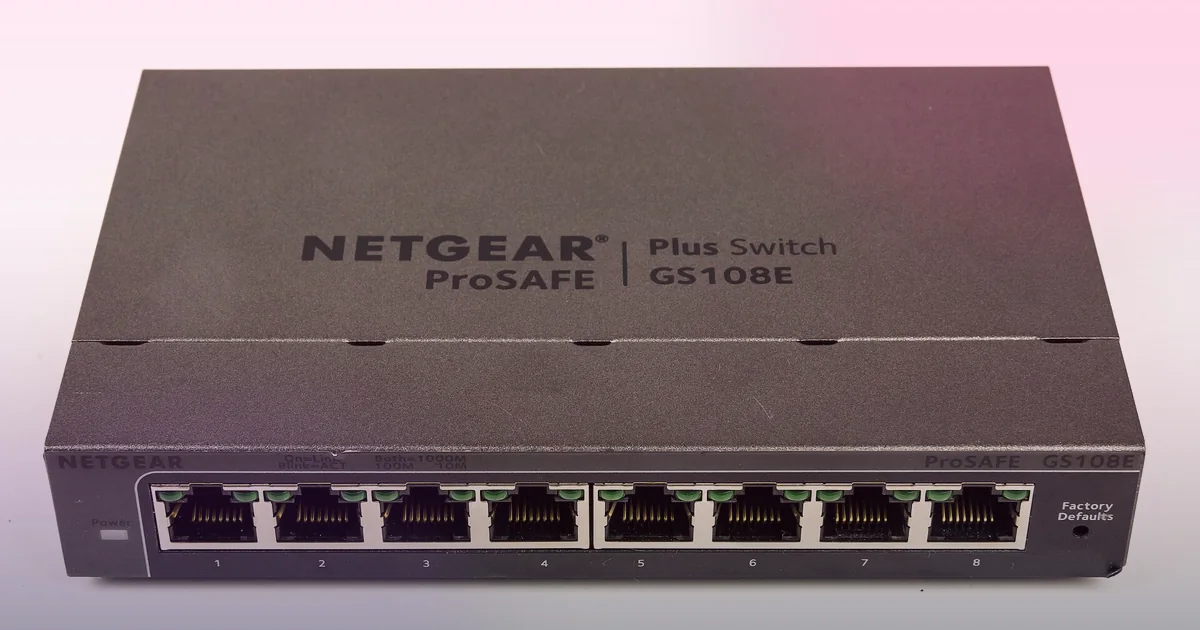
- Plug in an Ethernet cable: Connect your PC, PS5, or Xbox directly to a router LAN port or wired Gigabit switch, then disable Wi-Fi so the game uses the wire.
- Stop background uploads and Windows peer-to-peer updates: Cloud backups, 4K streams, and game downloads saturate upstream bandwidth. On Windows, open Settings > Windows Update > Advanced options > Delivery Optimization and set Allow downloads from other PCs to Off.
- Power-cycle your router and renew your IP: Unplug your router and modem for 30 seconds. On PC, run
ipconfig /release,ipconfig /renew, andipconfig /flushdnsin Command Prompt, then restart your PC. - Set manual IPv4 DNS and test with IPv6 off: Embark suggests switching to public IPv4 DNS (
1.1.1.1/1.0.0.1or8.8.8.8/8.8.4.4) and disabling IPv6 on your adapter if connection drops or voice chat issues persist. - Check console service status and NAT Type: On console, verify PlayStation Network status or Xbox Network status, and aim for Open NAT on Xbox or Type 1 to 2 on PlayStation by enabling UPnP on your router.
Trace ISP hop loss and know when a gaming VPN can help
What if you are wired on Ethernet, your region is locked, nobody else is using your internet, and the red Packet Loss icon still flashes every evening between 7 PM and 11 PM?
That pattern points to ISP peering congestion or a degraded transit hop. Your traffic crosses regional exchanges on the way to the cloud servers hosting THE FINALS. When a peering port saturates during prime time, packets drop in transit even while browser speed tests look fast. Compare similar symptoms in our packet loss when internet seems fine guide and our Apex Legends packet loss fix guide.
Test your path from a Windows PC during an active match:
- Run
ping -n 50to your router gateway IP (192.168.1.1). Steady1 msto2 msreplies with0%loss confirm your local cable and router are clean. - Open Windows Resource Monitor (
Win + R>resmon> Network tab), locate the active THE FINALS process (Discovery.exe), and copy the remote server IP. - Run Microsoft’s
pathpingcommand (pathping <server-ip>) ortracert -d <server-ip>to inspect each hop.
Check where packet loss begins:
- Hop 1 drops packets: Replace your Ethernet cable or try another router LAN port.
- Hop 2 or Hop 3 drops packets on every test: Your modem signal or local neighborhood node is failing; share the log with your ISP.
- Middle peering hops drop packets while Hops 1 to 3 stay at
0%: Your ISP is routing traffic through a congested exchange.
Embark Studios recommends avoiding standard consumer VPNs because distant tunnels add latency. A gaming VPN can only help in THE FINALS when hop tests prove your ISP is dropping packets on a bad middle-mile peering link, allowing a nearby regional relay to route around the congested handoff.
Keep expectations realistic:
- A VPN cannot fix the Server Performance icon, local Wi-Fi drops, shader stutter, or physical distance to a faraway server.
- Never use a VPN to manipulate matchmaking, evade suspensions, or bypass platform rules.
LagZero is in pre-launch testing and is not live yet. We are building it for players who want an honest way to test whether an alternative route reduces prime-time ISP peering loss without fake “zero lag” promises. For early access, join the LagZero waitlist.
FAQ
What does the red Packet Loss icon mean in THE FINALS?
The Packet Loss icon flashes in the top-right corner when packets between your client and the server drop in transit, causing rubberbanding, delayed gadget throws, or unregistered shots.
Why am I rubberbanding in THE FINALS with low ping?
Rubberbanding at normal ping comes from Packet Loss, High Jitter, or Server Performance overload rather than distance. Because THE FINALS runs destruction on the server, dropped packets or an overloaded server snap your character back.
How do I lock my server region in THE FINALS?
Open Settings > Gameplay > Region and switch Matchmaking Region from Automatic to your closest server. In a party, the party leader’s location sets the region for the squad.
Why should I wait for Preloading Shaders before reconnecting to Ranked?
Joining or reconnecting before Preloading Shaders reaches 100% on the main menu can cause heavy Shader Stutter and loading delays, which may expire your Ranked reconnect window and trigger an abandon penalty.
Can a gaming VPN fix packet loss in THE FINALS?
Embark advises turning off standard VPNs during normal play. A gaming VPN only helps if you are already wired on Ethernet in your local region and hop tests show your ISP is dropping packets on a congested middle-mile peering route.
Sources
- Embark Studios THE FINALS Help Center: In-Game Warning Icons (PC & PlayStation/Xbox)
- Embark Studios THE FINALS Help Center: High Ping Issues (PC & PlayStation/Xbox)
- Embark Studios THE FINALS Help Center: Troubleshooting Connection Issues (PC)
- Embark Studios THE FINALS Help Center: Troubleshooting Connection Issues (PlayStation/Xbox)
- Embark Studios THE FINALS Help Center: Disconnecting During Ranked Match
- Microsoft Learn: pathping command reference
IMAGE CREDITS Air Force Gaming Tournament (7906472).jpg by U.S. Air Force photo by Airman 1st Class Zachary Jakel (Public domain); cropped and color-graded by LagZero. · Netgear GS108E-40525.jpg by Raimond Spekking (CC BY-SA 4.0); cropped and color-graded by LagZero.