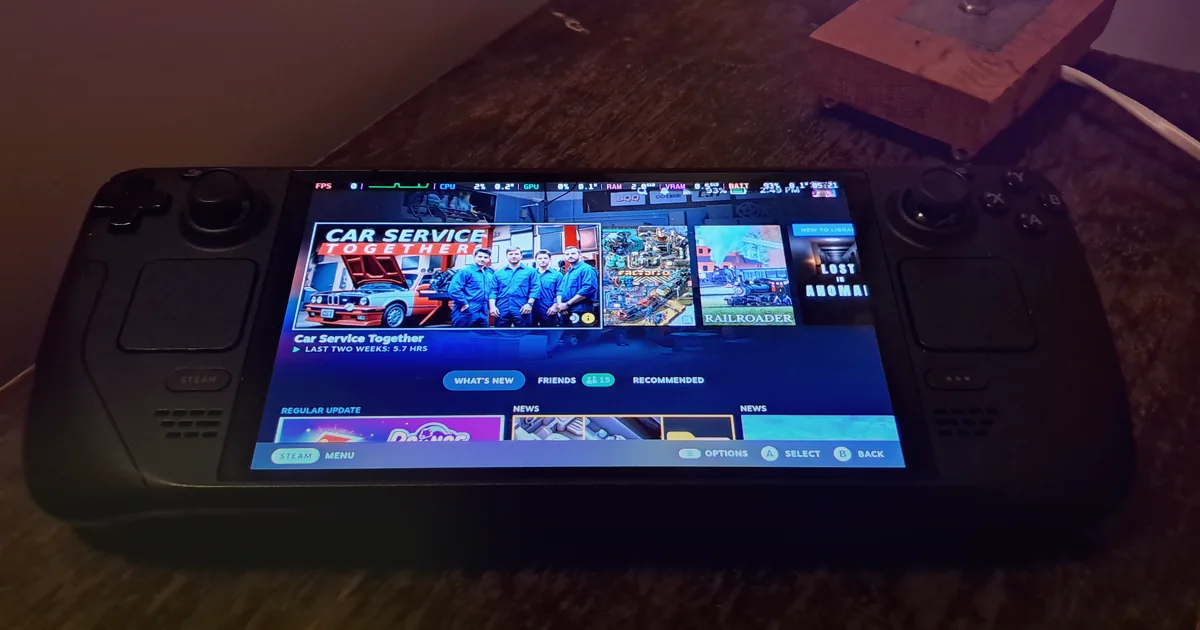
To fix Steam Deck high ping, first check your in-game millisecond ping beside the SteamOS Performance Overlay so you do not mistake frame-time stutter or docked TV display delay for network latency. Update SteamOS on the Stable channel, restart the Deck, compare 5 GHz or 6 GHz against 2.4 GHz in the same room as your router, and test with a USB-C Gigabit Ethernet dock or adapter with Wi-Fi turned off. If wired ping is clean while 5 GHz Wi-Fi spikes, test the Developer Mode Wi-Fi Power Management toggle and trace Hop 1 versus your ISP route before trying a gaming VPN.
Reviewed against official Steam Support documentation for Steam Hardware Network and Wi-Fi Troubleshooting, How do I diagnose and report network problems, Steam Deck Software Info and Troubleshooting Guide, Docking the Steam Deck, and Remote Play Streaming Suggested Network Settings on November 20, 2026.
IN THIS GUIDE
When shots register late, dodges roll after you take damage, or Remote Play turns sluggish on handheld, you need a Steam Deck high ping test order that separates local wireless delay and display lag from upstream server routes. According to Valve’s guide to diagnosing and reporting network problems, high latency happens when packets consistently take a long round-trip time (ping) to travel between your device and the game server.
Because the Steam Deck LCD and Steam Deck OLED pack a Linux PC, Wi-Fi radio, Bluetooth antenna, and USB-C bus into a compact shell, local radio habits can imitate bad internet. Testing one variable at a time shows whether the delay lives in your room, your USB-C dock, or your ISP route.
Separate Steam Deck high ping from frame-time hitching and docked TV lag
Before changing router settings, confirm that the delay is round-trip network time. In Valve’s network diagnostic guide, Valve notes that players call both client-side frame stalls and high latency “lag,” even though they have different causes:
- Turn on the game’s ping readout: Enable the in-game latency counter and note millisecond (
ms) ping, jitter, and server region. - Check the SteamOS Performance Overlay: Press Quick Access (
...), open Performance, and set Performance Overlay Level to 2 or 3 to watch FPS and frame time. - Check TV Game Mode when docked: In Steam Support’s Docking guide, Valve recommends enabling your TV’s Gaming Mode and disabling motion smoothing, which adds input lag.
- Watch the Remote Play cyan line: In Valve’s Remote Play network guide, Valve recommends enabling the streaming Performance Overlay and watching the cyan line for network spikes.
Use what you see on screen to pick the right fix:
- Smooth FPS and flat frame-time graph, but delayed hits at
90+ msping: You have real network latency. Run the Wi-Fi and wired hop tests below. - Ping jumps from
25 msto180 mswhile characters snap backward: You have jitter or packet loss. Pair this with our Steam Deck packet loss guide. - Whole screen freezes or frame-time spikes while ping stays at
25 ms: The bottleneck is shader compilation, power limits, or a Desktop Mode app. Check our low ping but still lagging checklist. - Handheld feels snappy at
30 ms, but docked TV play feels heavy: TV picture processing is delaying the image, not your network.
| Steam Deck symptom | What the counters show | First fix to test |
|---|---|---|
| Delayed hit registration | Smooth FPS, steady 85-160 ms ping |
Check server region and trace your ISP route |
Ping jumping (25 ms to 200+ ms) on Wi-Fi |
Smooth FPS, periodic latency spikes | Test 5 GHz/6 GHz bands, USB-C Ethernet, and Wi-Fi Power Management |
| Whole screen freezes or stutters | Frame-time spikes, normal 20-40 ms ping |
Check SteamOS Performance settings and close Desktop Mode apps |
| Sluggish controls only when docked | Normal ping and FPS, delayed visual response | Enable TV Gaming Mode and move USB 3.0 drives away from the Deck |
Update SteamOS, compare 2.4 GHz vs 5 GHz or 6 GHz, and stop 2.4 GHz interference
Start with the baseline from Valve’s Steam Deck Software Troubleshooting Guide and Steam Hardware Network + Wi-Fi Troubleshooting:
- Install stable updates and restart: Open Steam > Settings > System > Software Updates, apply updates, and select Steam > Power > Restart. Exit third-party plugins first.
- Test 5 GHz or 6 GHz against 2.4 GHz: Valve recommends testing another Wi-Fi band on your router (6 GHz on Steam Deck OLED, 5 GHz, or 2.4 GHz). Test in the same room as your main router on 5 GHz or 6 GHz. If a combined SSID pushes the Deck onto 2.4 GHz, split the band names to lock onto 5 GHz.
- Separate Bluetooth and USB 3.0 interference: In Valve’s Docking guide, Valve warns that Bluetooth uses 2.4 GHz and can clash with 2.4 GHz Wi-Fi, and that 5 Gbps USB 3.0 accessories (hard drives, capture cards, or hubs) can interfere with Bluetooth and Wi-Fi radios near the Deck body. Use 5 GHz Wi-Fi or Ethernet with wireless controllers, and keep USB 3.0 drives away from the handheld.
- Pause downloads and revert custom DNS: Stop updates or 4K streams during matches, and revert custom DNS settings if lookups stall.
Compare USB-C Gigabit Ethernet and test Wi-Fi Power Management
To prove whether Steam Deck high ping comes from Wi-Fi or your internet line, Valve’s hardware network guide recommends testing a direct wired connection with USB-C to Ethernet hardware:
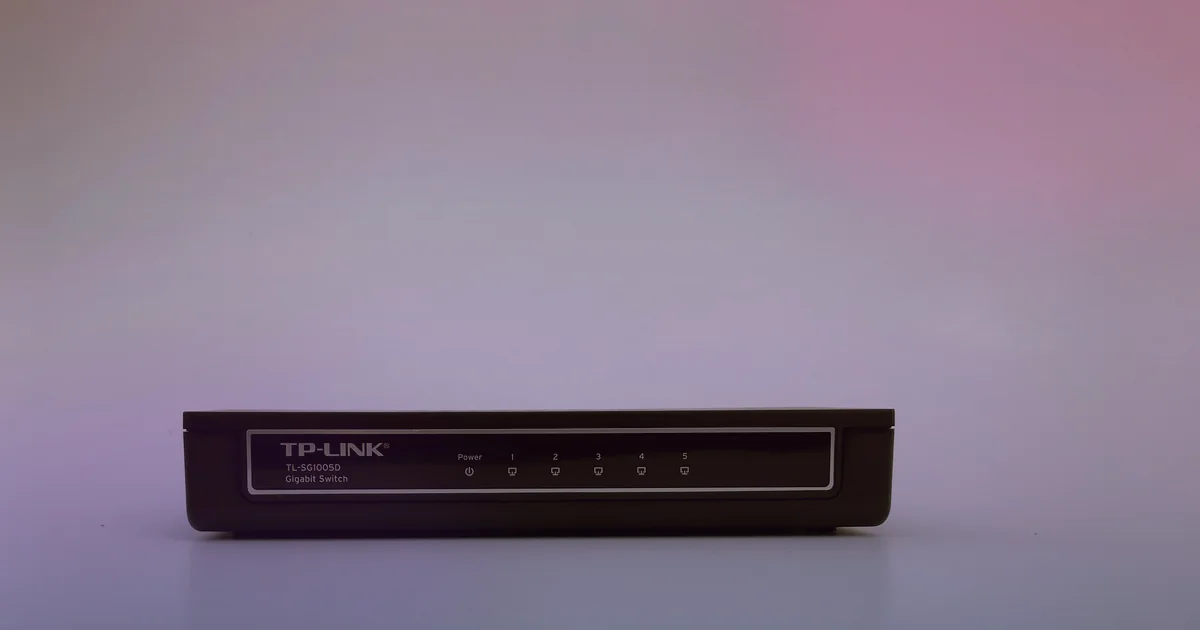
- Run a wired USB-C Ethernet test: Plug your Steam Deck into a compatible USB-C dock or Gigabit Ethernet adapter wired to a router LAN port or switch. Turn Wi-Fi Off in Steam > Settings > Internet so traffic uses the cable, then play two rounds in the same server region.
- Read the wired vs wireless split:
- Wired Ethernet stays steady at
25 ms, while Wi-Fi jumps to110+ ms: Latency comes from Wi-Fi band steering, walls, channel congestion, or radio power saving. See our high ping on Wi-Fi but not Ethernet guide. - Wired Ethernet and Wi-Fi both sit at
100+ ms: Delay starts on your router queue, ISP line, or upstream route.
- Wired Ethernet stays steady at
- Test Developer Mode Wi-Fi Power Management if 5 GHz spikes while wired is clean: On some 5 GHz routers, wireless power saving adds wake-up latency spikes during brief traffic gaps:
- Open Steam > Settings > System and toggle Enable Developer Mode on.
- Open Developer at the bottom of the left sidebar, toggle Enable Wi-Fi Power Management off, and restart.
- Re-test on 5 GHz Wi-Fi and keep the setting only if ping stabilizes.
Trace Hop 1 vs your ISP route in Desktop Mode before testing a gaming VPN
When wired USB-C Ethernet is active, household transfers are paused, and your game still shows high ping, switch to Desktop Mode (Steam > Power > Switch to Desktop) to see which hop adds delay.
In Valve’s network diagnostic guide, Valve recommends testing your home router (Default Gateway) beside the target route with ping, traceroute, or Linux mtr. Open Konsole, find your gateway IP with ip route | grep default, and run:
ping -c 50 192.168.1.1
traceroute -n 1.1.1.1
Compare the hops in order:
- Hop 1 (your router) spikes above
3 msto5 mson wired Ethernet: Your USB-C hub, patch cord, powerline adapter, or router queue is adding local delay. Bypass powerline plugs and test another router port. - Hop 1 stays at
1 ms, but Hop 2 or Hop 3 jumps to45+ ms: Delay starts on your modem, fiber ONT, or local ISP node. If issues only appear between5 PMand11 PM, your ISP may be congested or shaping traffic; test off-peak and share the full trace with your ISP. - Hops 1 to 3 stay low (
1 msto12 ms), but a middle-mile hop jumps by50 msto90 ms: Your ISP is routing traffic across an indirect exchange or congested peering link.
Disconnect any standard privacy VPN first, because distant tunnels add latency. A gaming VPN cannot fix 2.4 GHz interference, a slow USB-C hub, shader stutter, or distance to another continent. It only helps when your wired local hop is clean (1 ms to Hop 1) and your ISP takes a provably indirect route. For setup details, see our VPN Steam Deck setup guide, and never use a VPN to spoof Steam store regions or break Valve’s Subscriber Agreement.
LagZero is in pre-launch testing and is not live yet. We are building it for casual gamers who want honest A/B route tests without fake “zero ping” promises. For early access when testing opens, join the LagZero waitlist.
FAQ
Why is my ping so high on Steam Deck when my PC is fine?
Your PC is usually wired or using a larger desktop antenna, while the Steam Deck may have roamed onto 2.4 GHz Wi-Fi, hit 5 GHz Wi-Fi Power Management wake-up spikes, or picked up USB 3.0 interference. Compare the Deck in the same room on 5 GHz or 6 GHz and over USB-C Ethernet.
Does turning off Wi-Fi Power Management fix Steam Deck high ping?
It can help when wired Ethernet is steady but 5 GHz Wi-Fi shows periodic latency spikes as the radio enters idle power states. Enable Developer Mode under Steam > Settings > System, turn off Enable Wi-Fi Power Management under Developer, restart, and keep it only if repeat tests improve.
Why does my Steam Deck feel laggy when docked to a TV even with low ping?
Enable Gaming Mode on your TV input and disable motion smoothing, which adds display lag. Also keep 5 Gbps USB 3.0 drives or hubs away from the Deck body so they do not interfere with Bluetooth or Wi-Fi.
Will changing DNS lower my ping on Steam Deck?
No. DNS resolves domain names before a connection starts and does not speed up live UDP game packets during a match. Valve recommends reverting custom DNS settings when troubleshooting Steam network problems.
Can a VPN lower ping on Steam Deck?
Usually no, because extra tunnel distance raises latency on a normal route. A VPN only helps when wired Desktop Mode hop tests prove Hop 1 is clean (1 ms) and your ISP routes traffic through a congested or indirect exchange.
Sources
- Steam Support: Steam Hardware - Network + Wi-Fi Troubleshooting
- Steam Support: How do I diagnose and report network problems?
- Steam Support: Steam Deck - Software Info & Troubleshooting Guide
- Steam Support: Docking the Steam Deck
- Steam Support: Remote Play Streaming Suggested Network Settings
IMAGE CREDITS Steam Deck OLED framsida hemskärm.jpg by SparklesTrainNerd (CC BY-SA 4.0); cropped and color-graded by LagZero. · 5 Port Gigabit Netzwerk-Switch TL-SG1005D 07.jpg by www.heimnetzwerke.net (CC BY 4.0); cropped and color-graded by LagZero.