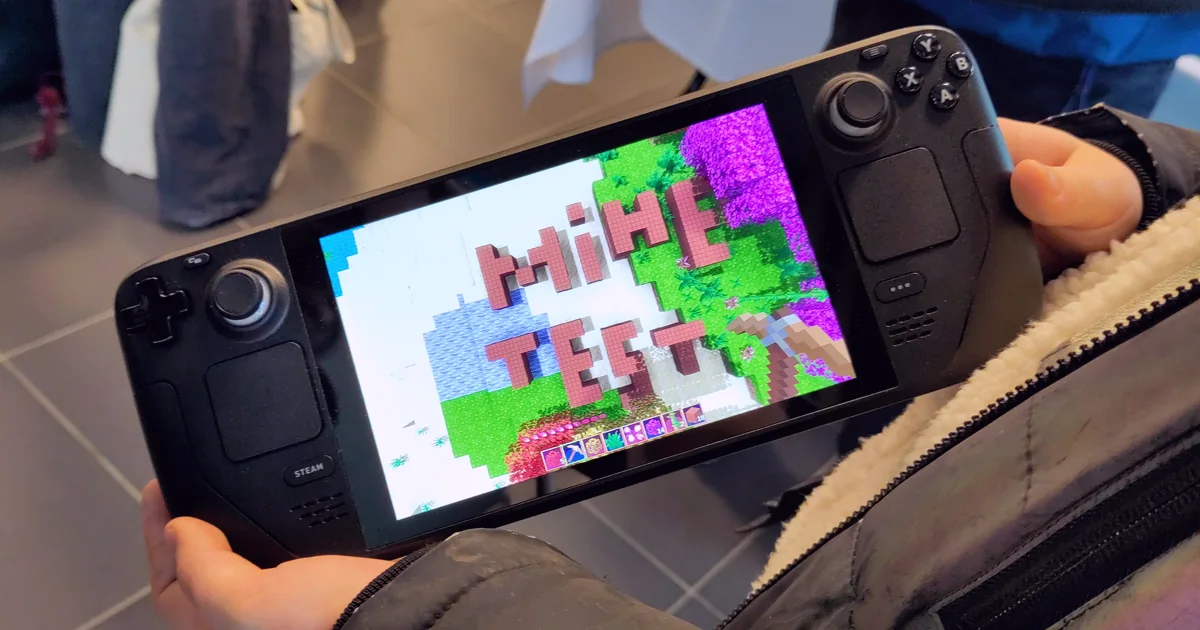
For Steam Deck packet loss, first record the affected game, time, network warning, and frame rate. Update and restart the Deck, check Steam and game status, then repeat the same test near the router on another Wi-Fi band. If possible, compare a direct Ethernet connection through compatible USB-C hardware. A clean wired test and repeatable Wi-Fi loss point toward the local wireless link, not automatically the game or ISP.
Steam Deck network bands, wired-test guidance, Steam service checks, software updates, restart steps, and support paths were checked against current Valve support pages. Packet-loss, loaded-latency, jitter, and wired-comparison guidance was checked against current Cloudflare documentation.
IN THIS GUIDE
- Confirm packet loss instead of naming every hitch lag
- Update and restart the Steam Deck baseline
- Compare Wi-Fi bands and distance
- Run a wired comparison with compatible hardware
- Remove household traffic from the test
- Test an alternate route only after the local path is stable
- Escalate with a useful record
- FAQ
- Sources
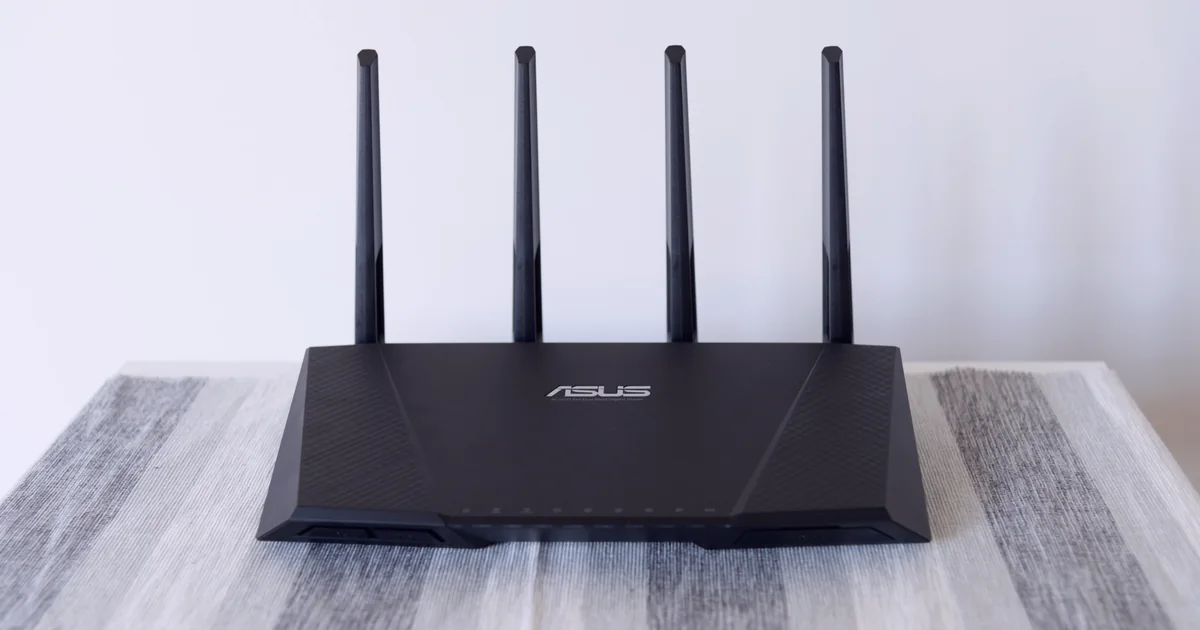
Steam Deck packet loss can make players snap backward, Remote Play turn blocky, voice chat break up, or a game disconnect while the Wi-Fi icon looks normal. Frame-time stalls, high latency, and service trouble can imitate it. Use controlled comparisons instead of a mystery toggle from an old forum post.
Confirm packet loss instead of naming every hitch lag
Start inside the affected game. Turn on its network statistics if available and record latency, packet loss, frame rate, server region, and the exact time. A phone photo or short clip is enough. Test in the same mode or server for each comparison.
Valve’s network diagnostic explains an important split:
- Characters warp or walk in place while the picture remains smooth: a network problem is plausible.
- Inputs receive a steady delayed response: high latency may be the main issue.
- The whole image freezes or becomes uneven, including menus: frame time or device performance deserves attention.
- Only one game or server fails: that game, server, or route stays in scope.
- Steam pages, downloads, chat, and several games fail together: the local connection, Steam service, or wider internet path becomes more likely.
Packet loss can be bursty and may affect one direction more than the other, so an incoming-loss counter can miss outgoing trouble. A normal download speed is not a clean bill of health because throughput does not describe every short real-time interruption.
Before changing anything, check the official Steam status view and the affected game’s official service channel. If many players are failing together, wait and retest instead of rebuilding your home network.
Update and restart the Steam Deck baseline
Valve’s current Steam Deck troubleshooting starts with system updates and a restart. Open Steam > Settings > System > Software Updates, install an available stable update, then use Steam > Power > Restart. Exit third-party tools installed through Desktop Mode for the baseline test.
Do not combine the update with a beta channel switch, custom Wi-Fi backend, DNS change, and router reset. If the result improves, you will not know which action mattered. A stable-channel update and ordinary restart are a clean first comparison.
Before the next match, record the Deck model, SteamOS version, game region, Wi-Fi band, distance from the router, and whether the problem began after sleep or an update. Repeat the short test twice. One smooth round can be luck.
Compare Wi-Fi bands and distance
Valve recommends trying the other available connection on your network, including 6 GHz, 5 GHz, or 2.4 GHz where supported. This is a diagnostic, not a rule that one band always wins.
Stand near the main router, not a mesh satellite or repeater, and run the baseline on the current band. Then switch to another band and repeat. Keep the game server and household activity as similar as possible.
Higher-frequency bands can offer more capacity at short range, but walls and distance weaken them faster. A 2.4 GHz connection can reach farther while sharing a crowded band. The winner is whichever band repeats the cleaner result in your room.
If loss appears only on Wi-Fi, continue with the packet loss on Wi-Fi but not Ethernet test. It covers signal, interference, roaming, and mesh backhaul without assuming that buying a new router is step one.
Run a wired comparison with compatible hardware
Valve says wireless and powerline links can fail intermittently because of interference and recommends a direct wired test when possible. A Steam Deck needs compatible USB-C Ethernet hardware, such as a supported dock, hub, or adapter. Connect that hardware directly to the Deck and the main router, then disable Wi-Fi temporarily so the test cannot stay on the wireless path.
Use the same game, server region, and test length. Run wired, Wi-Fi, then wired again. This sandwich test protects you from mistaking a temporary server recovery for a cable fix.
| Repeated result | Better first suspect |
|---|---|
| Wired stays clean, Wi-Fi shows loss | Signal, interference, band choice, roaming, or mesh path |
| Wired and Wi-Fi fail together | Household load, router, modem, ISP path, Steam, or game service |
| One dock, hub, cable, or router port fails | That accessory, cable, or port |
| Network counters stay clean while the image hitches | Game performance, frame time, heat, storage, or a background tool |
If the wired test behaves strangely, try a known-good cable and another router port before treating the adapter as proof about the internet connection.
Remove household traffic from the test
Pause Steam downloads, game updates, cloud backups, livestream uploads, video calls, and large transfers for one round. Cloudflare’s internet-quality documentation separates unloaded latency from loaded latency, jitter, packet loss, upload, and download. A connection can have plenty of headline speed while queues create delay or loss during heavy use.
Compare a quiet-network round with your normal household activity. If the quiet test is repeatedly better, restore one major transfer at a time. Uploads deserve special attention because video calls, cloud sync, and streaming can fill a smaller upstream link quickly.
Use router queue management only when the manufacturer documents it. Save the existing setting, make one change, and repeat the match test. Random port forwarding, a new DNS resolver, and a factory reset do not repair radio interference.
If the browser works while games still lose packets, follow the broader packet loss but internet is fine checklist. Web browsing can tolerate retries that a live match exposes immediately.
Test an alternate route only after the local path is stable
Disconnect any existing VPN or game accelerator for the baseline. First prove that the Deck, Wi-Fi or cable, and quiet household connection are stable. A tunnel cannot repair weak Wi-Fi, a faulty dock, a saturated upload, or an overloaded game server.
If direct wired tests remain stable locally but one game route repeatedly fails, an alternate route can be a later comparison. Test direct, one nearby endpoint, then direct again. Keep the same game region and time window. A VPN may help when it changes a poor upstream route, but it can also add latency or make the path less reliable.
For setup options and their limits, see the Steam Deck VPN setup guide. LagZero is still pre-launch. If you want to compare a normal route with one nearby alternative when access opens, join the waitlist. Keep whichever result repeats; turn off the one that does not.
Escalate with a useful record
If the problem survives updates, a restart, another Wi-Fi band, quiet traffic, and a wired comparison, collect the evidence before contacting support. Include the SteamOS version, Deck model, game, region, local time and time zone, network type, whether the Deck had resumed from sleep, and the repeated results.
Valve asks for the symptom, frequency, network arrangement, ISP, location, server region, and complete test output when available. Do not post account or private network details publicly. Use Steam support for Deck-wide trouble and the game’s official support path when only that title fails.
FAQ
Why does my Steam Deck have packet loss when my PC does not?
The devices may use different Wi-Fi radios, bands, positions, roaming decisions, or game routes. Compare both in the same place and time, then test the Deck on another band and over compatible wired hardware. The difference narrows the search but does not prove the Deck is faulty.
How do I test packet loss on Steam Deck?
Use an affected game’s network display when available and record the exact time, server, latency, loss, and frame rate. Repeat the same test on another Wi-Fi band and over Ethernet if possible. A longer, repeated comparison is more useful than one browser speed test.
Can Steam Deck Wi-Fi power management cause packet loss?
It is sometimes discussed in community fixes, but do not begin by enabling developer options or copying terminal changes. First install stable updates, restart, compare bands, and test Ethernet. If the issue persists, follow current Valve support guidance for your model and SteamOS version rather than an old workaround.
Will changing DNS fix Steam Deck packet loss?
Usually not. DNS helps translate names before a connection begins; it does not carry each live game packet. Valve’s Deck network guide even suggests reverting custom DNS changes while troubleshooting download issues. Restore a clean baseline before changing unrelated settings.
Can a VPN fix Steam Deck packet loss?
Sometimes, when the repeatable fault is on the direct upstream route and the tunnel takes a cleaner path. It can also add delay or loss. Stabilize Wi-Fi or Ethernet first, then compare direct, one nearby endpoint, and direct again without expecting a guaranteed improvement.
Sources
- Steam Support: Steam Hardware Network and Wi-Fi Troubleshooting
- Steam Support: How do I diagnose and report network problems?
- Steam Support: Steam Deck Software Info and Troubleshooting Guide
- Cloudflare: Aggregated Internet Measurement
IMAGE CREDITS Minetest on Steam Deck device - FOSDEM 2024.jpg by Zughy (CC BY-SA 4.0); cropped and color-graded by LagZero. · ASUS Wi-Fi Router (48767215803).jpg by Daniel Aleksandersen (CC BY-SA 2.0); cropped and color-graded by LagZero.