
A reliable Rocket League high ping fix starts with turning on Connection Quality Indicators (and Network Graphs on PC) to separate steady High Latency from Latency Variation, Packet Loss, or Server Health warnings. Lock your closest Arena region instead of leaving Regions on Recommended, compare three matches with your PC or console plugged directly into the router by Ethernet cable, pause background uploads that cause bufferbloat, test STS or CSTS Input Buffer only for unstable jitter, and run a gateway ping beside a public pathping before testing a gaming VPN.
Rocket League Connection Quality Indicators, PC Network Graphs (Latency, In/Out Loss, and IBuf), Input Buffering modes (Default, STS, and CSTS), and Casual, Competitive, and Tournament region settings were checked against current Epic Games Rocket League Support documentation. Loaded versus idle latency behavior was checked against Cloudflare Speed documentation, and Windows ping and pathping usage were checked against Microsoft Learn.
IN THIS GUIDE
- Turn on Connection Quality Indicators and PC Network Graphs
- Lock your closest Arena region instead of Recommended
- Compare a direct Ethernet cable against Wi-Fi
- Set Send Rates, Bandwidth Limit, and Input Buffer (STS vs CSTS)
- Stop background uploads, launcher patches, and bufferbloat
- Test your router hop vs your ISP route on PC
- When a gaming VPN can help (and when it cannot)
- FAQ
- Sources
Finding a real Rocket League high ping fix means checking what the match server reports before changing Windows registry keys or old launch flags. Rocket League runs server physics at 120 ticks per second and predicts collisions client-side, so even a small jump in round-trip time or jitter makes fifty-fifty challenges, wave dashes, and saves feel late.
Speed tests only measure bulk download bandwidth to a local test node. Rocket League depends on how fast and evenly small UDP packets travel between your PC or console and the Arena. Work through the checks below in order to isolate one variable at a time.
Turn on Connection Quality Indicators and PC Network Graphs
Verify which symptom Rocket League flags under Settings > Interface > Connection Quality Indicators:
- High Latency: Round-trip ping to the server is high, shown by a yellow or red speedometer icon and a high millisecond scoreboard reading.
- Latency Variation: Ping swings rapidly (jitter), forcing client prediction to correct car and ball positions.
- Packet Loss: Outgoing or incoming packets drop between your device and the server.
- Server Health: The match server instance is overloaded or struggling.
- Disconnected: Traffic between your client and the Arena server has stopped.
On PC, open Settings > Interface > Performance Graphs and select Network (Short) or Network (Long) during a match or Free Play:
- Latency: Round-trip time in milliseconds between client and server.
- Out Loss / In Loss: Dropped outgoing and incoming packets per second.
- IBuf (Input Buffer): Client input frames queued on the server.
- IBuf Miss: Positive values mean too many inputs are queued; negative values mean the buffer ran dry.
| In-match reading | Likely cause | First action |
|---|---|---|
Steady high ping (100 ms to 180 ms), 0 loss, steady IBuf |
Distant Arena region, cross-region party host, or indirect route | Lock your closest region in Playlists |
Ping swinging wildly, Latency Variation, IBuf Miss |
Wi-Fi contention, background uploads, or bufferbloat | Use Ethernet and pause transfers |
Normal ping with Packet Loss icon and Out/In Loss |
Dropped packets rather than distance | Use our Rocket League packet loss fix guide |
| Server Health icon for the whole lobby | Struggling match server instance | Check Epic Games Public Status and requeue |
Lock your closest Arena region instead of Recommended
Players often see Rocket League high ping for no reason after leaving the playlist region selector on Recommended or queueing with a party leader in another region. When local servers fill up, Recommended can place you into a distant region where ping doubles.
Check all three Rocket League region menus:
- Casual and Competitive Regions: Select Play, open Casual or Competitive, select Regions in the top-right corner, and check only your closest region (
US-East [USE],US-Central [USC],US-West [USW], orEurope [EU]). - Tournament Schedule Region: Open Settings > Gameplay > Tournament Schedule Region and match it to your home region (changeable once every 24 hours).
- Private Match Region: In Play > Custom Games > Private Match > Create Private Match, pick your closest named region to benchmark a known server cluster.
Compare a direct Ethernet cable against Wi-Fi
Wi-Fi is a shared half-duplex radio channel. Whenever another device or neighboring router transmits on the same channel, your wireless adapter waits for clear airtime or resends delayed frames, triggering Latency Variation, IBuf Miss spikes, and kickoff rubberbanding.
Run a three-match wired comparison:
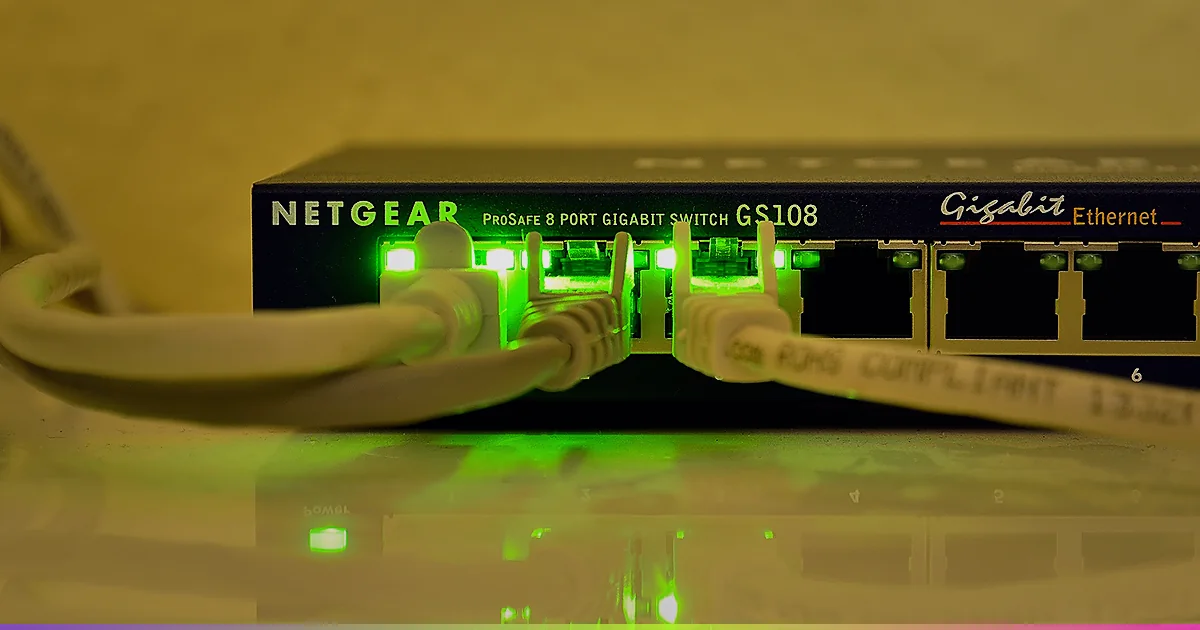
- Plug your PC, PS5, or Xbox directly into a LAN port on your main router with a RJ45 Ethernet cable.
- Disable Wi-Fi on the gaming device so traffic uses the wired interface.
- Bypass powerline adapters, Wi-Fi extenders, and wireless mesh nodes during testing.
- Play three matches in your locked home region and check whether ping and
IBufflatten out.
If Ethernet removes the spikes, wireless interference caused them. Keep the cable connected, or use a clean 5 GHz or 6 GHz channel closer to the router. For console steps, see our high ping on PS5 guide or high ping on Xbox guide.
Set Send Rates, Bandwidth Limit, and Input Buffer (STS vs CSTS)
Under Settings > Gameplay, Rocket League offers four network settings:
- Client Send Rate, Server Send Rate, and Bandwidth Limit: Keep all three on High on broadband. Lowering them only caps packet frequency on slow links; it never lowers ping.
- Input Buffer (Default, STS, CSTS): Input Buffer controls how the server paces queued input frames (
IBuf):- Default: Standard queue for stable wired connections.
- STS (Sim Time Scaling): Lets the server subtly scale client simulation speed to keep inputs smooth.
- CSTS (Continuous Sim Time Scaling): A continuous feedback loop for connections with frequent jitter.
Treat STS and CSTS as jitter smoothers, not ping reducers. On mildly unstable Wi-Fi or ISP lines, STS or CSTS can cut IBuf Miss spikes, but neither lowers a steady 140 ms ping to a far server.
Stop background uploads, launcher patches, and bufferbloat
If ping starts at 28 ms and jumps to 160 ms mid-match, another device is saturating your line. Cloudflare separates idle latency from loaded latency: when uploads or downloads fill your bandwidth, game packets wait behind bulk transfers in the router buffer.
Stop hidden transfers before queueing:
- Pause Epic Games Launcher, Steam, PlayStation, or Xbox updates on every device.
- Pause OneDrive, iCloud, Google Drive, Dropbox, and phone cloud backups.
- Pause Discord streams, Twitch uploads, or cloud camera uploads.
- Watch Private Match ping while running a phone upload test to spot loaded latency spikes.
If ping climbs by 40 ms to 150 ms during transfers, your router has bufferbloat. Enable Smart Queue Management (SQM) or QoS limits slightly below your line speed. See our ping spikes when downloading guide for full steps.
Test your router hop vs your ISP route on PC
When your region is locked, your Ethernet cable is connected directly to the router, and your network is idle, steady Rocket League high ping with good internet points outside your home. Compare our broader high ping in games with good internet guide.
On a wired Windows PC, run ipconfig in Command Prompt to find your Default Gateway, then compare your router hop against a public IP:
ping -n 50 YOUR_GATEWAY_IPpathping /n 1.1.1.1Read the hop timings:
- Hop 1 (router) spikes above 3 ms to 5 ms on Ethernet: Delay starts in your cable, switch, or router.
- Hop 1 stays near 1 ms while Hop 2 or later ISP hops jump: Your LAN is clean and delay starts on your ISP’s access node or peering route.
Ignore a single middle hop timeout if final hops stay low, since some transit routers deprioritize ICMP replies. Skip placebo tweaks: changing DNS (1.1.1.1 or 8.8.8.8) only affects domain lookups before a match connects, and port forwarding does not shorten live UDP routes.
When a gaming VPN can help (and when it cannot)
A gaming VPN cannot fix Wi-Fi jitter, home upload congestion, a wrong Tournament Schedule Region, or a struggling Rocket League server. Routing through a distant VPN node adds mileage and raises ping.
A route tool only helps when wired Hop 1 is steady (1 ms), your locked Rocket League region is nearby, and your ISP takes a congested peering path to that Arena cluster. Test three Private Matches in your closest region on your direct ISP line against three Private Matches through a single nearby VPN node in the same metro area, and keep whichever route holds steadier ping. Never use a VPN to bypass regional restrictions or platform rules.
LagZero is pre-launch and built for honest route testing without fake “zero ping” claims. For early access when testing opens, join the LagZero waitlist.
FAQ
Why is my ping so high in Rocket League when my internet is fast?
Speed tests measure bulk throughput in megabits per second, while Rocket League ping measures round-trip UDP travel and queue time in milliseconds. A gigabit line still hits 130 ms if Recommended places you in a far region, Wi-Fi contention delays frames, or an upload triggers bufferbloat.
Should I use Default, STS, or CSTS Input Buffer for Rocket League high ping?
Use Default on a stable wired connection. If your Network Graph shows IBuf Miss spikes or Latency Variation on Wi-Fi or a jittery line, test STS first and then CSTS to smooth inputs. Neither setting reduces physical distance to a far server.
Why is my Rocket League ping high in Tournaments but normal in Ranked?
Rocket League uses a separate Tournament Schedule Region setting under Settings > Gameplay > Tournament Schedule Region. If that dropdown is set to a distant region, tournament matches have high ping even when Casual and Competitive playlists use a local region.
How do I check if Rocket League high ping is the server or my internet?
Enable Connection Quality Indicators under Settings > Interface. If the Server Health icon appears and other players in the lobby also show red or yellow ping, the server instance is struggling. If only your ping is high, check your Ethernet cable, upload queue, and ISP route.
Can a gaming VPN lower high ping in Rocket League?
Only when your ISP uses an indirect peering route to a nearby Rocket League server cluster and a local VPN node provides a cleaner handoff. A VPN cannot fix Wi-Fi jitter, local downloads, or a distant region.
Sources
- Epic Games Support: Platform connection issue guides for Rocket League
- Epic Games Support: Rocket League performance and network graphs (PC Only)
- Epic Games Support: How do I change my region in Rocket League?
- Epic Games Support: Rocket League Input Buffering Settings
- Cloudflare Speed: Internet Measurement
- Microsoft Learn: pathping reference
IMAGE CREDITS Rocket League - DreamHack Montreal 2018 - 08.jpg by Ye Fang (Norman) Kuang (CC BY 2.0); cropped and color-graded by LagZero. · Gigabit LAN Netzwerk Switch (10581106056).jpg by Dirk Vorderstraße (CC BY 2.0); cropped and color-graded by LagZero.