Start your PUBG high ping fix by turning on Network Debug Statistics under Settings > Gameplay > Others on PC (or Settings > Gameplay > UI on console) and watching your live Ping in milliseconds during a match. If Ping jumps from your normal baseline to 140 ms or higher from the plane drop while packet loss stays at 0%, check whether a cross-region party leader pulled you into a distant server or matchmaking fell back to another region during off-peak hours. If Ping swings wildly every few seconds on your home server, plug your PC or console directly into the router with Ethernet, pause background uploads, and test whether your ISP is taking a detour to the regional PUBG data center.
Reviewed against PUBG Support documentation on ping-based matchmaking and region fallback, the PUBG Dev Letter on Normal Match regional latency balancing, the official Network Debug Statistics HUD patch notes, and Microsoft Learn pathping documentation on November 13, 2026.
IN THIS GUIDE
When doors open half a second after you press interact, loot refuses to drag into your backpack, or a Kar98k shot registers after you duck behind cover on Erangel, you need a PUBG high ping fix that separates server distance from local congestion. High latency and dropped packets feel similar in a firefight, but they require different fixes.
Before changing Windows registry settings or buying new hardware, read the live telemetry built into PUBG: BATTLEGROUNDS. Watching the top-left network overlay for two minutes shows whether you are playing on a distant region, fighting Wi-Fi interference at home, or riding a detour on your ISP route.
Turn on Network Debug Statistics and read your live Ping
PUBG includes a real-time network HUD that displays connection health throughout the match. As documented in the PUBG: BATTLEGROUNDS Network Debug Statistics patch notes, enable it before queueing:
- Open Settings from the lobby or during a match.
- Select Gameplay and scroll to Others > Network Debug Statistics on PC (or Settings > Gameplay > UI > Network debug statistics on PlayStation and Xbox).
- Set Network Debug Statistics to Enable (or On) and apply your changes.
Once in a match, check the top-left overlay:
- Ping (
ms): Round-trip delivery time to the active match server. - Up and Down speed (
KB/s): Live data rate between your client and the server. - Packet rate (
pkt/s) and Pkt Loss (%): Upstream and downstream delivery counters.
| What Network Debug Statistics shows | What it usually indicates | First check to run |
|---|---|---|
Flat, elevated ping (140 ms to 200 ms) from the plane drop with 0% packet loss |
Cross-region squad host, off-peak regional fallback, or an indirect ISP route | Queue one solo match at peak hours and compare pathping hops |
Ping swinging between 35 ms and 220 ms every few seconds |
Wi-Fi airtime contention, household transfers, or router bufferbloat | Plug into the router with Ethernet and pause background uploads |
Normal ping (30 ms to 60 ms) with 1% to 15%+ Pkt Loss |
Dropped UDP packets rather than travel distance | Follow our PUBG packet loss fix guide |
| High ping in one late-night match, normal ping in the next | Matchmaking expanded the pool to a neighboring server region | Compare peak-hour solo queues in your primary mode |
Check party leader region and off-peak matchmaking fallback
One of the most common causes of sudden high ping in PUBG has nothing to do with your router. PUBG: BATTLEGROUNDS manages server placement automatically rather than offering a manual per-match server browser in standard queues.
According to PUBG Support’s matchmaking documentation and the PUBG Dev Letter on Normal Match matchmaking, two matchmaking rules can move your match to a farther data center:
- Cross-region squad queuing: Grouping with friends in another region places the lobby on the party leader’s region or a compromise server. If your normal solo ping is
30 msand a squad lobby locks at145 ms, test a solo match first to confirm your home baseline. - Low-population queue fallback: During late-night or early-morning hours in smaller queues or perspective modes, if the local pool waits too long to fill a 100-player lobby, PUBG can expand matchmaking to a neighboring region so the match can start.
Queue into a peak-hour Normal Match Squad or Training Mode lobby solo and check Network Debug Statistics during the countdown. If peak-hour solo matches sit at 30 ms to 50 ms while late-night solo queues or cross-region friend lobbies jump above 130 ms with 0% loss, your home internet is fine. You are connecting to a distant server, and no local router tweak can beat physical distance.
Wire your PC or console and stop home upload spikes
If ping spikes erratically on your home region, fix the first hop between your gaming setup and your router before blaming PUBG’s servers. Wi-Fi is half-duplex and shares radio airtime with phones, tablets, smart TVs, and neighbor routers on the same channel. When another device transmits a burst of data, your PUBG packets wait in line, causing 80 ms to 220 ms ping spikes.
Run this local cleanup checklist in order:
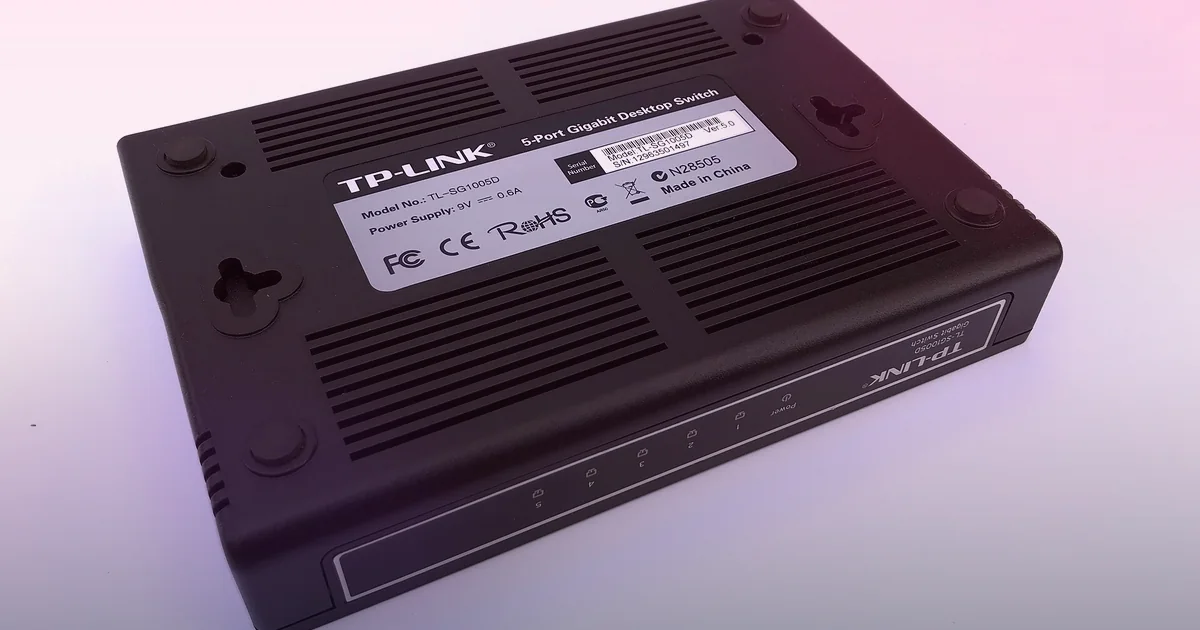
- Plug in an Ethernet cable: Connect your PC, PlayStation, or Xbox directly to a LAN port on your main router or a wired Gigabit switch, then disable Wi-Fi so PUBG uses the wire.
- Pause heavy uploads during matches: Cloud backups, desktop syncs, Discord screen shares, and game updates saturate upstream bandwidth. When your upload queue fills up, outgoing packets wait inside your router and drive ping into the hundreds of milliseconds. Compare our ping spikes when downloading guide.
- Turn on router QoS or SQM: If your router supports Smart Queue Management (
CakeorFQ-CoDel), cap upload and download limits at85%to90%of your real speed-test result so large transfers cannot delay small game packets. - Restart the modem and router and flush DNS: Power-cycle your modem and router for 30 seconds. On PC, run
ipconfig /flushdnsin an Administrator Command Prompt and check the PUBG Support Technical Issues hub if a firewall or overlay blocksTslGame.exe.
Diagnose bad ISP routing and know when a gaming VPN can help
What if you are wired on Ethernet, nobody else is using your internet, you are playing in your own region during peak evening hours, and your PUBG ping still jumps from 35 ms to 115 ms every night between 7 PM and 11 PM?
That pattern points to ISP peering congestion or an indirect transit route. Your traffic hands off across regional peering exchanges on the way to the cloud data center hosting PUBG. When an exchange port saturates during prime time, or when a routing update sends your packets through an out-of-region city, round-trip time climbs even on an idle home line. If browser speed tests look fast while matches lag, see our high ping in games with good internet guide.
Check your route on PC during an active match:
- Press Win + R, type
resmon, and open the Network tab in Windows Resource Monitor. - Under Network Activity, check
TslGame.exeand note the remote server IP address. - Open Command Prompt and run
ping -n 50to your router gateway, followed bytracert -d <server-ip>or Microsoft’spathpingcommand to inspect each hop.
Compare where the latency jump begins:
- Hop 1 (
192.168.x.xor10.x.x.x) spikes above3 msto5 mson Ethernet: The delay is inside your local cable, switch, or router. - Hop 2 or Hop 3 spikes on every test: Your local neighborhood node or modem signal is congested. Contact your ISP with the hop log and Match ID.
- Middle peering hops jump by
50 msto90 msor detour through another city: Your ISP is taking a suboptimal path to the data center.
This middle-mile detour is the specific scenario where a gaming VPN can help. If your ISP routes traffic through a congested exchange, a nearby VPN relay in your own region can hand your packets onto a cleaner transit path and bring ping closer to your physical baseline. We see the same prime-time peering behavior in other battle royales covered in our Apex Legends high ping fix guide.
Keep expectations realistic:
- A gaming VPN cannot lower ping below the physical distance floor to the PUBG server or fix local Wi-Fi and upload congestion.
- Never use a VPN to misrepresent your account region for store pricing, bypass regional restrictions, or manipulate matchmaking rules.
LagZero is in pre-launch testing and is not live yet. We are building it for players who want an honest way to test whether an alternative route improves a bad ISP path without fake “zero lag” promises. For early access, join the LagZero waitlist.
FAQ
How do I see my real-time ping in PUBG: BATTLEGROUNDS?
Open Settings > Gameplay > Others > Network Debug Statistics on PC (or Settings > Gameplay > UI > Network debug statistics on PlayStation and Xbox) and set it to Enable. During a match, the top-left overlay displays live Ping (ms), upload and download rates, packet rate, and directional packet loss percentages.
What is a good ping for PUBG?
Under 50 ms feels responsive for looting, peeking, and driving. Between 50 ms and 90 ms is playable for casual matches when latency stays steady and packet loss is 0%. Above 110 ms, delayed doors, late hit registration, and cover desync become noticeable.
Why is my PUBG ping 150 ms with 0% packet loss on fast fiber internet?
Download bandwidth does not determine ping; physical distance and route hops do. A steady 150 ms ping with 0% loss usually means your squad leader queued into another region, matchmaking fell back to a distant server off-peak, or your ISP is using an indirect peering path.
Can I manually pick my server region in PUBG to fix high ping?
PUBG: BATTLEGROUNDS assigns server regions automatically based on location, party composition, and queue population. To avoid cross-region lobbies, test a solo queue during peak evening hours in your local region or play with squadmates in the same region.
Can a gaming VPN reduce high ping in PUBG?
Only when high ping is caused by a congested or indirect ISP route between your city and the PUBG server. A gaming VPN cannot beat physical distance to a faraway region or fix local Wi-Fi and upload spikes.
Sources
- PUBG: BATTLEGROUNDS Support: Is matching done by ping?
- PUBG: BATTLEGROUNDS Dev Letter: Matchmaking for Normal Match
- PUBG: BATTLEGROUNDS Official Patch Notes: Network Debug Statistics HUD
- PUBG: BATTLEGROUNDS Support: Technical Issues Hub
- Microsoft Learn: pathping command reference
IMAGE CREDITS Wyvern Gaming (6116411).jpg by U.S. Air Force photo by Airman Thomas Keisler (Public domain); cropped and color-graded by LagZero. · 5 Port Gigabit Netzwerk-Switch TL-SG1005D 05.jpg by www.heimnetzwerke.net (CC BY 4.0); cropped and color-graded by LagZero.