
A reliable League of Legends packet loss fix starts with pressing Ctrl+F in a match to check whether ping or FPS changes during the freeze, then uploading the affected match netlog from C:\Riot Games\League of Legends\Logs\GameLogs to Riot Support Log Reader to confirm Avg Packet Loss and Jitter Over Time. Check Riot Server Status and your regional Lag Report, plug your PC or Mac directly into the main router with an RJ45 network cable, stop background streams and downloads that cause packet buffering, and run router ping beside pathping before testing a gaming VPN.
Checked against current Riot Games Support documentation for Basic Connections Troubleshooting, High Latency and Disconnections on Windows and Mac, Connection Troubleshooting Log Reader, Network System and Logs for Windows, and Microsoft Learn pathping command documentation on November 1, 2026.
IN THIS GUIDE
- Confirm packet loss with Ctrl+F and Riot’s Connection Log Reader
- Check Riot Server Status and your regional Lag Report
- Switch from Wi-Fi to a direct router cable and stop packet buffering
- Compare router ping against your ISP path with ping and pathping
- When a gaming VPN can help League of Legends packet loss
- FAQ
- Sources
A dependable League of Legends packet loss fix starts with proving whether packets are disappearing between your PC and Riot’s server before you touch registry keys, port rules, or boosters. In Summoner’s Rift and ARAM, packet loss shows up as your champion sliding, skillshots firing late, health bars updating in chunks, or an Attempting to Reconnect banner while Ctrl+F ping looks normal.
Riot Support separates connection trouble into latency, packet loss, packet buffering, and jitter, noting missing packets must be re-transmitted or skipped while the match continues.
Confirm packet loss with Ctrl+F and Riot’s Connection Log Reader
League of Legends does not show a live packet-loss percentage on the HUD during a match. Press Ctrl+F in-game (Options > Hotkeys > Display > Toggle FPS Display) to watch ping and FPS when a teamfight stalls, then inspect the match log League records.
Riot’s Connection Troubleshooting Log Reader charts Ping Over Time, Jitter Over Time, and Packet Loss Over Time:
- Finish the match and note when the rubberbanding occurred.
- On Windows, open the
GameLogsfolder inside your League installation directory:C:\Riot Games\League of Legends\Logs\GameLogs - On macOS, open Finder, press Cmd+Shift+G, and open the
GameLogsfolder inside the League app package:/Applications/League of Legends.app/Contents/LOL/Logs/GameLogs - Open the timestamped match folder and upload
_netlog.txtto Riot’s Log Reader to review Connection Score, Avg Latency, Avg Packet Loss, and Avg Jitter.
| Symptom during the hitch | Riot netlog reading | First diagnostic check |
|---|---|---|
| Abilities ignore inputs or champion snaps back while ping looks steady | Avg Packet Loss above 0% or spikes on Packet Loss Over Time |
Test an RJ45 cable to the router and run a gateway ping |
| Movement feels uneven and delayed every few seconds | Avg Jitter elevated with jumps on Jitter Over Time | Turn off Wi-Fi and pause uploads, streams, and syncs |
| Constant delay on every click from lane phase to late game | Avg Latency high and flat with 0% loss |
Follow our League of Legends high ping fix |
| Screen freezes briefly during effects while ping and netlog stay clean | Connection Score 90+ with 0% loss |
Check GPU drivers, overlays, and our low ping but still lagging guide |
Riot notes packet loss should stay near 0% and a 90+ Connection Score indicates the hitch is not network-related.
Check Riot Server Status and your regional Lag Report
Before changing router or adapter settings, rule out a regional Riot incident or ISP outage:
- Check the Riot Games Service Status page for your region to verify there is no live maintenance or server degradation.
- Open Riot’s regional Lag Report to view your Connection Score and compare your provider against local ISPs.
- Ask whether teammates in the same match froze at the same second.
When the whole lobby rubberbands together, the match server or an upstream carrier handoff is struggling and PC tweaks will not help.
Switch from Wi-Fi to a direct router cable and stop packet buffering
Riot’s connection guide lists wireless interference and third-party packet buffering among the top local causes of packet loss and lag spikes:
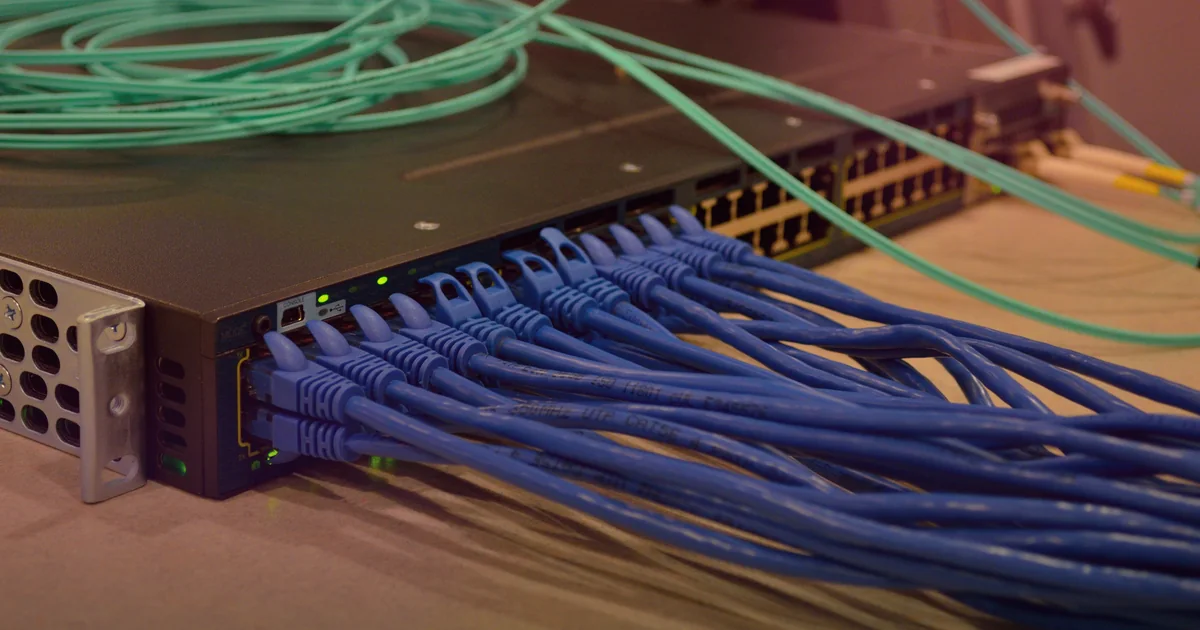
- Plug your PC or Mac into the main router with an RJ45 Ethernet cable. Wi-Fi shares airtime with phones, TVs, and nearby routers. Brief interference or mesh roaming drops UDP packets without disconnecting your Wi-Fi icon. Turn Wi-Fi off during the test, and see our packet loss on Wi-Fi but not Ethernet guide if the cable clears the drops.
- Close bandwidth-heavy apps that cause packet buffering. Riot flags HD streams (YouTube, Twitch), downloads (Steam), torrents, cloud syncs, and voice or music apps running background transfers. If Discord voice or screen share lines up with the spikes, check our Discord makes my game lag guide.
- Disable Windows Update peer-to-peer uploads and update your network adapter driver. Other PCs pulling updates from your machine can saturate your upstream queue, and outdated drivers can drop packets under load.
- Skip DNS myths for mid-match packet loss. Public DNS (
1.1.1.1or8.8.8.8) helps when the Riot Client fails to resolve login or patch domains, but DNS does not carry live match packets.
Compare router ping against your ISP path with ping and pathping
When a wired connection on a quiet network still shows packet loss in _netlog.txt, run a two-target test on Windows to find where packets disappear. Riot Support also documents a NetworkInfo.txt command that captures ipconfig /all, netsh interface ipv4 show subinterfaces, and netsh interface ipv4 show ipstats.
For a side-by-side isolation test:
- Open Command Prompt, run
ipconfig, and note your Default Gateway IP (192.168.1.1or192.168.0.1). - Test your router link with 100 packets:
ping -n 100 192.168.1.1 - Test beyond your modem and trace per-hop packet loss:
ping -n 100 1.1.1.1
pathping /n 1.1.1.1
Microsoft Learn notes pathping sends multiple echo requests to each router along the path and calculates loss for each link:
- Loss above
0%or latency spikes to your Default Gateway (Hop 1) on Ethernet: Swap the RJ45 cable, test another router LAN port, bypass powerline adapters or USB docks, and power-cycle the router. - Hop 1 stays at
0%loss and1 ms, but Hop 2 or Hop 3 drops packets: Your modem signal levels, coax or fiber ONT, or local ISP node is dropping traffic. SaveNetworkInfo.txtandpathpingoutput for your ISP. - Local hops stay clean, but loss appears on a middle transit hop and continues to the final destination: Your ISP’s outbound route or peering exchange is congested. Ignore a single middle hop showing
100%ICMP loss if later hops return0%loss, because carrier routers often deprioritize ICMP pings to the router itself while forwarding game traffic.
When a gaming VPN can help League of Legends packet loss
Riot Support advises turning off proxies and VPNs during baseline troubleshooting because an unstable or distant tunnel can create connection errors, noting a VPN should only be used to test your routing path in specific cases.
- When a gaming VPN may help: Your wired router ping is
0%loss, uploads and downloads are paused, web pings stay clean, and League_netlog.txtfiles still record evening packet loss or jitter because your ISP routes Riot traffic through a congested peering handoff. Testing a nearby WireGuard endpoint can sometimes route around the damaged exchange using the A/B/A method in our guide on whether a VPN lowers ping. - When a gaming VPN cannot help: It cannot repair a bad Wi-Fi signal, a damaged cable, a saturated upload queue, an outdated driver, a Vanguard conflict, PC frame-time stutter, or a Riot server outage. If a tunnel raises ping or leaves packet loss unchanged, disconnect it.
LagZero is pre-launch and built for casual gamers who want honest route diagnostics without fake zero-lag promises. If your home network tests clean on a cable but peak-hour ISP routing keeps dropping packets, join the LagZero waitlist for early access and founding-member pricing.
FAQ
How do I check if I had packet loss in my last League of Legends game?
Open the GameLogs folder inside your League of Legends directory on Windows or inside the League application package on macOS, open the timestamped match folder, and upload _netlog.txt to Riot’s Connection Troubleshooting Log Reader to view Avg Packet Loss and Packet Loss Over Time.
Why do I rubberband in League of Legends when Ctrl+F shows 30 ms ping?
The Ctrl+F counter shows round-trip latency, not lost packets. When 2% to 5% of UDP packets drop between your PC and the Riot server, your client misses position and ability updates and snaps your champion to the server’s state while average ping stays low.
What is packet buffering in League of Legends?
Riot defines packet buffering as delay and congestion caused when bandwidth-heavy apps such as HD streams, Steam downloads, torrents, cloud backups, or voice and media apps queue bulk traffic ahead of small real-time game packets.
Does flushing DNS or port forwarding fix League of Legends packet loss during a match?
Usually not. Flushing DNS or switching to public DNS helps when the Riot Client cannot resolve server names during login or patching, and port forwarding targets blocked handshakes, but neither setting repairs packets dropping on Wi-Fi or across an ISP transit hop.
Can a gaming VPN fix League of Legends packet loss on Windows or Mac?
Only when packet loss comes from a congested or unstable ISP transit route between your provider and the Riot server. Riot advises disabling VPNs during basic troubleshooting, so stabilize Ethernet and local traffic first and only keep a nearby tunnel if _netlog.txt tests show lower loss.
Sources
IMAGE CREDITS DreamHack Winter 2014 - ForGG2.jpg by Richard Stanway from Utrecht, Netherlands (CC BY-SA 2.0); cropped and color-graded by LagZero. · AMDExtravaLANzaToronto9.jpg by Raysonho @ Open Grid Scheduler / Grid Engine (CC0); cropped and color-graded by LagZero.