For a Rainbow Six Siege packet loss fix, first note which in-game connection icon appears and whether teammates see the same problem. Check Ubisoft and platform status, confirm the selected data centre, then repeat a similar match with a direct network cable and quiet household traffic. If the local link stays clean but Siege alone still shows loss, save the time, region, icon, and match pattern before testing another route or contacting support.
Current Rainbow Six Siege data-centre names and the menu path for checking the active centre were verified against Ubisoft Help. Ubisoft connectivity and support guidance, the official connection-icon definitions, and Microsoft pathping behavior were also checked. The icon article is historical, so this guide uses the icon categories but not its old numeric thresholds as current targets.
IN THIS GUIDE
A useful Rainbow Six Siege packet loss fix starts by identifying the warning, not by pasting mystery commands into an administrator window. Packet loss, high latency, unstable frame rate, and a struggling match host can all produce rubberbanding, rejected hits, or a round that feels half a second behind.
Siege has connection icons for those different conditions. Read the icon, note the data centre, and run controlled comparisons. The boring method wins here because reinstalling the game cannot repair a crowded Wi-Fi channel, and changing DNS does not normally repair packets already moving through an active match.
Read the Rainbow Six Siege connection icon first
Ubisoft’s official icon guide separates four conditions: latency, connection stability, update rate, and host stability. The article is old, so do not treat its numeric thresholds as a current performance promise. The categories are still useful for deciding what to test next.
- Latency icon: the round trip is taking longer. Distance, server selection, local queueing, or the upstream route may be involved.
- Connection icon: Ubisoft associates this with packet loss or unstable latency. Rubberbanding and rejected hits fit this branch.
- Update rate icon: unstable or low frame rate can stop the client sending updates consistently. This is a PC or console performance clue, not automatic proof of internet trouble.
- Host icon: the game server is struggling to keep the simulation stable. Players in the same match may see it together.
Record the icon color, scoreboard ping, platform, data centre, mode, local time, and what happened on screen. Ask teammates whether they saw the host warning or the same rubberbanding. One bad round is evidence, not a verdict.
If the connection icon never appears but the frame-time graph or update-rate warning jumps, investigate graphics settings, temperatures, background processes, and drivers before rebuilding the home network. If ping rises without loss, use the high ping in one game only checklist instead.
Check Ubisoft status and your active data centre
Check the official Rainbow Six Siege support page and the status of PlayStation Network, Xbox Network, Steam, or Ubisoft Connect before changing equipment. A service incident or maintenance window can make local fixes irrelevant.
From the Siege main menu, select the gear icon and read the Data Center section. Ubisoft currently lists regional centres across Asia, Africa and the Middle East, Europe, the Americas, and Oceania. The game normally chooses one automatically. On PC, Ubisoft also documents a manual GameSettings.ini method, but do not change it until you have written down the current value.
A distant centre can explain consistently higher ping, but it does not prove packet loss. Compare two or three matches on the same nearby centre. If only one centre repeatedly shows the connection icon while Ethernet and local tests stay stable, the route to that centre deserves attention.
Do not select a faraway centre to chase easier matches or bypass regional rules. The useful goal is a nearby, repeatable comparison with fewer changing variables.
Compare Wi-Fi with a direct network cable
Plug the PC or console directly into the main router with a known-good network cable. Bypass a mesh satellite, wireless extender, powerline adapter, dock, or extra switch when practical. Disable Wi-Fi on a PC so Windows does not quietly keep using it.
Play a similar mode on the same data centre and time window. Keep the test long enough to cover more than the opening minute.
| Result | Better first suspect |
|---|---|
| Cable is stable, Wi-Fi shows loss | Wireless interference, signal, roaming, channel congestion, or mesh backhaul |
| Both show loss in the same period | Router, modem, household traffic, ISP path, Siege route, or server |
| One cable or port behaves badly | That cable, adapter, dock, switch, or router port |
| Both are clean | Repeat during the usual failure window |
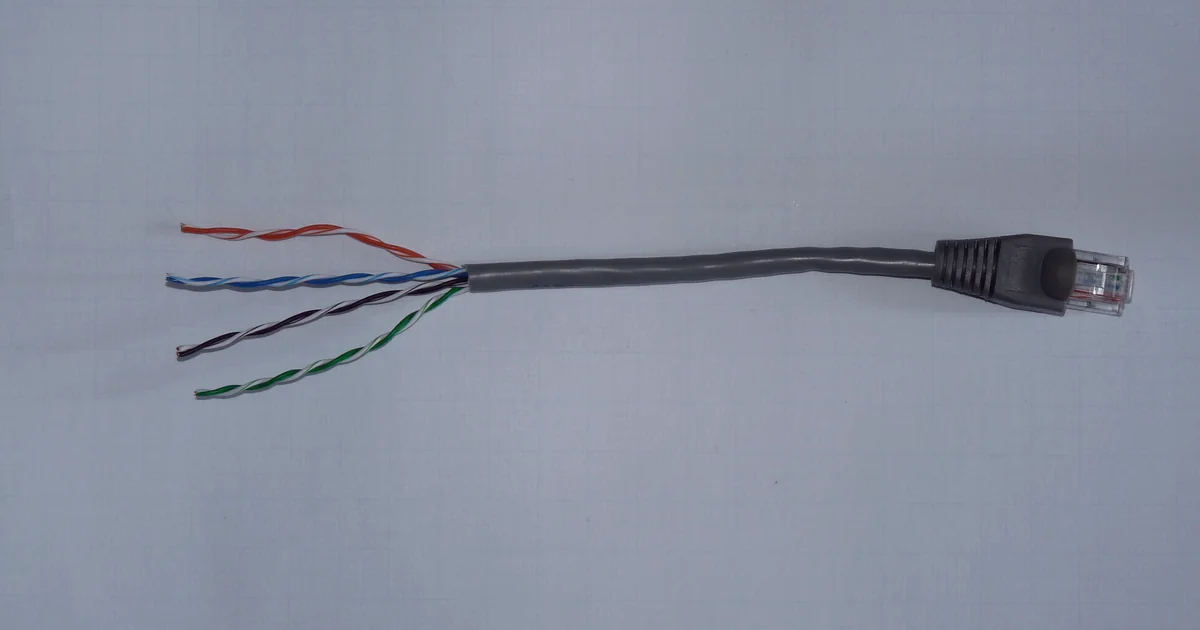
Inspect the cable ends and make sure the plug latches securely. A cable with exposed pairs, crushed insulation, or a loose connector is a test prop, not a known-good baseline. Swap one component at a time. If Ethernet repeatedly fixes the pattern, continue with the packet loss on Wi-Fi but not Ethernet guide.
Pause uploads, downloads, and launcher updates
Pause game updates, cloud backup, livestreaming, file sync, large downloads, and camera uploads across the household. Then play one quiet-network match and one match under normal use.
Uploads are easy to miss. When the upstream queue fills, small game packets can wait behind photos, video, or a stream even when a speed test advertises plenty of download bandwidth. If quiet traffic repeatedly clears the connection icon, limit the transfer in its own app or use the router maker’s documented queue-management feature. Record the original setting before changing it.
Do not blindly forward ports or disable the firewall for packet loss. NAT and firewall trouble more often affects joining, voice, or establishing a session. A match that connects normally and then rubberbands needs evidence from the active connection. Our packet loss when uploading test gives a cleaner idle-versus-load comparison.
Test the local link before reading the wider route
On a Windows PC using the same router, find the default gateway and run a continuous ping during the bad period. Replace the example with the gateway shown by ipconfig:
ping -t 192.168.1.1Loss or large delay jumps to the first hop point toward the PC, Wi-Fi, cable, adapter, switch, or router side. A clean gateway makes the wider path more interesting, but it does not prove every internet destination is clean.
Next, compare a stable public destination:
pathping /n 1.1.1.1Microsoft says pathping measures latency and response loss across intermediate routers over time. Read the destination and the pattern across later hops. Do not blame one intermediate router just because it ignores or limits diagnostic replies while later hops continue normally.
This public test is not the Siege match server. It can reveal a local or general ISP problem, but a clean result cannot clear a separate game route. Avoid publishing game-server IP addresses or packet captures that contain personal traffic. Give support timestamps, platform, region, screenshots, and repeatable comparisons instead.
Test another route only after the local path is stable
A tunnel changes the path between you and the data centre. It may help when the direct ISP route is the faulty layer. It may also add distance, overhead, or another unstable hop. It cannot repair weak Wi-Fi, a damaged cable, a full upload queue, low frame rate, or a Ubisoft incident.
Compare direct, one nearby tunnel endpoint, then direct again. Keep the centre, mode, and time close, and use multiple matches. Judge the connection icon and repeatability, not one lucky scoreboard number. The does a VPN lower ping test explains this A/B/A method.
LagZero is still pre-launch. If you want another route to compare when access opens, join the waitlist. No promised fix, just another controlled test when routing is the actual suspect.
FAQ
Why does Rainbow Six Siege show packet loss when my speed test is good?
A speed test usually measures throughput to a nearby test server. Siege uses another destination, protocol, route, and moment. Wi-Fi interference, queueing, or a game-specific path can disrupt timely packets while a short download test still looks fast.
Does changing DNS fix Rainbow Six Siege packet loss?
Usually not during an active match. DNS translates names while a connection is being established. It can help when name resolution is broken, but it does not normally reroute or recover packets already traveling to the match server.
Can a VPN fix Rainbow Six Siege packet loss?
Sometimes, if the direct ISP route is the problem and the tunnel uses a cleaner path. It can also make loss or latency worse. Stabilize the local connection first, then compare direct, one nearby endpoint, and direct again across several matches.
Is high ping the same as packet loss in Rainbow Six Siege?
No. High ping means packets take longer to make the round trip. Packet loss means some expected traffic does not arrive. They can happen together, but the latency and connection icons point to different first tests.
Should I port forward to fix Siege packet loss?
Not as a first step. Port and NAT problems usually affect establishing sessions, matchmaking, or voice features. If you already enter matches and then see the connection icon, test Ethernet, household traffic, the data centre, and route evidence before changing firewall or router exposure.
Sources
- Ubisoft Help: Troubleshooting connectivity issues in Rainbow Six Siege
- Ubisoft Help: Information about data centres for Rainbow Six Siege
- Ubisoft: Ping abuse, peeker’s advantage, and connectivity icons
- Microsoft Learn: pathping
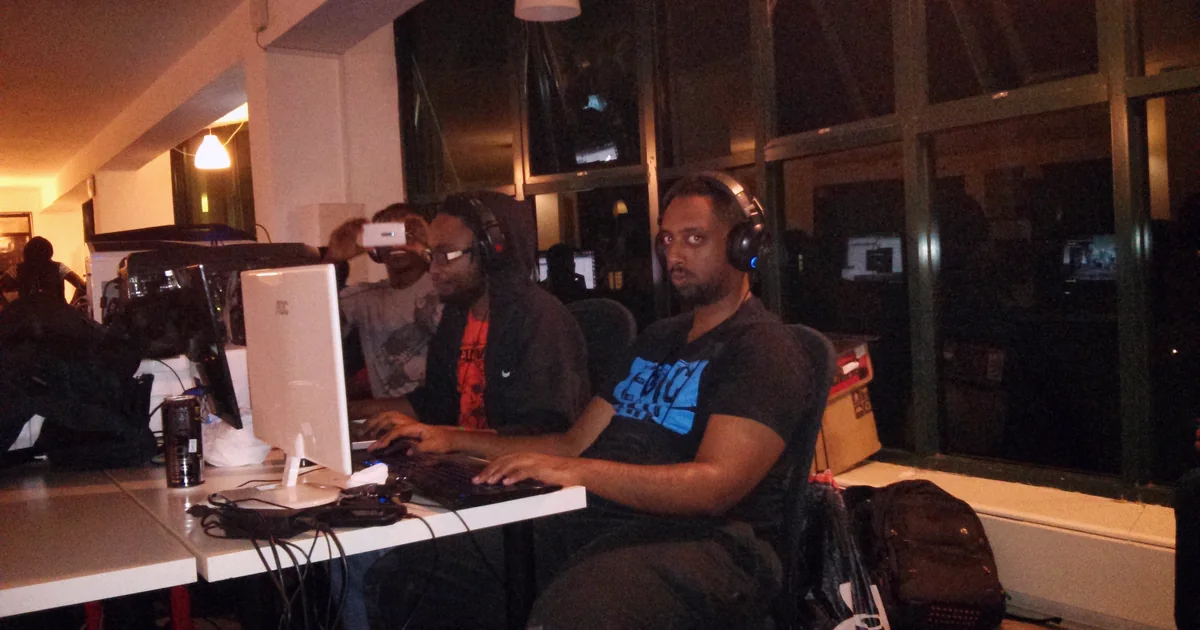
IMAGE CREDITS Kenyan gamers at a LAN party.jpg by Hilary Murugu (CC BY-SA 4.0); cropped and color-graded by LagZero. · Ethernet cable.JPG by Dmitry G (CC BY-SA 3.0); cropped and color-graded by LagZero.