
A reliable Dota 2 high ping fix starts with turning on Display Network Information in Settings > Options > Advanced Options and checking your Server Regions on the Play Dota menu before queueing. Confirm your true millisecond round-trip time in a regional Custom Lobby rather than local Demo Hero mode, open the console (-console) to run status or net_connections_stats and inspect your Valve Steam Datagram Relay (SDR) hop, plug your PC directly into the router with an Ethernet cable, pause Steam and household uploads, and compare Hop 1 against ISP transit with pathping before testing a gaming VPN.
Checked against current Steam Support Dota 2 performance and network troubleshooting guidance, Valve Steamworks Steam Datagram Relay (SDR) documentation, Steam required network ports reference (UDP 27000 to 27100, 27015 to 27068, 4380, and 3478), and IETF RFC 8290 FQ-CoDel queue management standards on November 5, 2026.
IN THIS GUIDE
- Turn on Dota 2 network telemetry and verify your matchmaking regions
- Inspect Valve Steam Datagram Relay (SDR) routing in the Dota 2 console
- Plug directly into the router with Ethernet and stop local bufferbloat
- Compare Hop 1 against ISP transit with ping and pathping
- When a gaming VPN can help Dota 2 high ping
- FAQ
- Sources
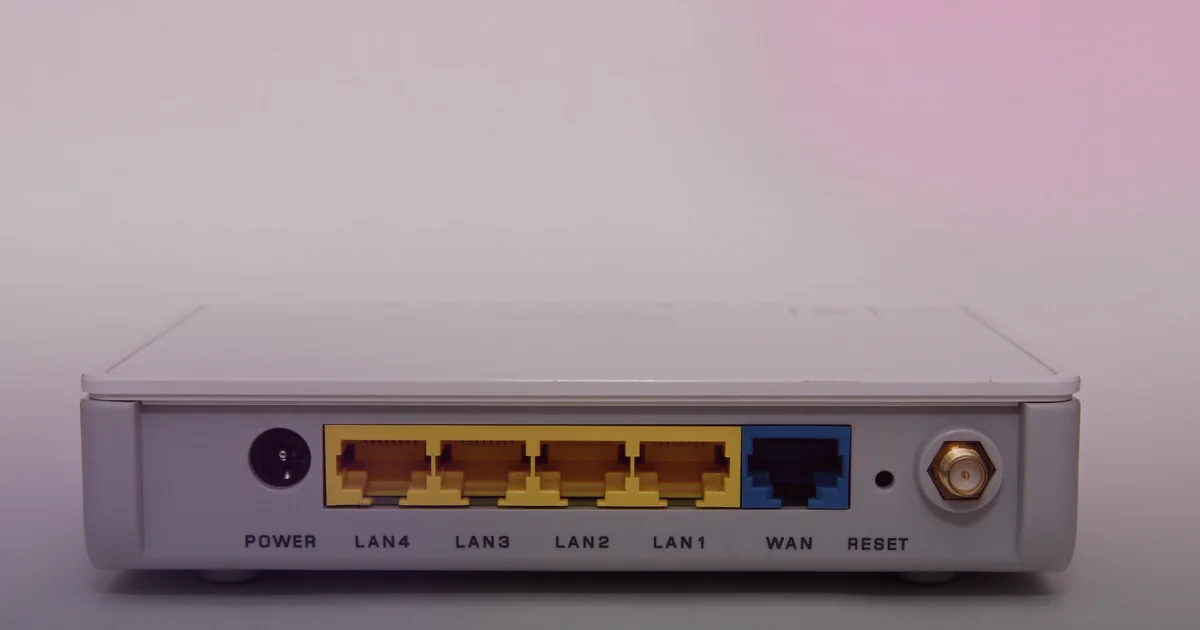
A real Dota 2 high ping fix separates server distance, Wi-Fi jitter, and household upload queues from an indirect ISP route into Valve’s relay backbone. When ping climbs from 28 ms to 145 ms, Dota 2’s server-authoritative 30 Hz tick rate (33.3 ms per tick) and hero turn rates make every last hit, blink initiation, and Black King Bar reaction feel delayed.
Before pasting outdated autoexec.cfg commands or flushing DNS, measure what the Dota 2 client is doing. Work through the checks below in order to test one network layer at a time.
Turn on Dota 2 network telemetry and verify your matchmaking regions
Turn on Dota 2’s live network counter and make sure the matchmaker is not placing you on a distant server:
- Enable the readout: Open Settings > Options > Advanced Options and check Display Network Information under Miscellaneous to watch live
Ping(ms),FPS, andLoss(In / Out). - Audit Server Regions: Click Play Dota and open Regions at the bottom right. Uncheck Auto if it selected distant regions. Keep only your closest regional clusters (US East, Europe West, or SE Asia).
- Check party regions: Dota 2 uses the party leader’s region list. Queuing across continents puts part of your group onto a high-ping server.
- Test in a Custom Lobby, never Demo Hero: Demo Hero runs a local loopback server on your PC at
0 msping. To test real latency without risking MMR, open Play Dota > Create Lobby, click Edit, set Server Location to your region, and start the lobby.
| Dota 2 telemetry | Likely cause | First step |
|---|---|---|
Steady 110 ms to 220 ms ping, 0 / 0 loss |
Far region or indirect ISP route to SDR relay | Check Regions and inspect SDR codes in console |
Ping jumping (30 ms to 160 ms) |
Wi-Fi airtime contention or roaming | Plug PC into router with Ethernet |
| Ping climbing during downloads | Upload or download queue saturation (bufferbloat) | Pause transfers and enable router SQM |
Normal ping (35 ms) with Loss above 0% |
Dropped UDP packets rather than latency | Follow our Dota 2 packet loss fix |
| Smooth Demo Hero, laggy Custom Lobby | Demo Hero runs locally on your PC | Test inside a regional Custom Lobby |
Inspect Valve Steam Datagram Relay (SDR) routing in the Dota 2 console
Dota 2 routes matches through Steam Datagram Relay (SDR), a private network of relay Points of Presence (PoPs) rather than raw public gameserver IPs. Your PC connects over UDP to a nearby entry SDR relay, and Valve carries packets across its backbone to the gameserver cluster.
Sometimes Dota 2 high ping but fast internet happens because your ISP hands traffic off to a distant entry relay (iad in Virginia instead of ord in Chicago, or hkg in Hong Kong instead of sgp in Singapore) due to a congested peering exchange:
- Enable the console: Right-click Dota 2 in Steam, open Properties > General, and add
-consoleto Launch Options. - Inspect your active SDR relay: Enter a regional Custom Lobby or spectate a live match in Watch. Press
\or~and runstatusornet_connections_stats. - Read the relay breakdown: The console lists the three-letter code of the front relay your ISP reached first, the gameserver relay hosting the match, and the latency on each leg.
If latency between the front relay and the gameserver is low, but your first-mile ping to the front relay is inflated by 50 ms to 90 ms, the delay sits between your router and your ISP’s handoff to Valve. In Settings > Options > Advanced Options, also check Network Quality: use I have a High-end Network on stable wired broadband, or I have a Low-end Network on constrained lines so teamfight snapshots do not queue in your modem buffer. Confirm your firewall allows outbound UDP 27015 to 27068, 27000 to 27100, 4380, and 3478.
Plug directly into the router with Ethernet and stop local bufferbloat
Most sudden ping spikes from 32 ms to 150 ms mid-teamfight start inside the home network:
- Plug your PC directly into a router LAN port with an Ethernet cable. Wi-Fi is half-duplex: only one device on a channel transmits at a time, so your wireless card waits whenever another device broadcasts. Disable Wi-Fi while testing Ethernet, and bypass powerline adapters or mesh extenders. If ping flattens out on Ethernet, read our why ping is high on Wi-Fi but not Ethernet guide.
- Block Steam updates and background uploads. Fast fiber or cable can suffer from bufferbloat when a transfer fills the router queue. Open Steam > Settings > Downloads and disable Allow downloads during gameplay. Pause cloud sync, torrents, and screen shares.
- Enable router queue management. If ping jumps by
40 msto150 msduring downloads, enable Smart Queue Management (SQMwithFQ-CoDelper RFC 8290, orCake) on your router and cap bandwidth at90%of line speed. See our ping spikes when downloading guide.
Compare Hop 1 against ISP transit with ping and pathping
When your matchmaking region is local, your PC is wired with Ethernet, and your home network is idle, persistent high ping points to your ISP’s access line or peering path. Run two Command Prompt checks on Windows:
- Run
ipconfigin Command Prompt and note your Default Gateway IP (192.168.1.1). - Ping your router (
ping -n 50 192.168.1.1) to verify your cable and LAN port. - Trace per-hop latency to a reference IP (
pathping /n 1.1.1.1).
Compare the results by hop:
- Hop 1 (your router) spikes above
3 msto5 mson Ethernet: Swap the cable, test another LAN port, or reboot the router. - Hop 1 stays at
1 ms, but Hop 2 or Hop 3 jumps by40+ ms: Congestion starts on your modem line or local ISP node. - Hops 1 through 3 are steady, but a middle carrier hop jumps in latency and stays high: Your ISP is routing traffic over a congested detour before reaching Valve’s SDR ingress node. Compare our high ping in games with good internet guide and our CS2 high ping fix.
Skip placebo fixes: changing Windows DNS (1.1.1.1 or 8.8.8.8) only affects domain lookups before a connection opens, not the live UDP relay path to Valve’s SDR network. Verifying game files or adding -high and -novid launch options will not shorten round-trip time.
When a gaming VPN can help Dota 2 high ping
Test a gaming VPN only after confirming your local Ethernet hop is steady and your selected Dota 2 region is close:
- When a gaming VPN may help: Your wired gateway ping stays near
1 ms, household traffic is idle, and Dota 2’s console shows your ISP taking an indirect path or picking a distant entry SDR relay during peak hours. If a nearby VPN node peers more directly with Valve’s local SDR Point of Presence, round-trip time can drop closer to baseline. Verify with an A/B test in a Custom Lobby using our guide on whether a VPN lowers ping. - When a gaming VPN cannot help: No tunnel can beat physical distance to another continent, fix Wi-Fi, cure upload bufferbloat, or resolve a Valve Game Coordinator outage.
LagZero is pre-launch and built for casual gamers who want honest route testing without fake zero-lag claims. If your wired line is clean at 1 ms but evening ISP peering inflates your route to Valve’s SDR relays, join the LagZero waitlist.
FAQ
Why is my Dota 2 ping so high when my internet speed test is fast?
Speed tests measure bulk bandwidth to a nearby server, while Dota 2 ping measures millisecond round-trip time for small UDP packets sent to Valve’s SDR relays. Gigabit speeds can still show 140 ms in Dota 2 if you queued on a distant region, hit Wi-Fi jitter, saturated uploads, or took a congested ISP route.
Why do I have 0 ms ping in Demo Hero but high ping in real Dota 2 matches?
Demo Hero hosts a local loopback server on your own PC, so packets never leave your computer. Test real Dota 2 ping in a Custom Lobby with Server Location set to your closest matchmaking region, or by spectating a live match in Watch.
How do I check my Valve SDR relay server in Dota 2?
Add -console to Dota 2’s Launch Options in Steam, join a regional Custom Lobby or live match, press \ or ~ to open the console, and run status or net_connections_stats to view your entry SDR relay code, gameserver relay, and per-leg latency.
Does changing DNS to 1.1.1.1 or 8.8.8.8 lower Dota 2 ping?
No. DNS only resolves domain names before a connection starts. Dota 2 match traffic uses UDP packets routed through Valve’s Steam Datagram Relay (SDR) network using coordinates supplied by Steam, so changing DNS resolvers does not shorten your in-game packet path.
Can a gaming VPN fix high ping in Dota 2?
Only when high ping comes from a congested or indirect ISP peering route between your home network and the nearest Valve SDR entry relay. A VPN cannot reduce physical distance to a far matchmaking region, fix Wi-Fi spikes, or stop local download bufferbloat.
Sources
- Steam Support: Dota 2 Performance and Network Troubleshooting
- Valve Steamworks: Steam Datagram Relay (SDR)
- Steam Support: Required Network Ports for Steam
- IETF RFC 8290: FlowQueue-CoDel Packet Scheduler
- Microsoft Learn: pathping command
IMAGE CREDITS DreamHack 2015 Bucharest - StarLadder XII 18.jpg by IgorNazario (CC BY-SA 2.0); cropped and color-graded by LagZero. · Zyxel NBG-417N 04 back.JPG by MKFI (Public domain); cropped and color-graded by LagZero.