
Start your Deadlock high ping fix by turning on the Source 2 Telemetry HUD in Settings (or via the F7 developer console) to separate steady round-trip millisecond delay from jitter spikes, missed ticks, and local frame-time hitches. Next, verify whether a cross-region party host pulled your lobby onto a distant server, open the F7 console during a live match to inspect your active Valve Steam Datagram Relay (SDR) cluster with status or net_connections_stats, plug your PC directly into your router with an Ethernet cable, pause Steam and cloud uploads, and run ping beside pathping before testing a gaming VPN.
Reviewed against Valve Steam Support documentation for the Source 2 Telemetry HUD (Counter-Strike 2 and Deadlock), Steam Support Troubleshooting Network Connectivity, Steam Required Network Ports, Valve Steamworks Steam Datagram Relay documentation, and Microsoft Learn pathping documentation on November 17, 2026.
IN THIS GUIDE
- Turn on the Source 2 Telemetry HUD to separate high ping from jitter and FPS drops
- Check party geography and inspect your Valve SDR relay in the F7 console
- Switch from Wi-Fi to Ethernet and clear household bufferbloat
- Trace Hop 1 against your ISP route to Valve’s SDR relay
- When a gaming VPN helps Deadlock high ping (and when it makes ping worse)
- FAQ
- Sources
When enemy troopers deny your soul orbs before your shot registers, stamina dashes trigger late, or heavy melee parries fail in lane, you need a Deadlock high ping fix that measures where millisecond delay enters your connection instead of pasting outdated launch options. Deadlock runs hero movement, zip-line momentum, and projectile validation on Valve servers at 60 ticks per second (16.67 ms per tick), so high latency delays both your inputs and server snapshots.
Deadlock shares the Source 2 Telemetry HUD and Steam Datagram Relay (SDR) backbone with Counter-Strike 2 and Dota 2. Working through the checks below separates distant party matchmaking, Wi-Fi queuing, and upload saturation from an indirect ISP route into Valve’s relay network.
Turn on the Source 2 Telemetry HUD to separate high ping from jitter and FPS drops
Before changing Windows settings, enable Deadlock’s telemetry to see which metric spikes during a fight. According to Valve’s Source 2 Telemetry HUD documentation, Counter-Strike 2 and Deadlock use the same HUD to distinguish round-trip latency from packet misdelivery and hardware stalls:
- Open Settings > Game > Telemetry (or HUD Telemetry) and set Show Frame Time and FPS, Show Ping, and Show Network Problems to Always.
- Enable the Detailed Network Quality Display and Network jitter / misdelivery graph in the menu, or press
F7and run:
cl_hud_telemetry_ping_show 2
cl_hud_telemetry_net_detailed 2
cl_hud_telemetry_net_quality_graph_show 1
Watch the readout during a live match rather than the local Hero Sandbox:
- Steady high ping (
95 msto160 ms) with0%tick miss rate: Your connection is stable, but packets travel a long path to a distant region or across an indirect ISP route. - Ping jumping (
28 msto130 ms) with high Jitter (ms): Packets queue in bursts from Wi-Fi interference or household transfers. - Normal ping (
35 ms) with red up or down tick miss arrows: Packets arrive after the60 Hztick deadline or drop in transit. Pair this guide with our Deadlock packet loss fix to isolate missed ticks. - Frame time (
ms) spiking red while ping and miss rates stay flat: Your CPU, GPU, or shader compilation is hitching locally while your network is clean.
| Telemetry HUD reading | What is happening | First action to take |
|---|---|---|
Steady high ping (100+ ms), 0% miss |
Distant region, cross-region party, or ISP detour | Check party host geography and inspect SDR relay codes in F7 console |
Ping jumping + high Jitter (ms) |
Wireless contention or router bufferbloat queue | Plug into your router with an Ethernet cable and pause transfers |
| Up or down tick miss arrows turn red | Late or dropped UDP packets missing 60 Hz ticks |
Test Ethernet, check uploads, and see our Deadlock packet loss fix |
Frame time (ms) spikes red at steady ping |
Local hardware or shader stall, not internet lag | Lower video settings and check our low ping but still lagging guide |
Check party geography and inspect your Valve SDR relay in the F7 console
Deadlock carries match traffic over Valve’s Steam Datagram Relay (SDR) network, a private backbone of relay Points of Presence (PoPs). Instead of connecting to a raw server IP, your PC sends UDP packets to a nearby ingress SDR relay, and Valve routes them to the match server.
To see which server cluster and entry relay you are using:
- Queue into a live online match or Co-op Bot match (Hero Sandbox runs locally on your PC at
0 msand does not test internet routing). - Press
F7to open the console and runstatusornet_connections_stats. - Check the three-letter SDR cluster codes (
ordfor Chicago,iadfor Sterling,dfwfor Dallas,frafor Frankfurt,stofor Stockholm, orsgpfor Singapore), along with your front relay ping and total ping.
Keep three matchmaking rules in mind:
- Party geography: Queuing with friends on another coast or continent forces the matchmaker to pick one server cluster for the lobby, putting part of the group on higher ping.
- Console region commands: Guides often suggest typing
citadel_region_override(0for North America,1for Europe,2for Asia,3for South America,5for Oceania, or-1for automatic) in theF7console. Valve frequently restricts manual overrides during development, and matchmaking can ignore them based on IP latency or queue balance. - Buffering adds latency: Under Settings > Game, each tick of Buffering to smooth over packet loss / jitter adds about
16.7 msof extra latency on60 Hzservers. Leave it set to None on a stable wired connection.
Switch from Wi-Fi to Ethernet and clear household bufferbloat
If your F7 console shows a nearby server (ord or fra), yet ping spikes from 30 ms to 140 ms during teamfights, the bottleneck is usually inside your home network. In Steam Support’s Network Connectivity troubleshooting guide, Valve advises testing on a wired connection and closing bandwidth-heavy software:
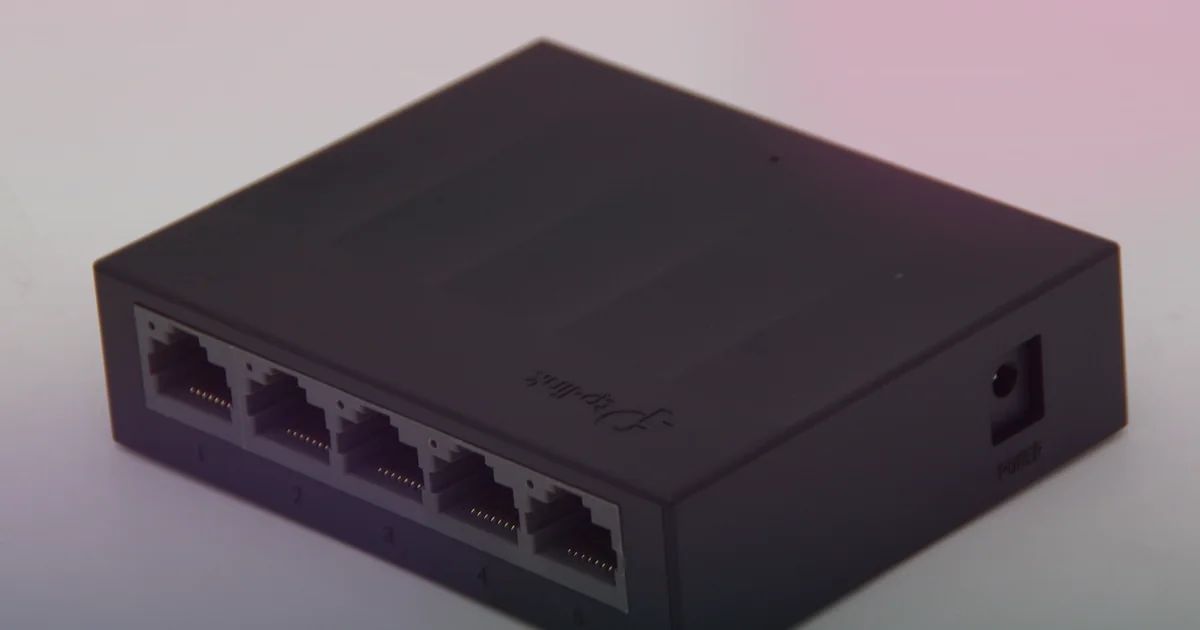
- Plug in an Ethernet cable: Wi-Fi is half-duplex, so only one device on a channel transmits at a time. Connect a Cat6 RJ45 cable from your PC to a router LAN port or Gigabit switch and disable Wi-Fi. See our high ping on Wi-Fi but not Ethernet guide.
- Stop background downloads and uploads: Deadlock sends and receives 60 UDP updates per second. Even fiber hits bufferbloat when Steam updates, cloud backups (OneDrive, Google Drive, iCloud), or streams fill your router queue. Uncheck Allow downloads during gameplay in Steam settings and read our ping spikes when downloading guide.
- Verify Steam UDP ports and disable “boosters”: Allow outbound traffic on Steam’s required network ports (UDP 27000 to 27250, UDP 27015 to 27050, UDP 3478, UDP 4379, and UDP 4380), and disable OEM packet shapers like Killer Control Center, Asus GameFirst, or cFosSpeed.
Trace Hop 1 against your ISP route to Valve’s SDR relay
Valve’s SDR network only controls the route after packets reach the first Steam relay. Your ISP controls the first-mile path from your home to that entry node. Steam Support notes that evening peak lag (5:00 p.m. to 11:00 p.m.) often points to ISP peering congestion.
Open Command Prompt, find your Default Gateway IP with ipconfig, and run a router ping beside Microsoft’s pathping command:
ping -n 100 192.168.1.1
pathping -n 1.1.1.1
Compare where the delay starts:
- Hop 1 (your router) spikes above
3 msto5 mson Ethernet: Your patch cable, switch port, powerline adapter, or router queue is adding delay inside your home. - Hop 1 stays at
1 ms, but Hop 2 or Hop 3 jumps by40+ ms: Congestion starts on your modem line or local ISP node. - Hops 1 to 3 stay low, but a middle-mile hop jumps by
40 msto90 msat night: Your ISP is taking a congested peering path before reaching Valve’s SDR ingress relay.
Skip placebo fixes: changing Windows DNS (1.1.1.1 or 8.8.8.8) only affects domain lookups, and old Source 1 commands like -tickrate 128 or cl_interp_ratio do not lower Deadlock ping.
When a gaming VPN helps Deadlock high ping (and when it makes ping worse)
Because Valve’s SDR backbone already selects low-latency relay paths, a standard VPN usually adds an extra hop and raises your ping. A gaming VPN only helps in specific routing failures:
- When it may help: Your wired Hop 1 ping is steady (
1 ms), uploads are idle, andF7console telemetry shows your ISP handing traffic to a distant entry SDR relay or spiking across a congested evening peering exchange. - When it cannot help: No VPN can beat physical distance to a far server, fix Wi-Fi interference, clear local download bufferbloat, or stop hardware frame-time stalls. Never use a VPN to spoof Steam Store regions or violate platform rules.
LagZero is in pre-launch testing and is not live yet. We are building it for casual gamers who want an honest A/B route test without fake “zero ping” promises. For early access when testing opens, join the LagZero waitlist.
FAQ
How do I see my ping and server relay in Deadlock?
Open Settings > Game > Telemetry and set Show Ping and Show Network Problems to Always. In a match, press F7 to open the console and run status or net_connections_stats to view your millisecond ping and three-letter Valve SDR cluster code.
Why is my Deadlock ping so high when my internet speed test is fast?
Speed tests measure bulk bandwidth to a local server, while Deadlock ping measures round-trip travel time for 60 UDP packets per second to Valve’s relays. Fast fiber can still show 120 ms if a party host pulls you into another region, Wi-Fi adds jitter, uploads cause bufferbloat, or your ISP hits peering congestion.
Why do I have 0 ms ping in the Deadlock Hero Sandbox but high ping in matches?
The Hero Sandbox runs on a local loopback server on your PC, so packets never cross the internet. Always test real Deadlock ping in an online match or Co-op Bot match routed through Valve’s SDR network.
Does the region override console command still lower ping in Deadlock?
Not reliably. While players sometimes enter citadel_region_override in the F7 console, Valve restricts or overrides manual region convars during development, and queuing in a cross-region party will still place part of the squad on a distant server.
Can a gaming VPN lower ping in Deadlock?
Usually no, because Valve’s SDR network already optimizes backbone routing. A gaming VPN only helps when your wired home network is clean (1 ms to your router) and hop tests confirm your ISP has congested first-mile peering to the nearest Valve SDR entry relay.
Sources
- Valve Steam Support: Source 2 Telemetry HUD (Counter-Strike 2 and Deadlock)
- Valve Steam Support: Troubleshooting Network Connectivity
- Valve Steam Support: Required Ports for Steam
- Valve Steamworks Documentation: Steam Datagram Relay (SDR)
- Microsoft Learn: pathping command reference
IMAGE CREDITS Air Force Gaming Tournament (7906478).jpg by U.S. Air Force photo by Airman 1st Class Zachary Jakel (Public domain); cropped and color-graded by LagZero. · TP-Link LS1005G.jpg by Piotr Doroszewski (CC BY 4.0); cropped and color-graded by LagZero.